Screenshot gallery
The product's own screens, grouped by area. Select a thumbnail to open the full image.
About this gallery
Every image here was captured from the product's own interface. Each one was inspected at review size, and any image with sensitive content was redacted on a copy or excluded. Images are grouped by the area of the product they show, and each carries a caption describing what it demonstrates.
The gallery is a record of real states, including empty states and not-running states, because those are part of the product too. Where a state is limited, the caption says so. Nothing here is a mock-up, a redesign or a composite.
Admin
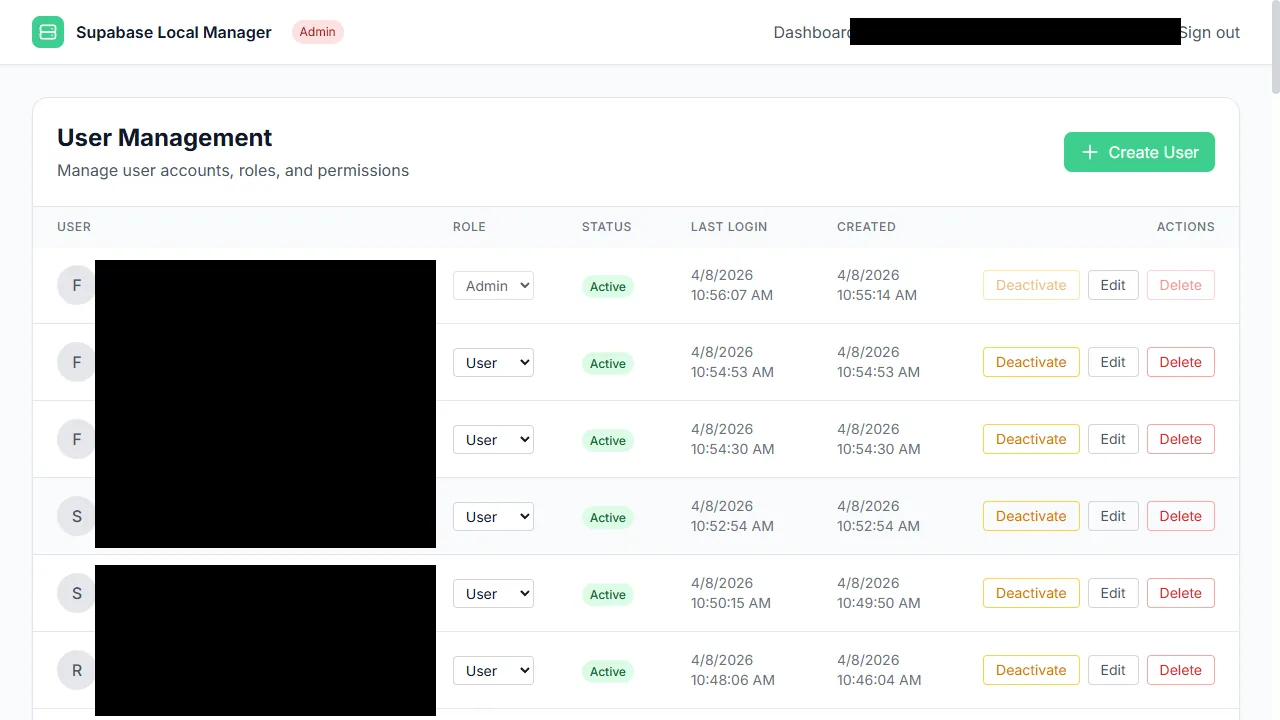
Manager accounts are managed from the admin area.
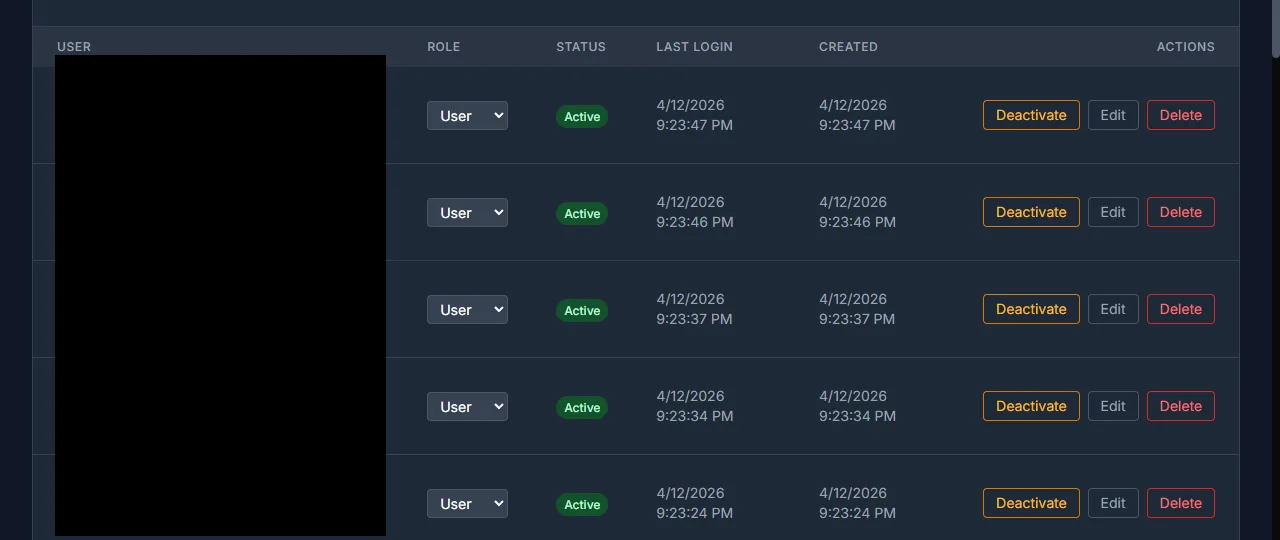
The manager user table showing accounts and roles. Identity columns are redacted.
Advisors
Performance findings surface optimisation opportunities.
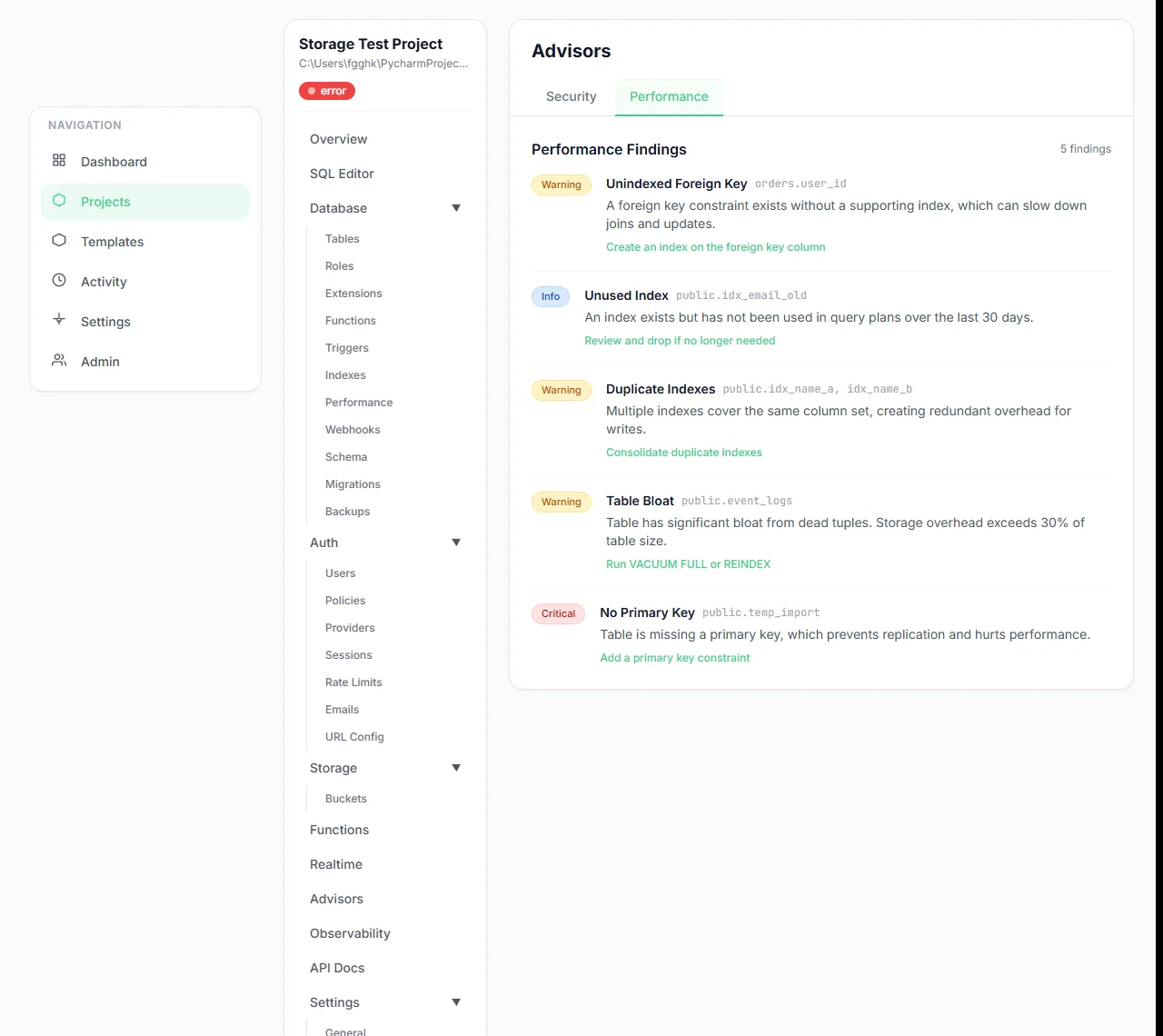
Performance findings are grouped and readable at length.
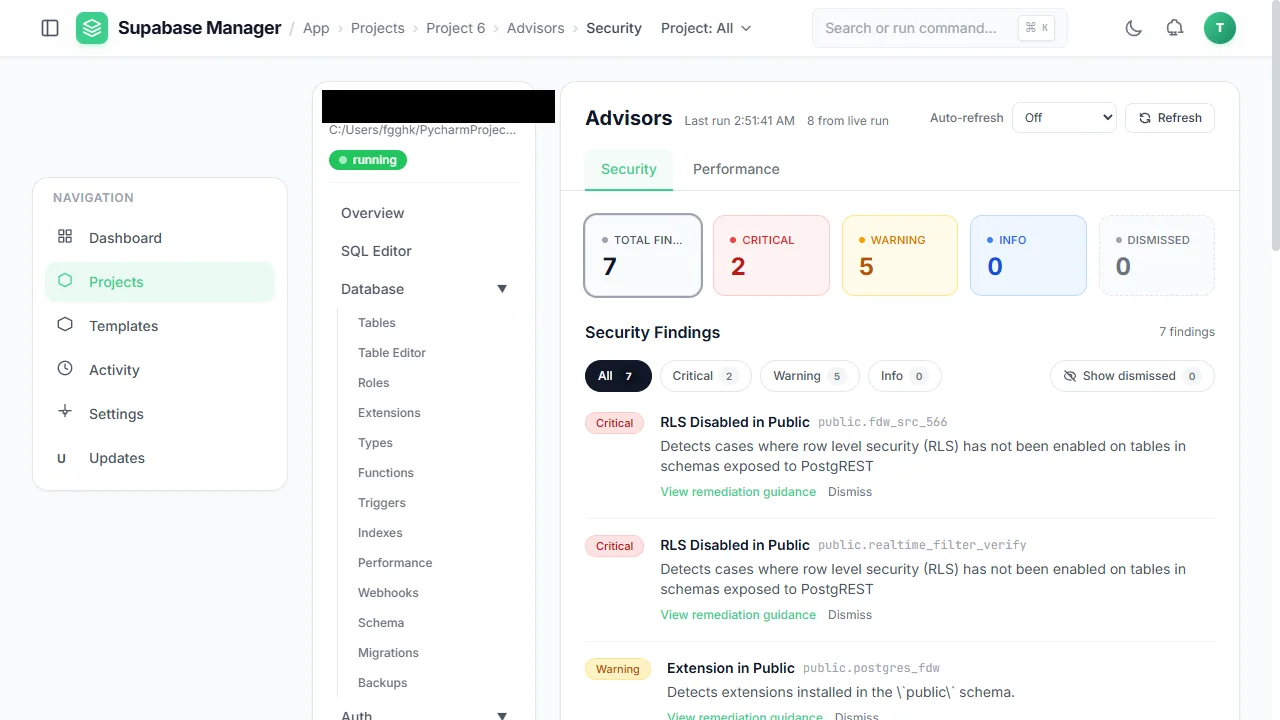
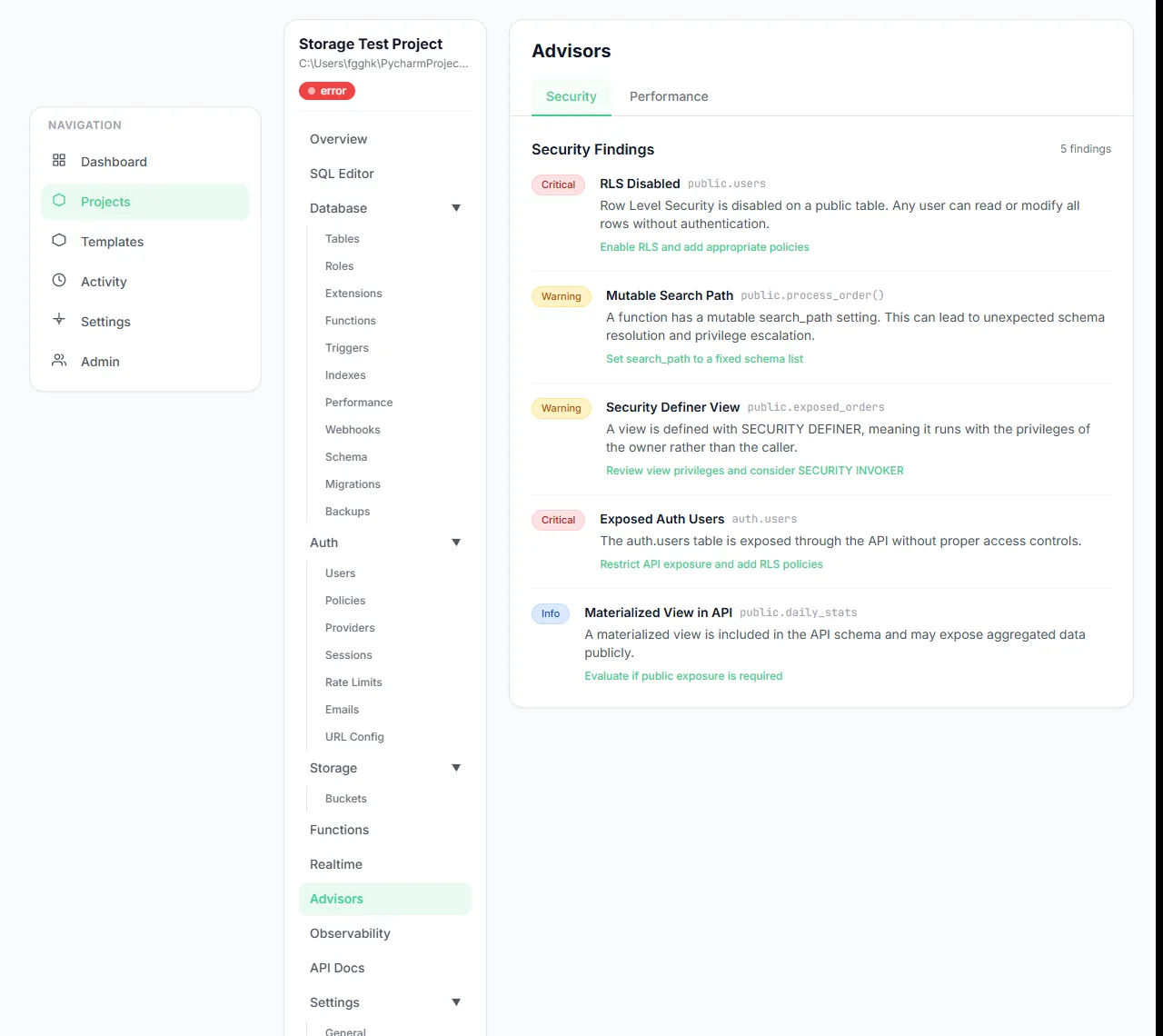
Advisors summarise security findings by severity and explain each one.
The advisors page keeps all findings in one place.
API docs
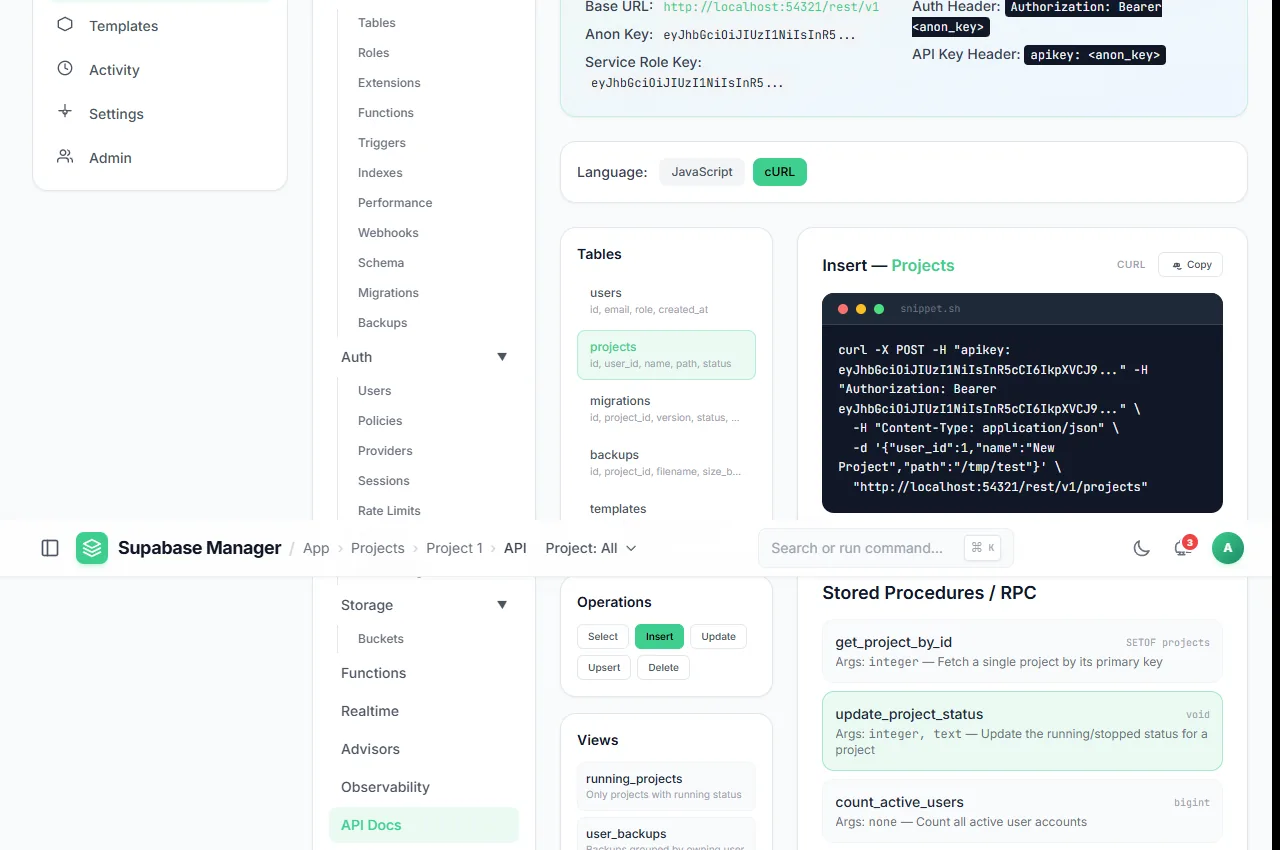
Endpoints are listed from the live OpenAPI document.
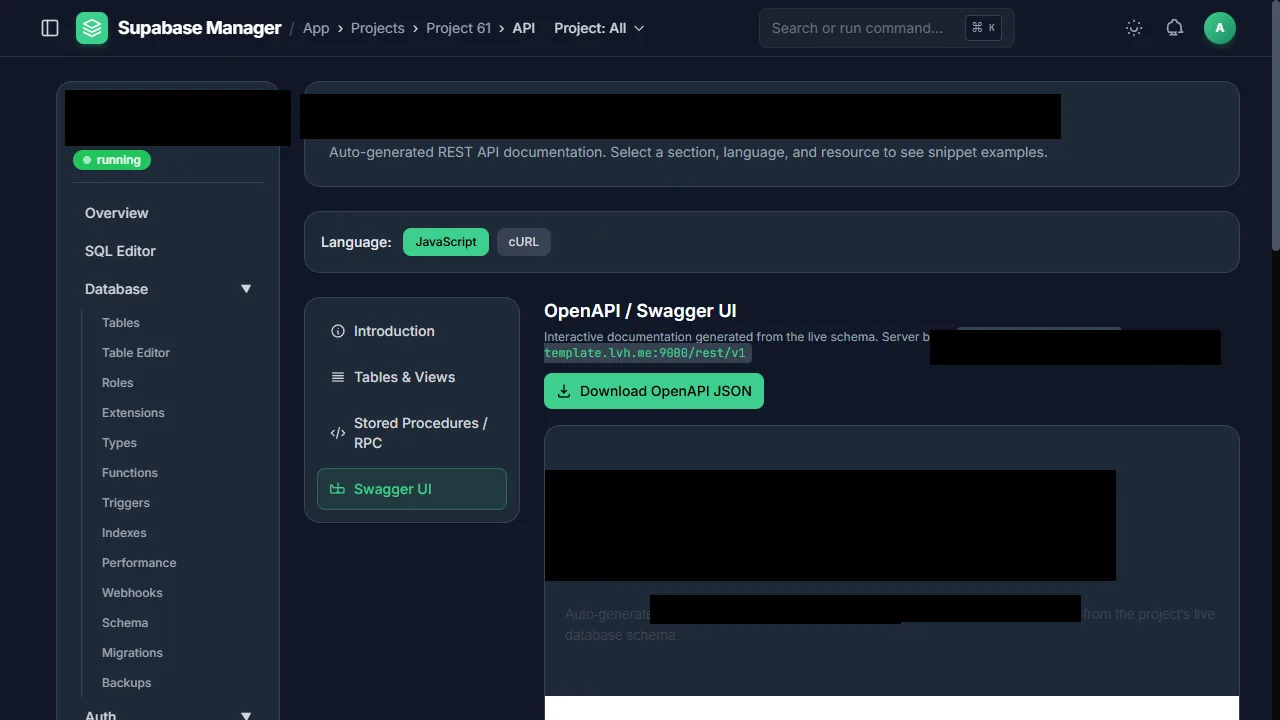
API documentation is generated from the project's live schema.
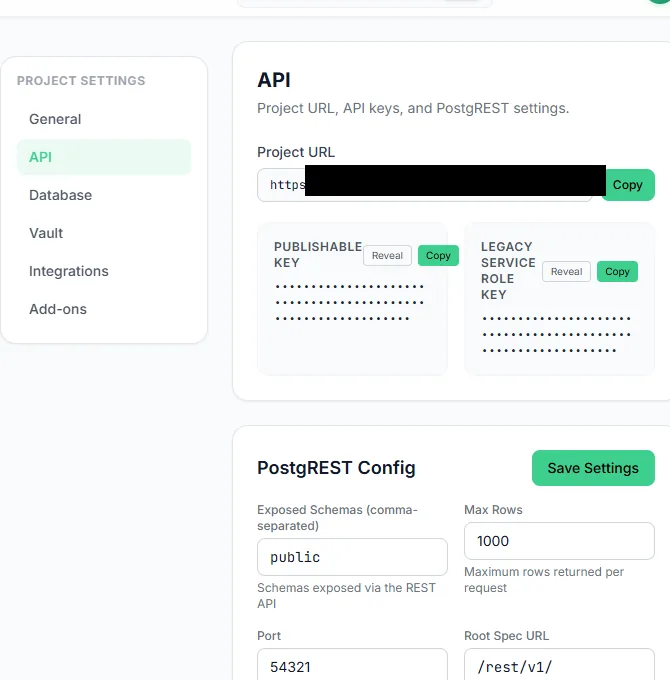
API keys stay masked until an administrator chooses to reveal them.
Auth
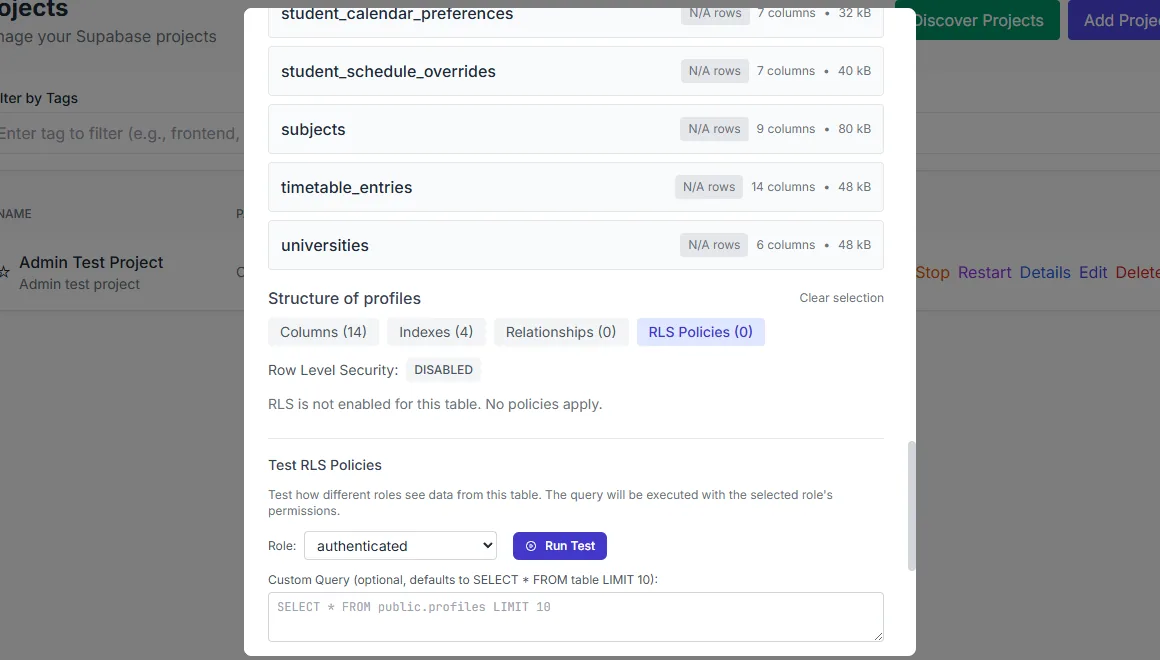
A row-level security test: choose a role, run a probe query and read the result.
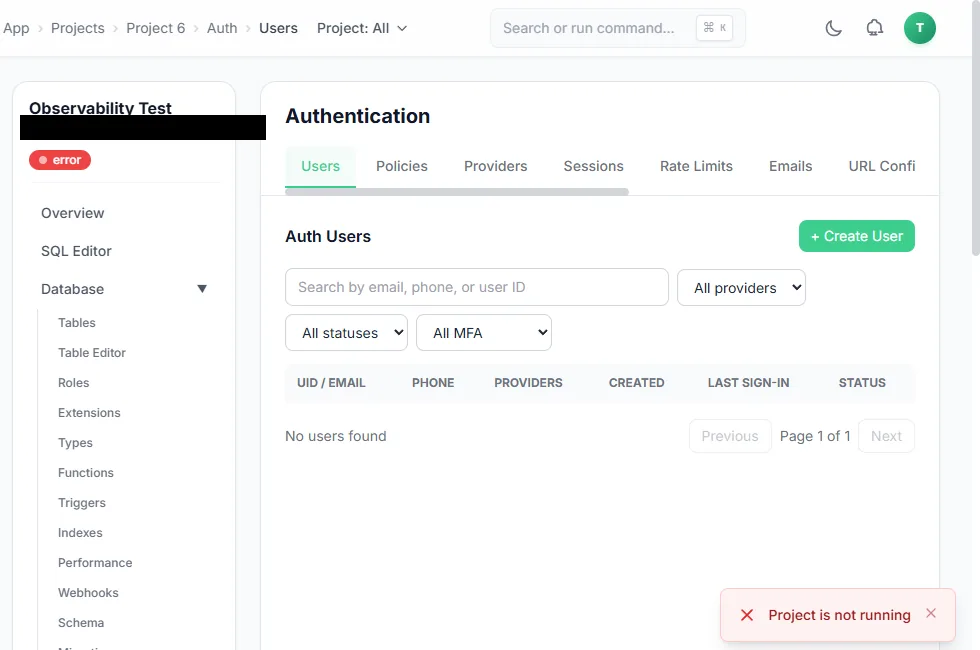
The Auth users tab while the project is stopped; the manager reports that the project is not running.
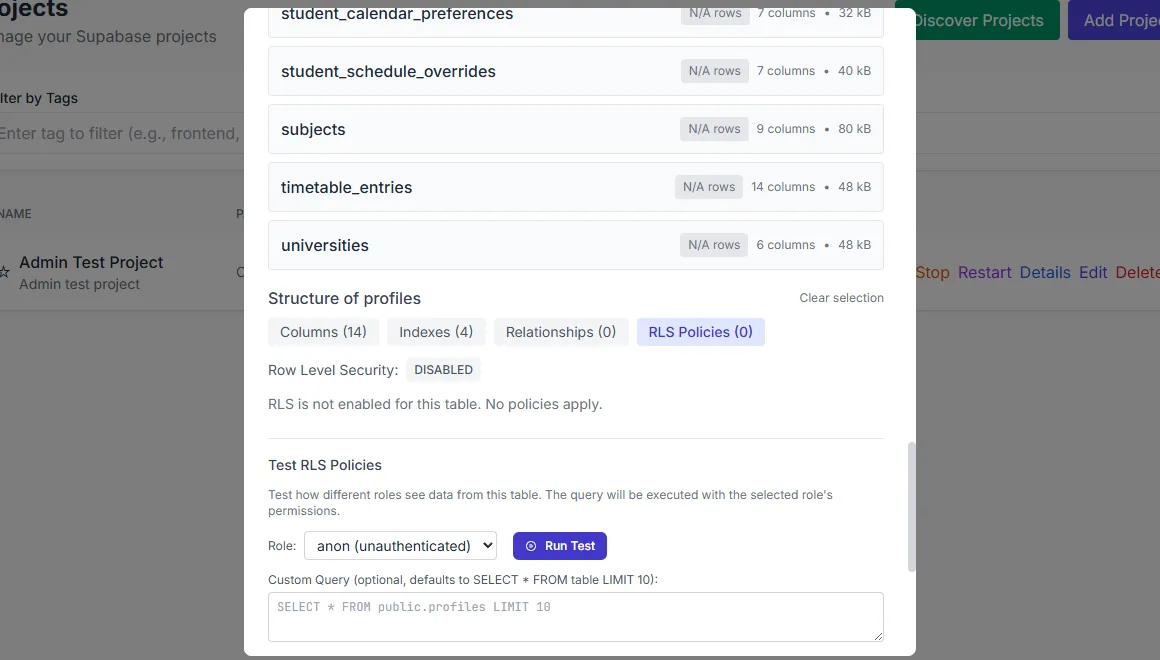
Policy tests can be run as the anonymous role as well.
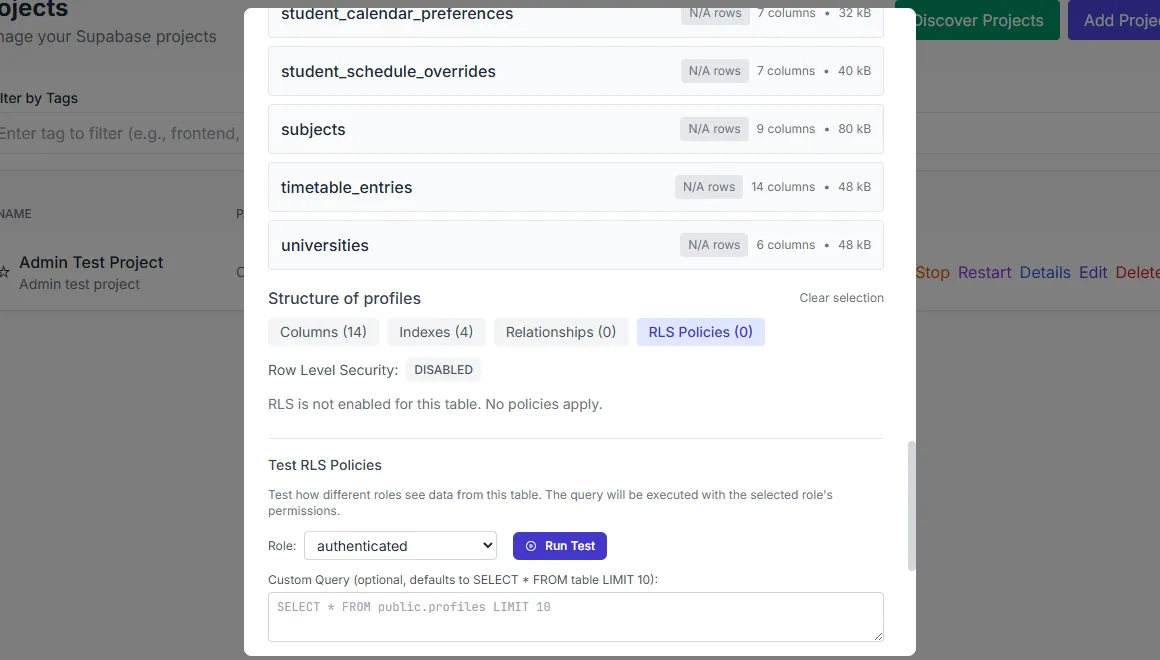
Row-level security can be inspected and tested against a chosen role.
Backups
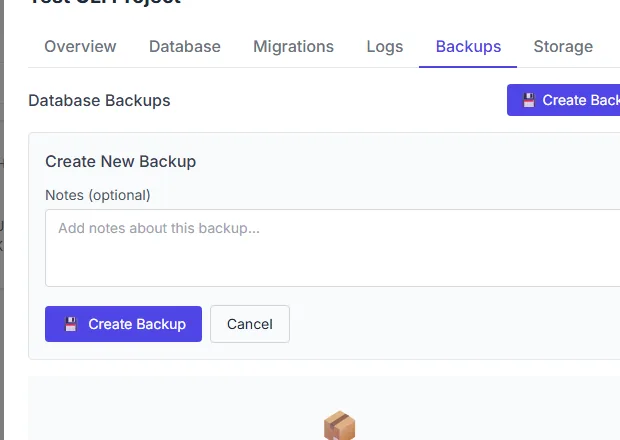
The create-backup dialog naming the backup before it is written.
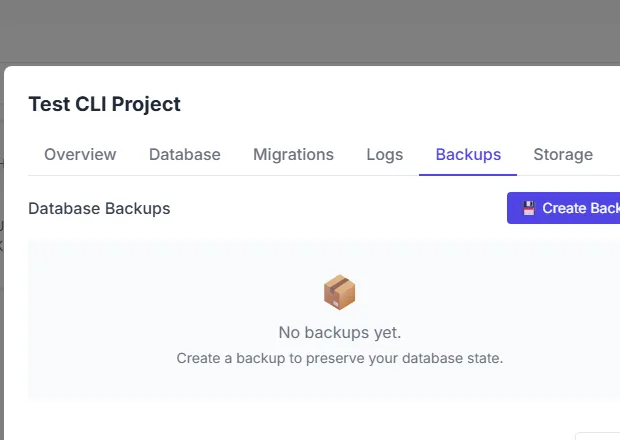
The Backups tab with no restore points yet and a Create Backup action.
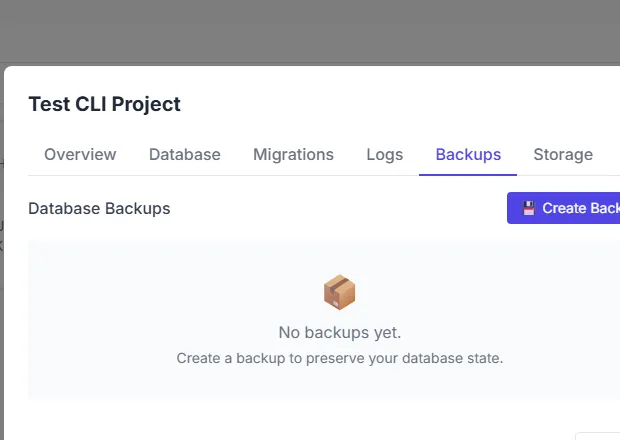
The Backups tab after the dialog closes; the list stays empty until a backup is written.
Dashboard
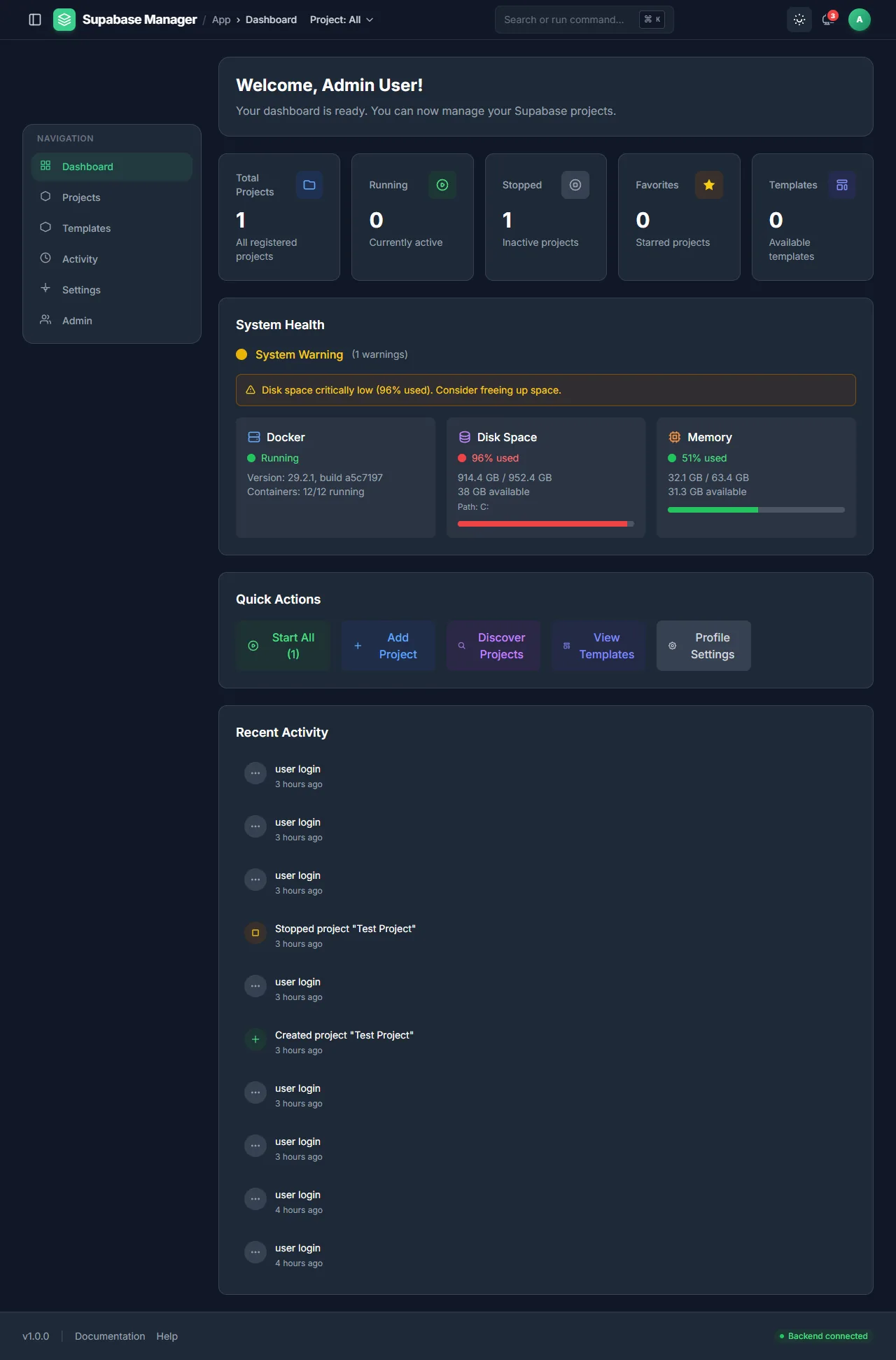
The control room: project counts, system health, quick actions and recent activity.
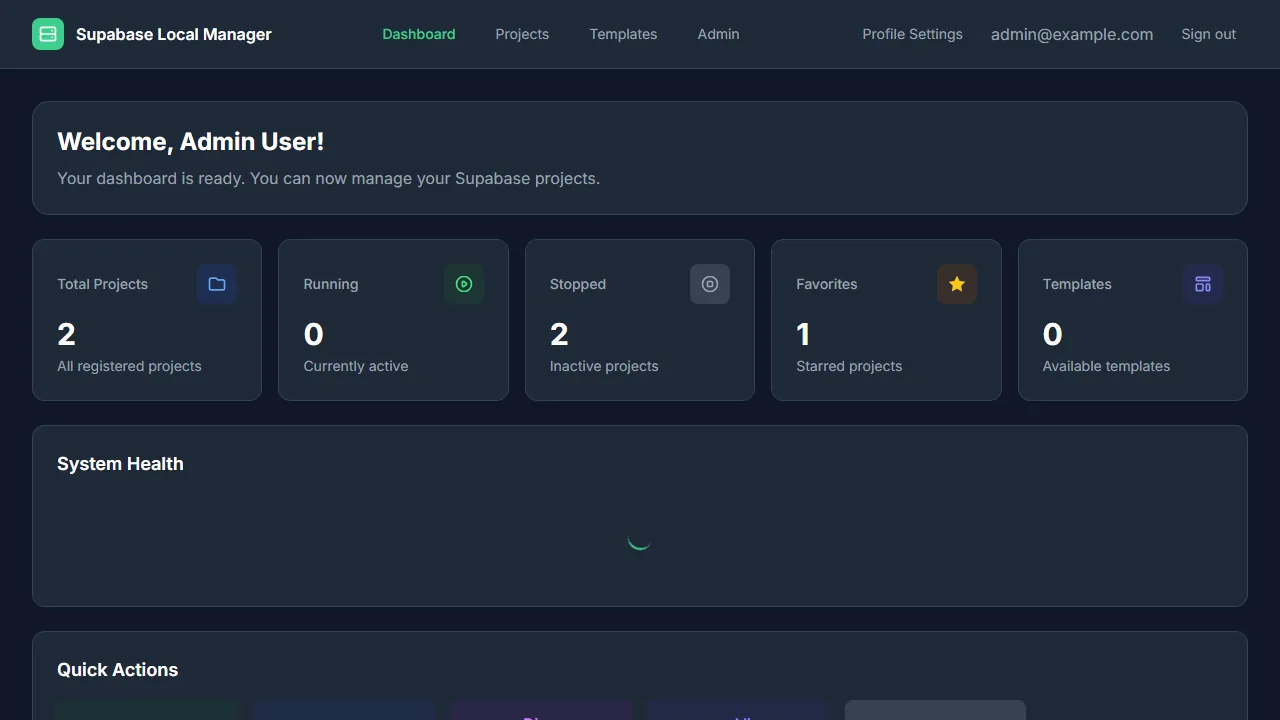
A compact view of every project and the most recent manager activity.
Favourites keep the projects you touch most within reach.
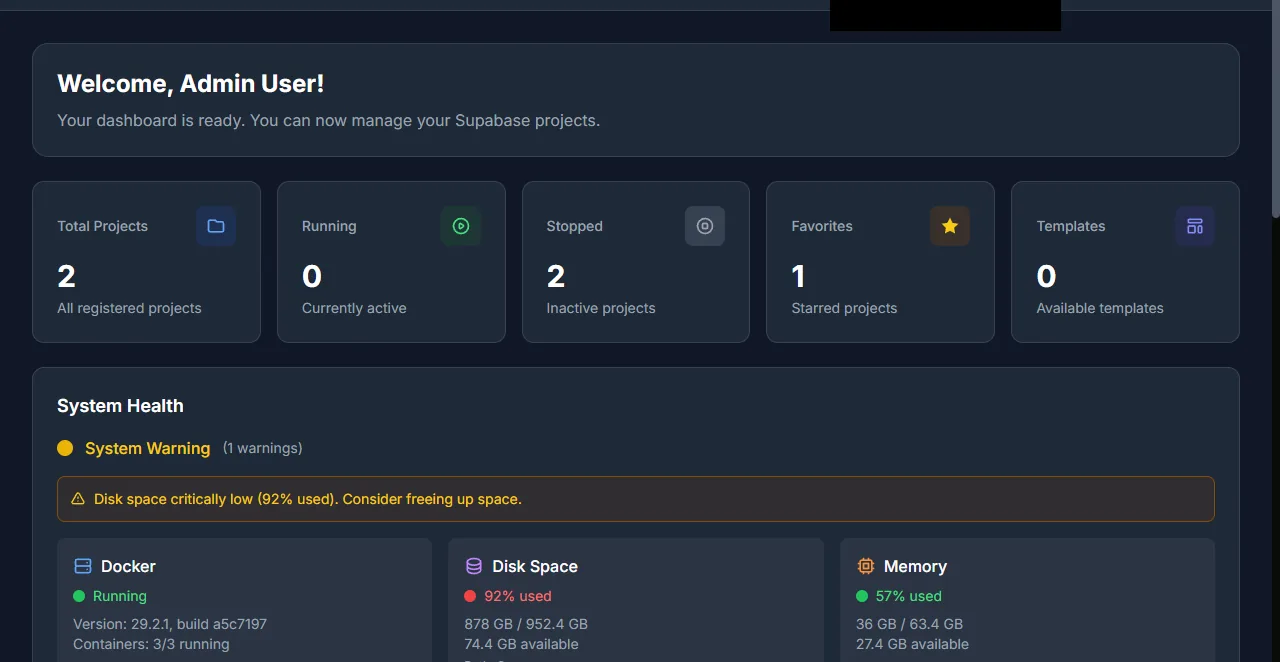
System health reports whether the manager can drive Docker and reach its own ports.
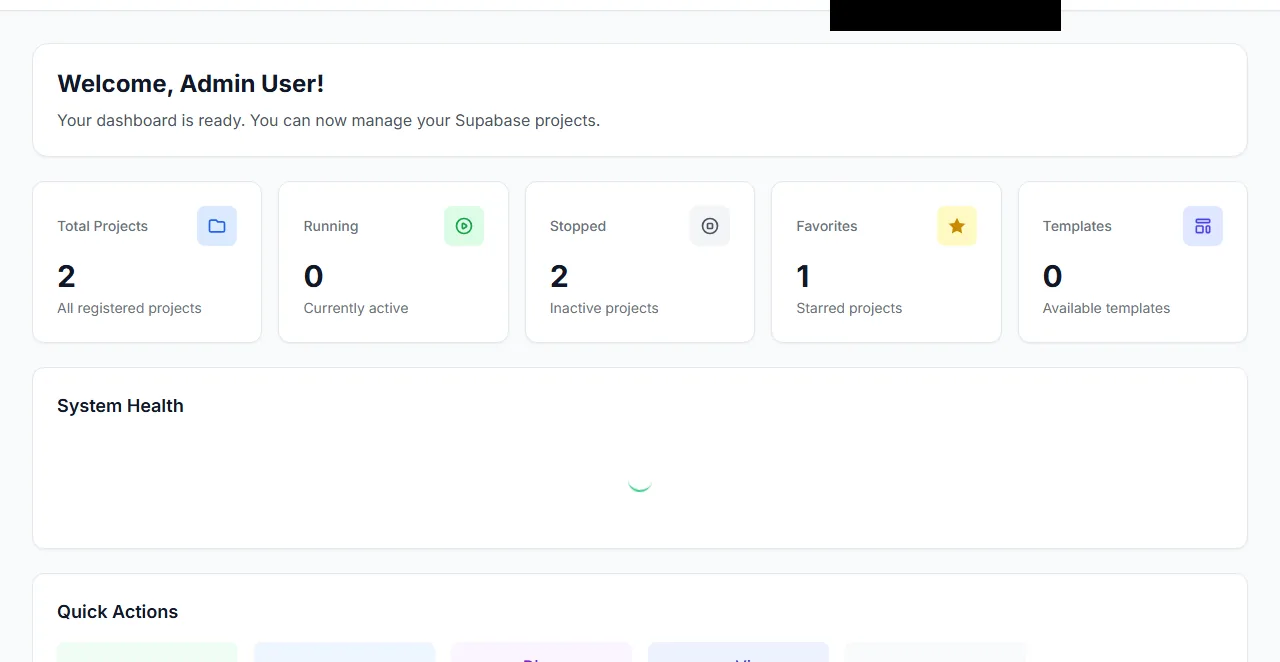
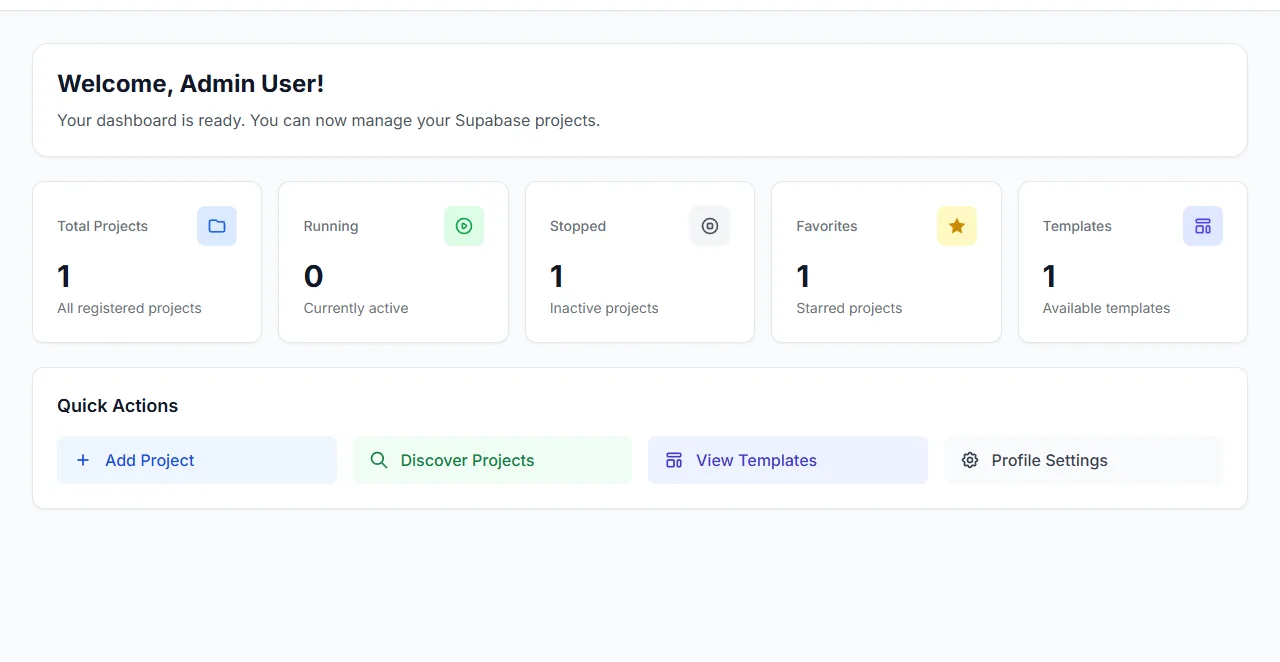
The same control room in light mode, persisted per user.
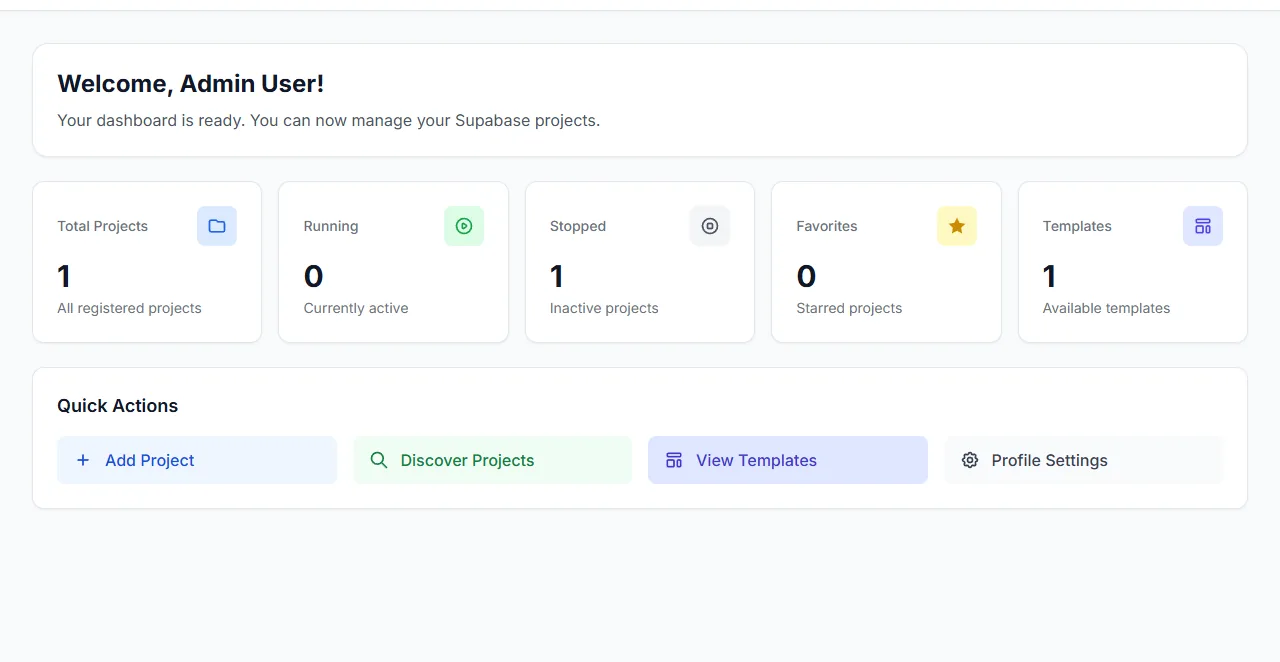
Project counts and system health, visible at a glance.
Database
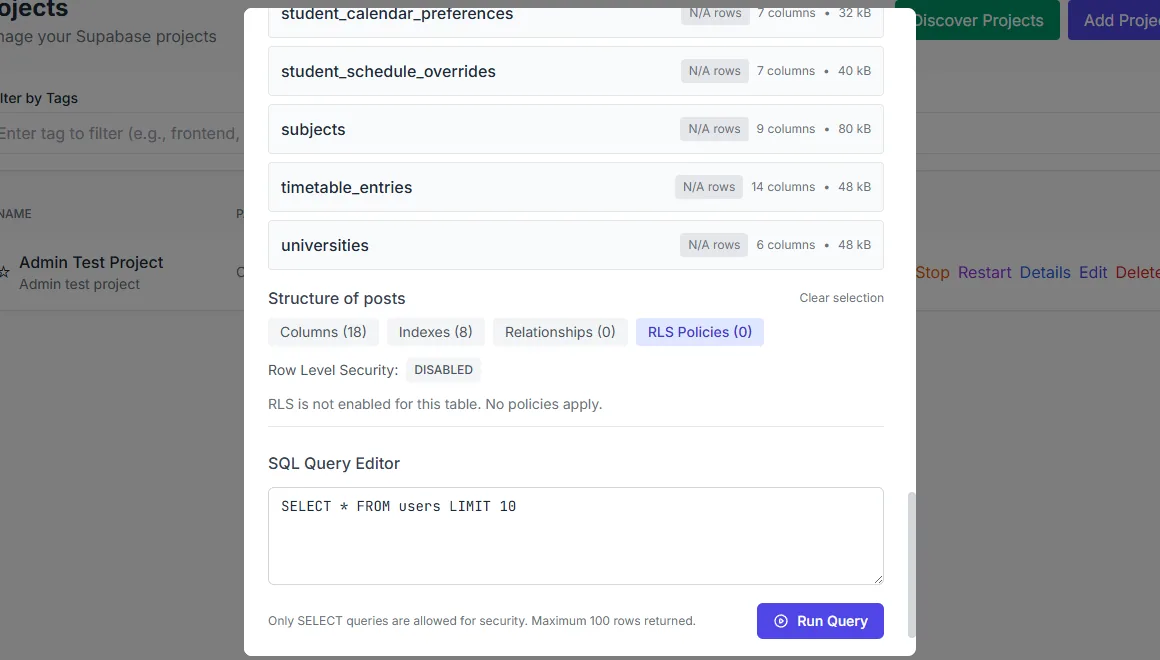
RLS policies can be read and edited per table.
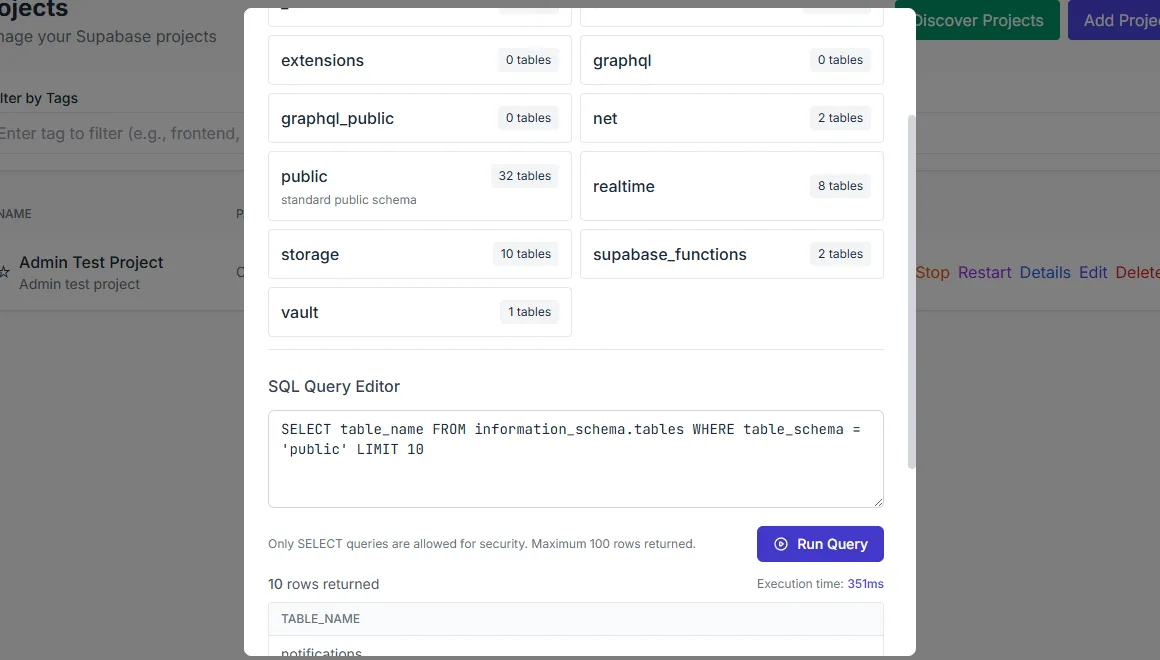
Query results render in a virtualised grid.
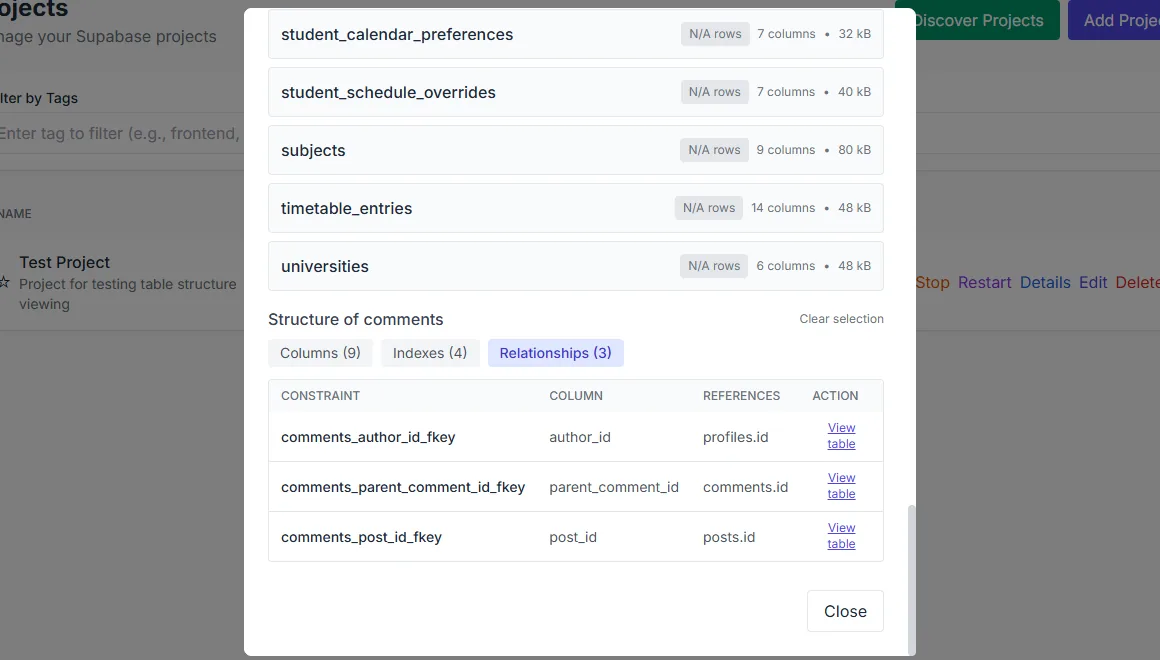
Relationships between tables are visible in the structure view.
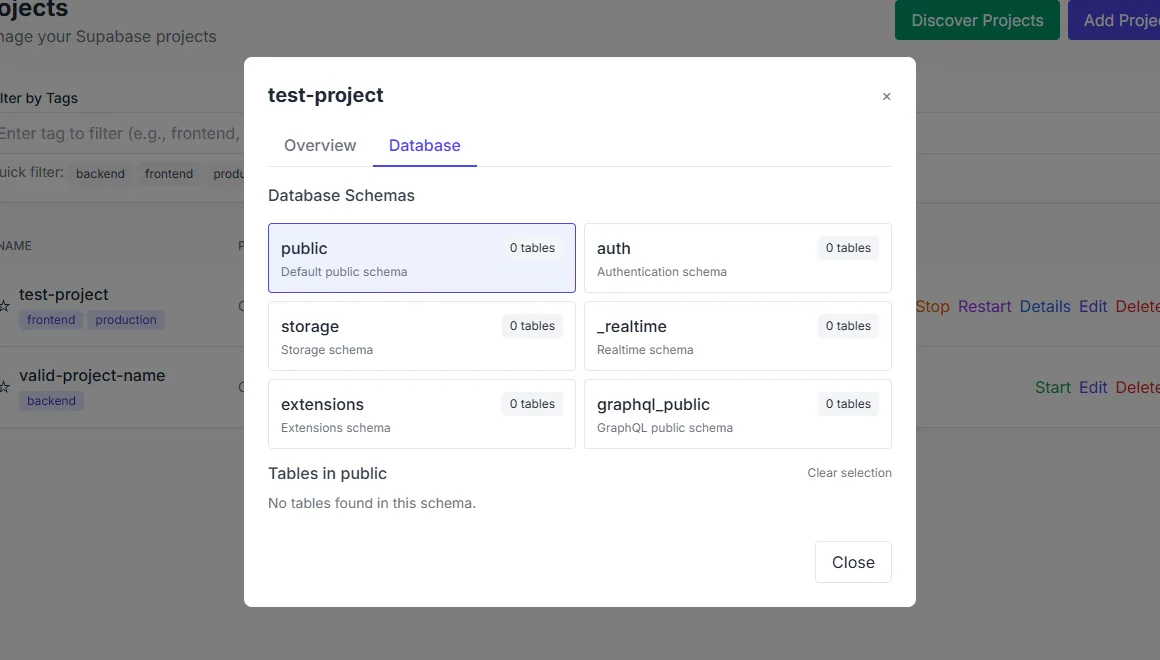
The schema tree narrows the table list to one schema.
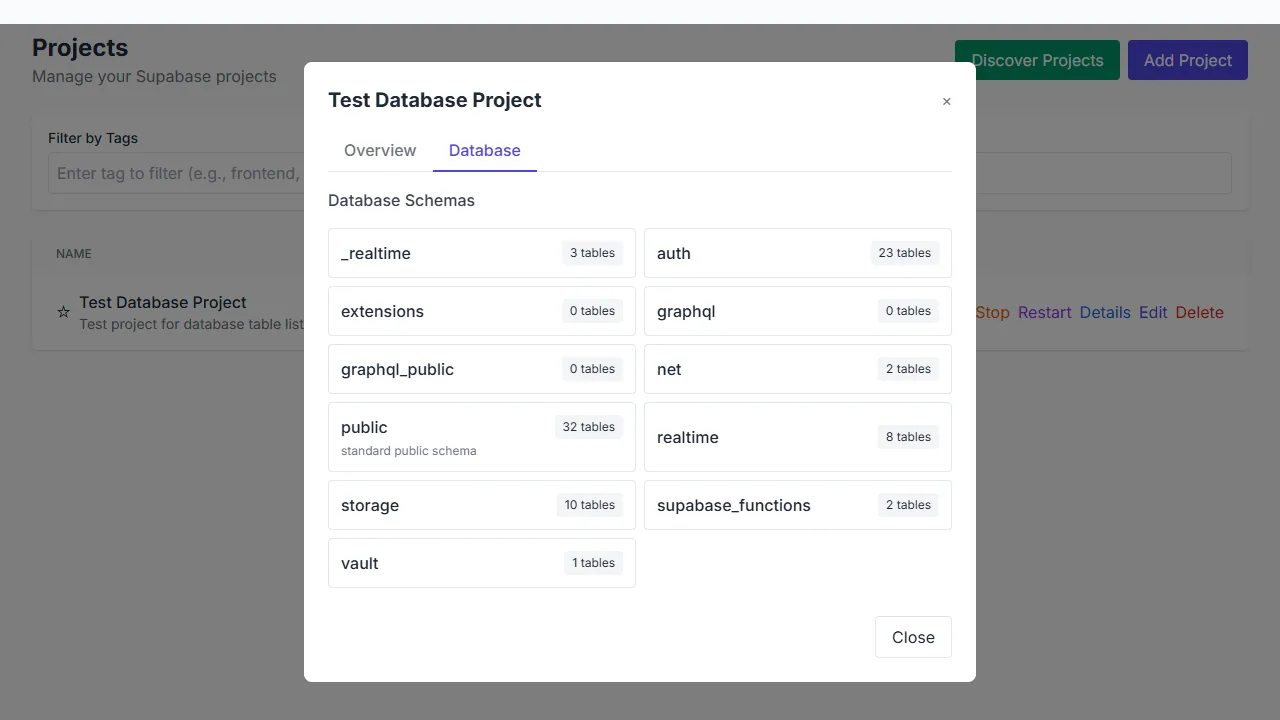
The database explorer groups tables by schema and shows their table counts.
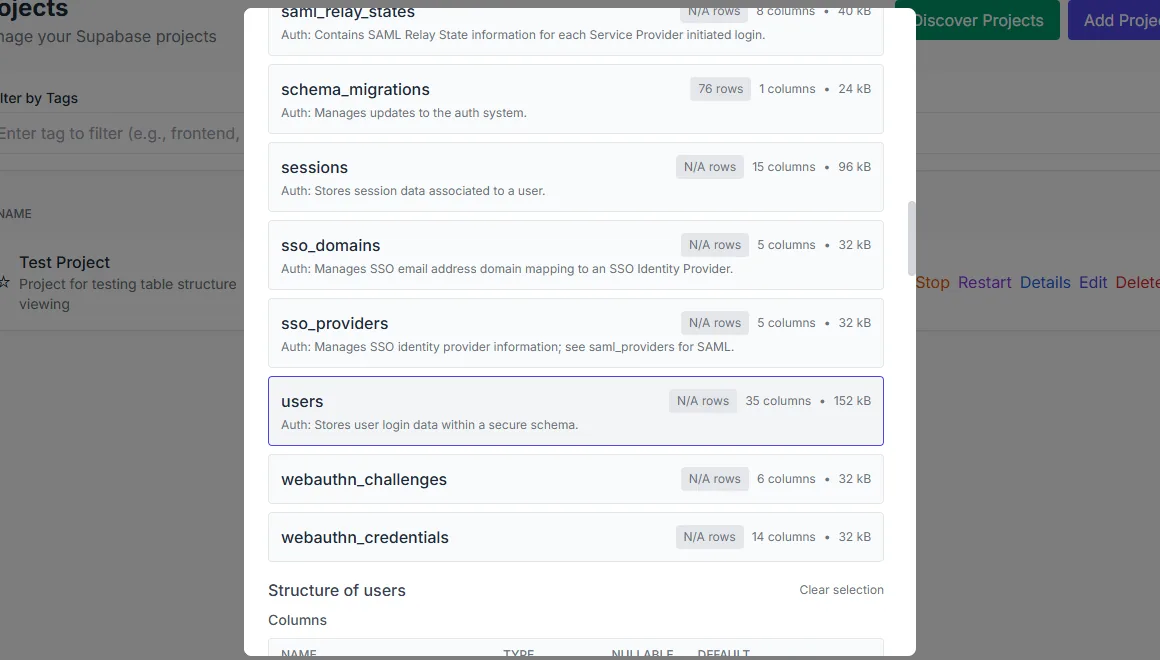
The structure view exposes the real column layout of a table.
Getting started
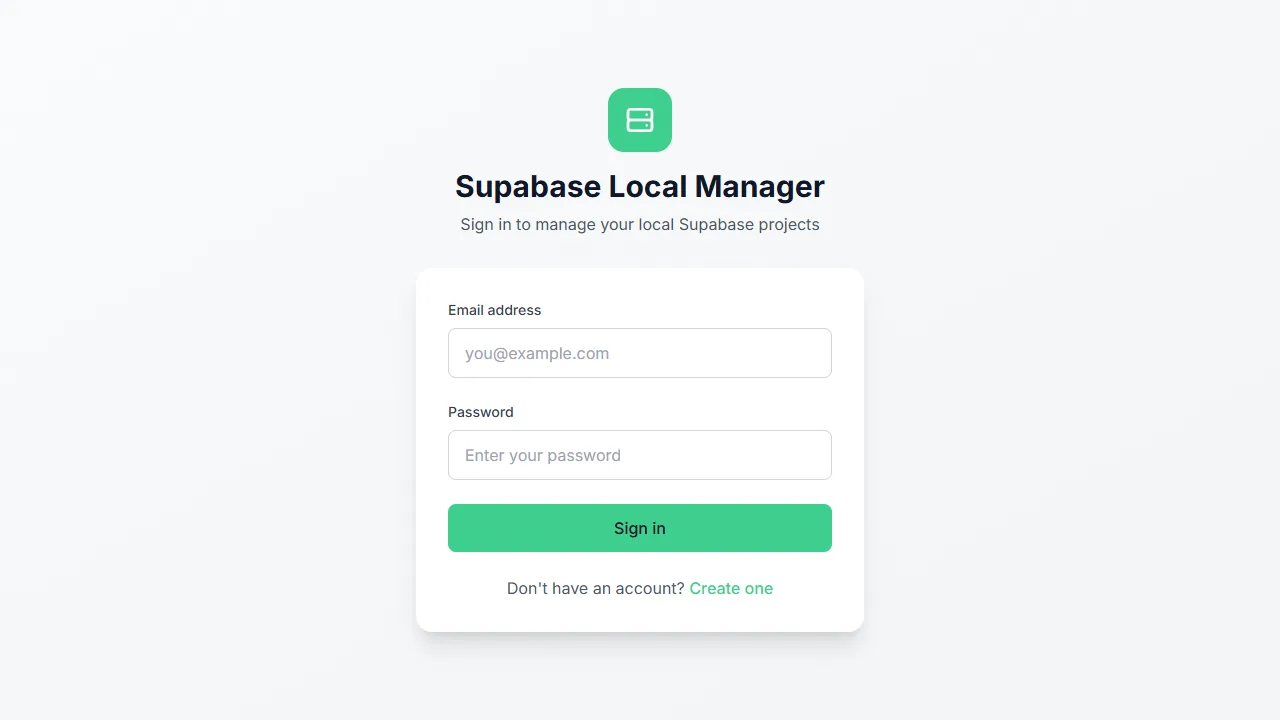
Sign in with the administrator account created during setup.
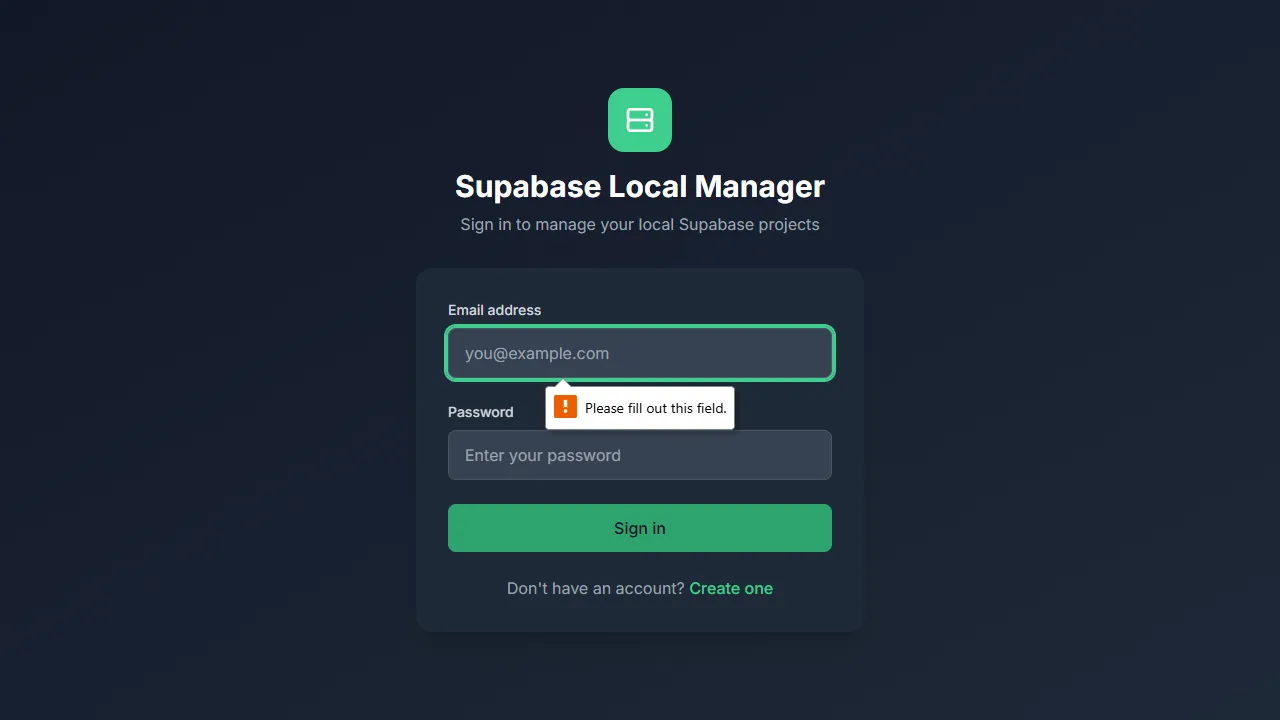
The sign-in page in the dark theme, with a required-field validation message.
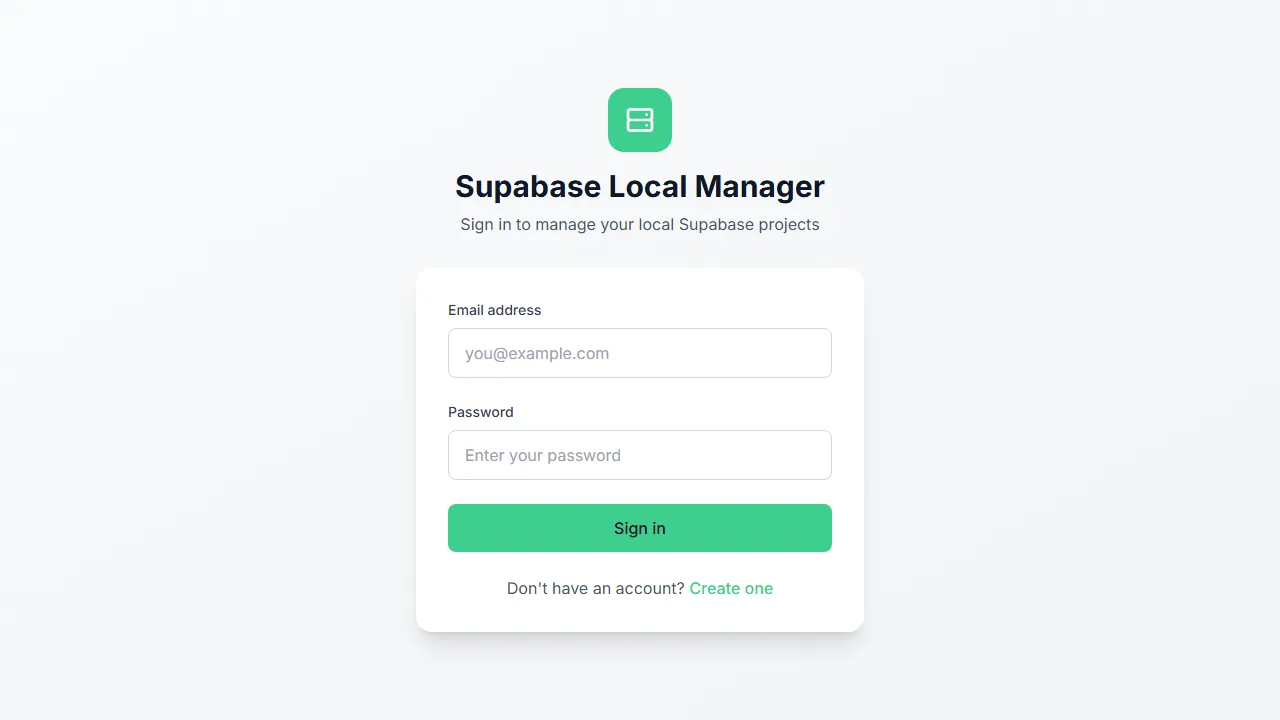
The sign-in screen is the entry point to the manager.
Layout
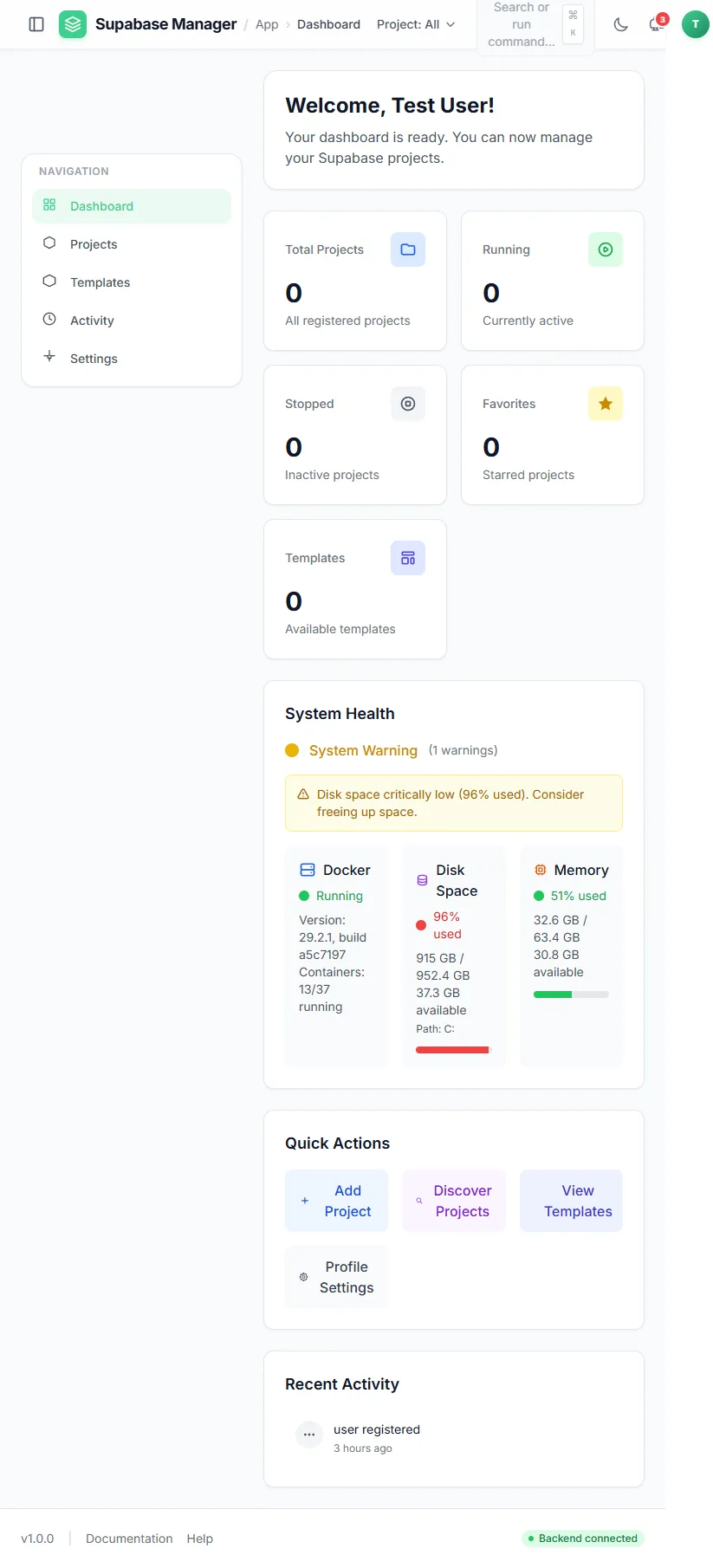
The dashboard at a tablet width, with the project counts and system health stacked.
Logs
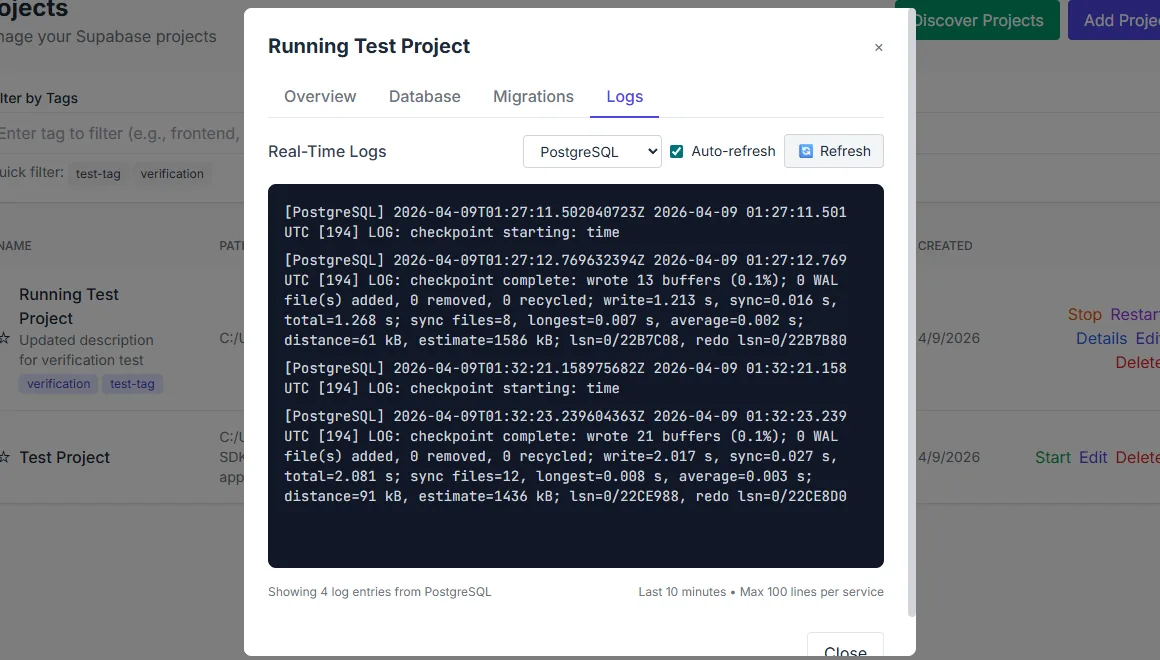
Log streams update while the panel is open.
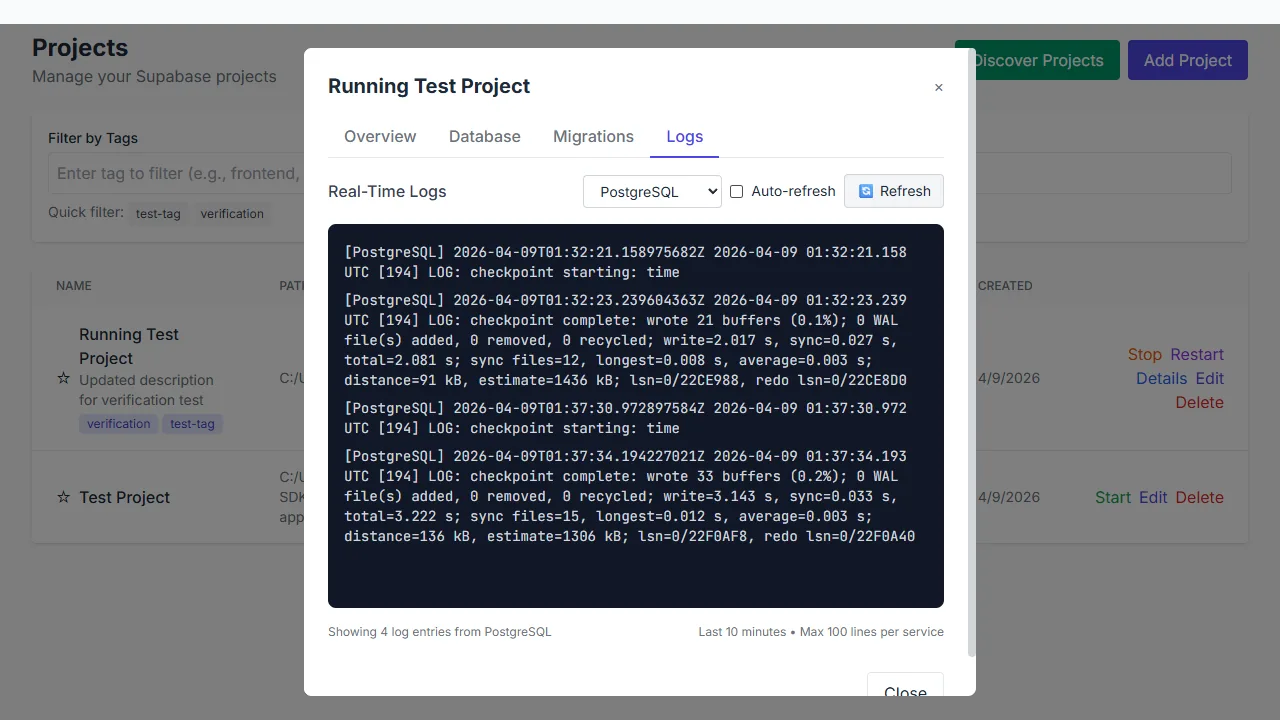
Service logs can be filtered and followed live.
Migrations
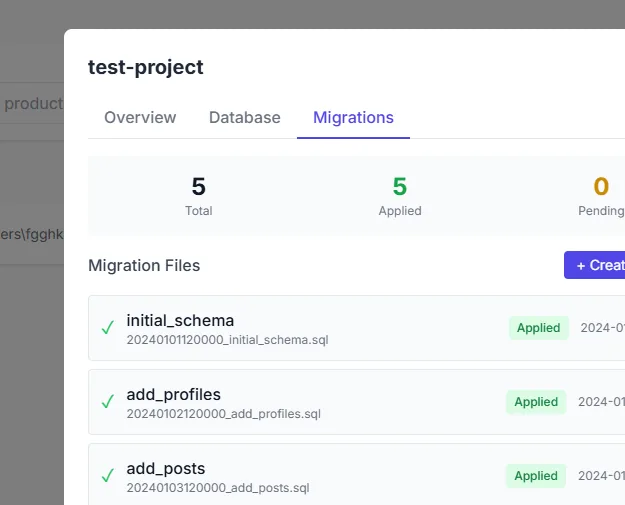
All migration files report an applied status.
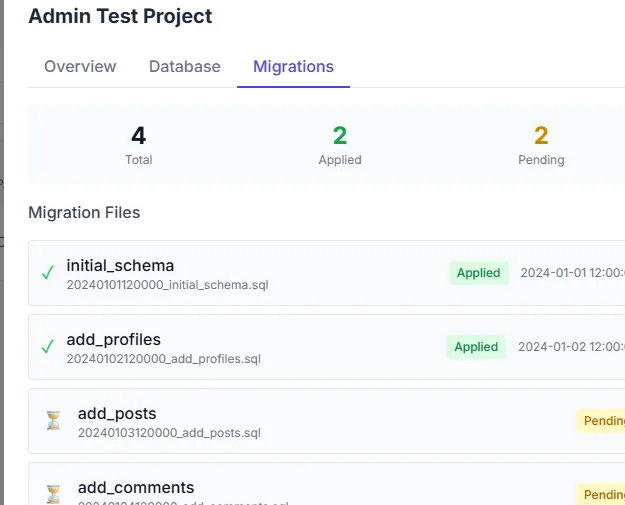
Migration files and their applied or pending state, per project.
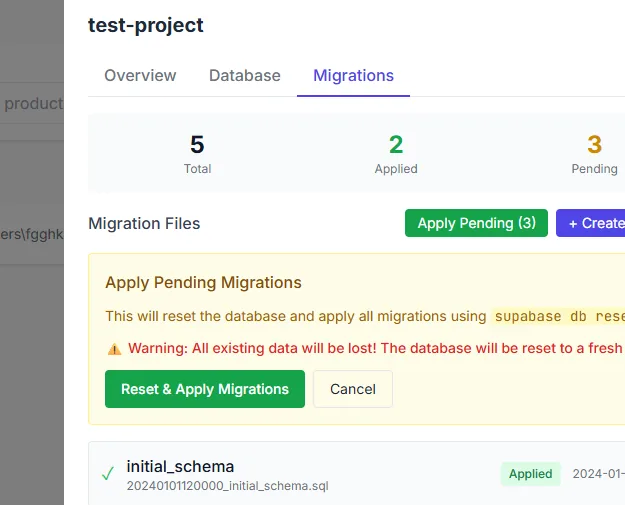
Applying a migration asks for confirmation first.
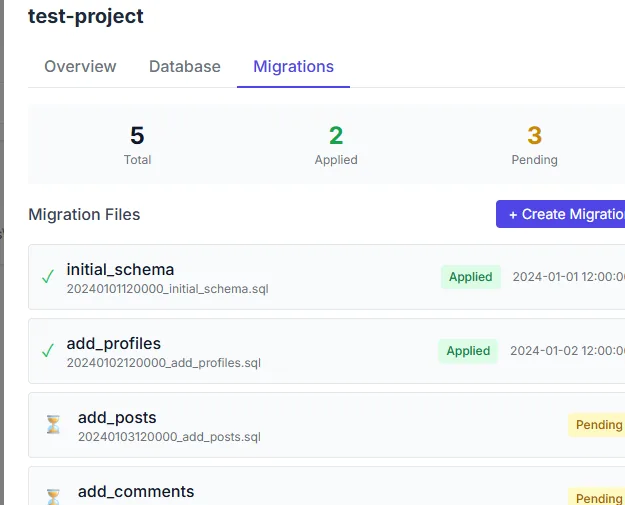
After a new migration file is created, it appears in the pending set.
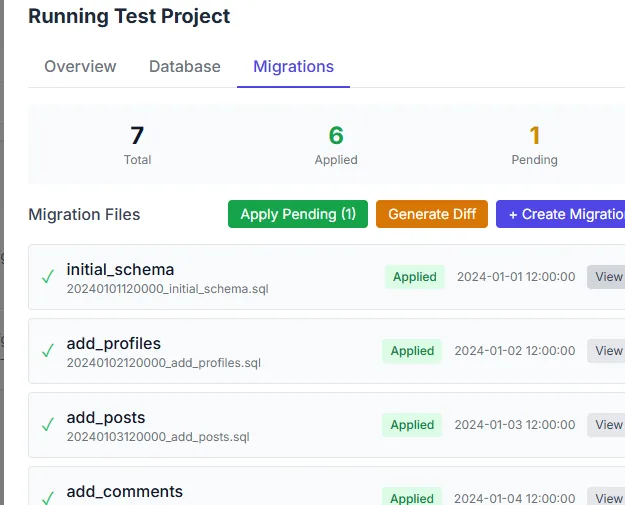
The apply control on the migrations list, before a pending file is applied.
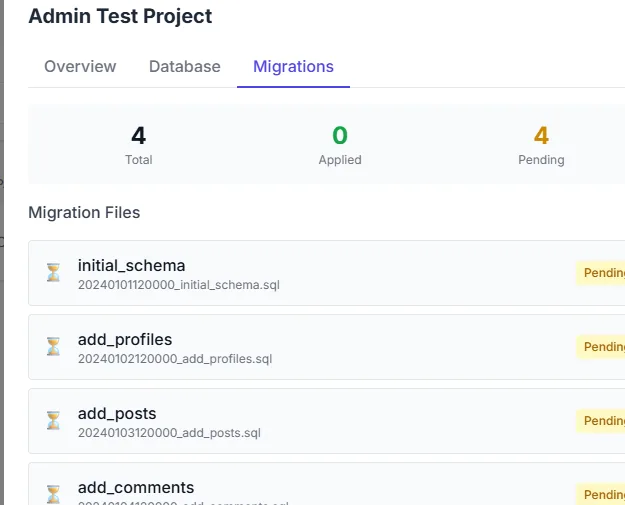
The migrations list when every file is applied, so the pending count is zero.
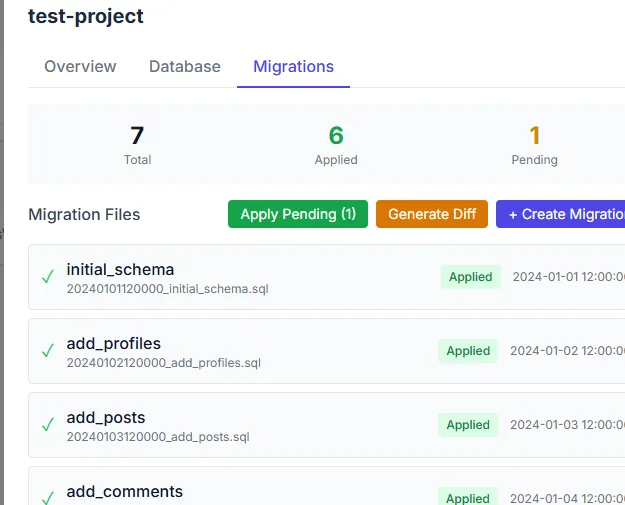
A newly saved migration is listed in the pending set.
Observability
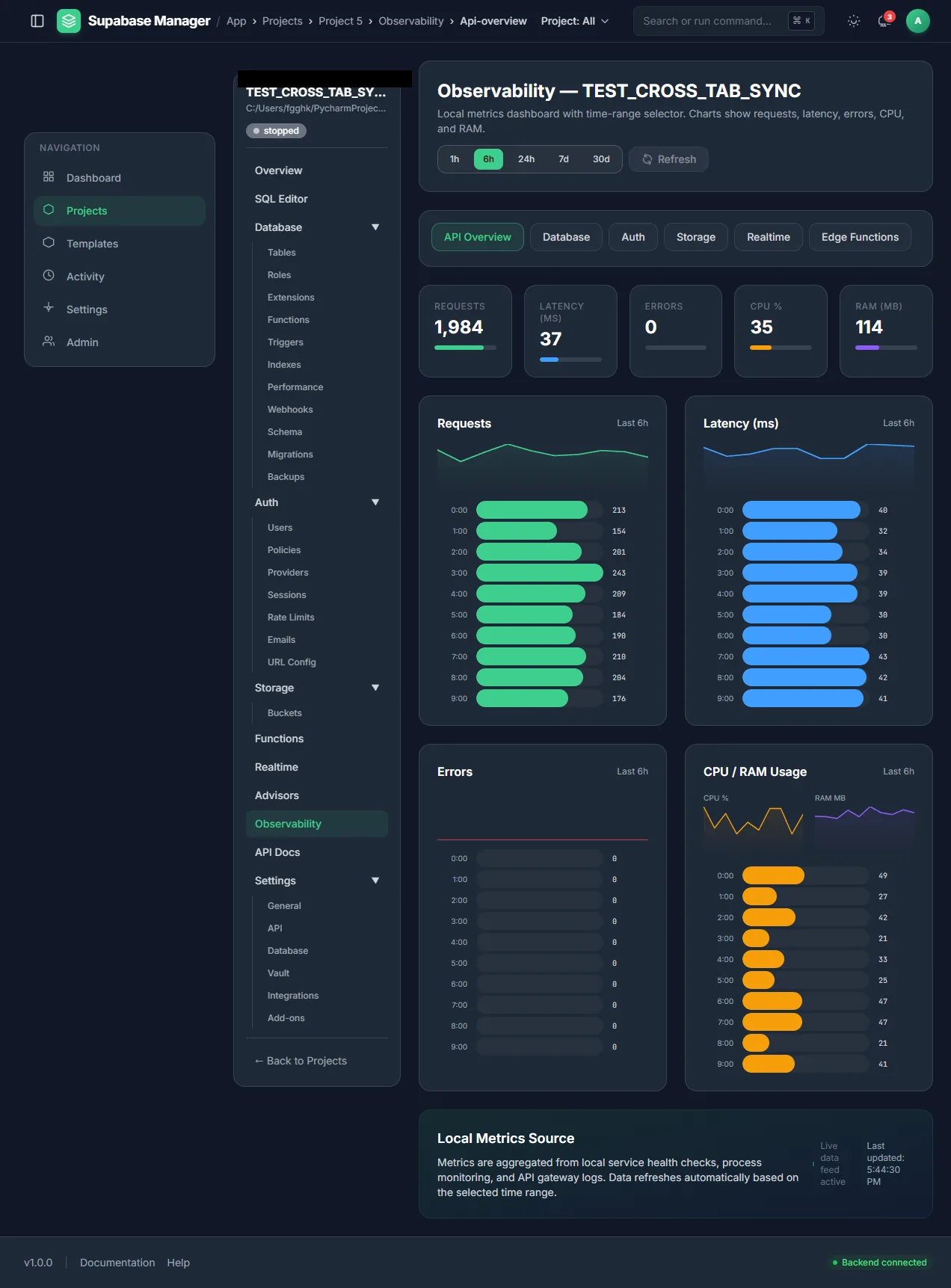
The same observability view on a six-hour range.
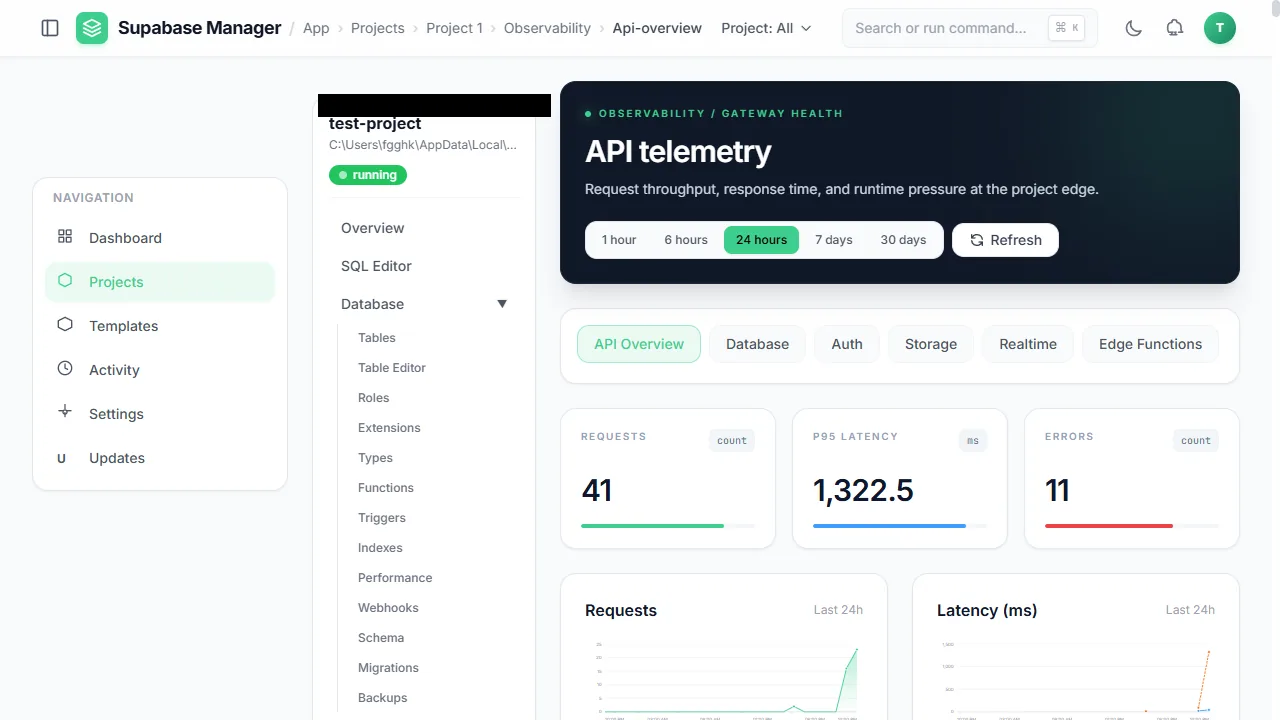
API traffic is tracked with configurable time ranges.
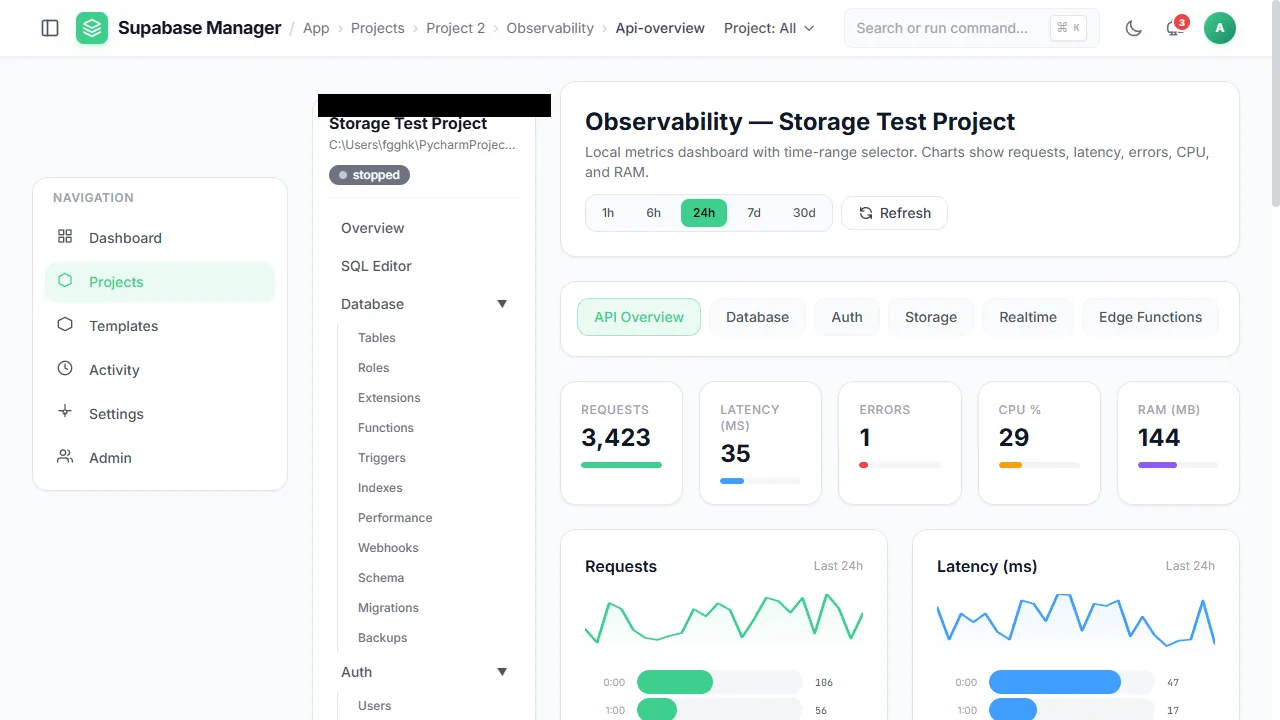
Observability collects API request, latency, error, CPU and memory metrics.
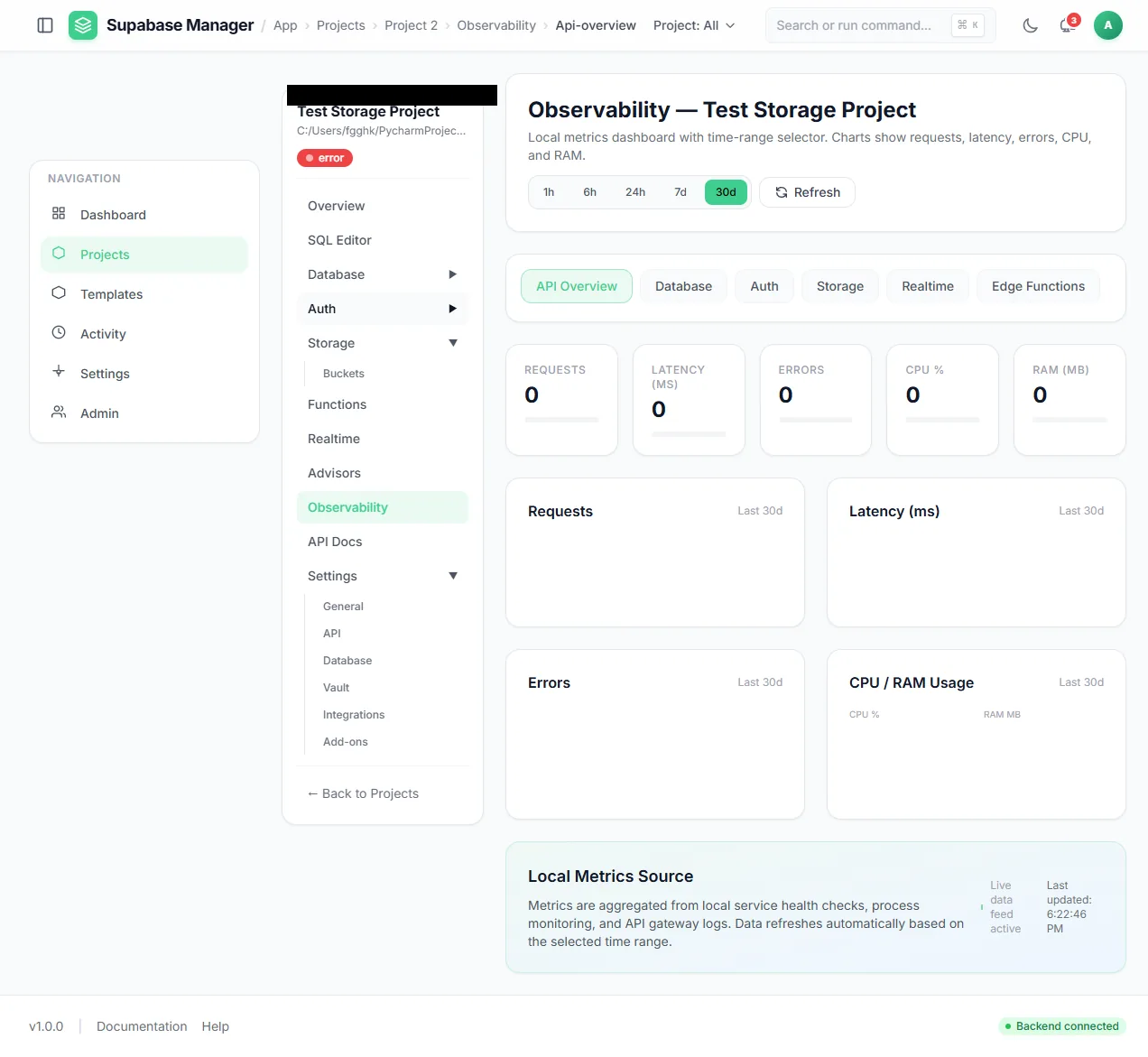
Auth traffic is charted in its own observability view.
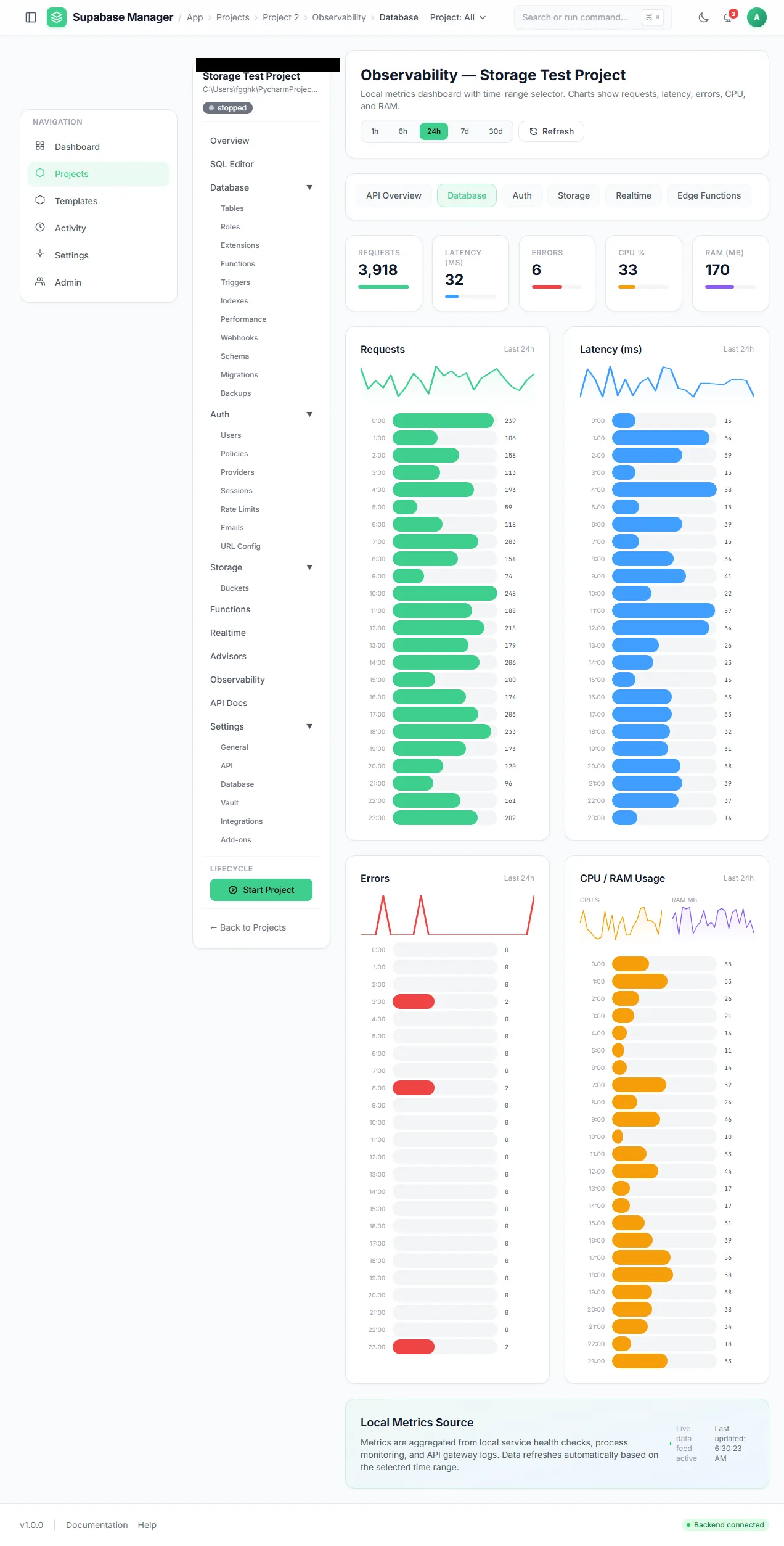
Database traffic is charted in its own observability view.
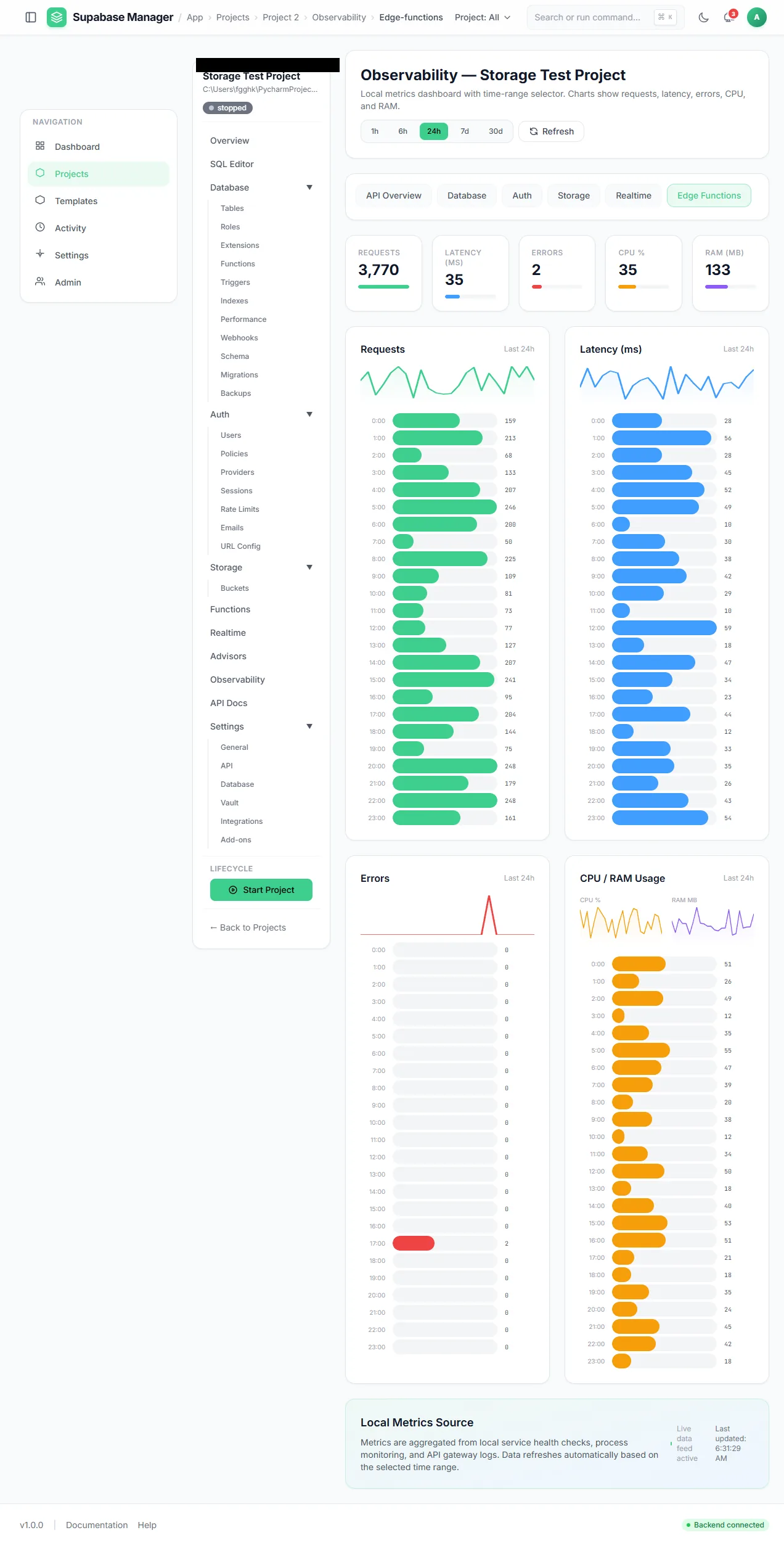
Edge-function traffic is tracked separately from the API.
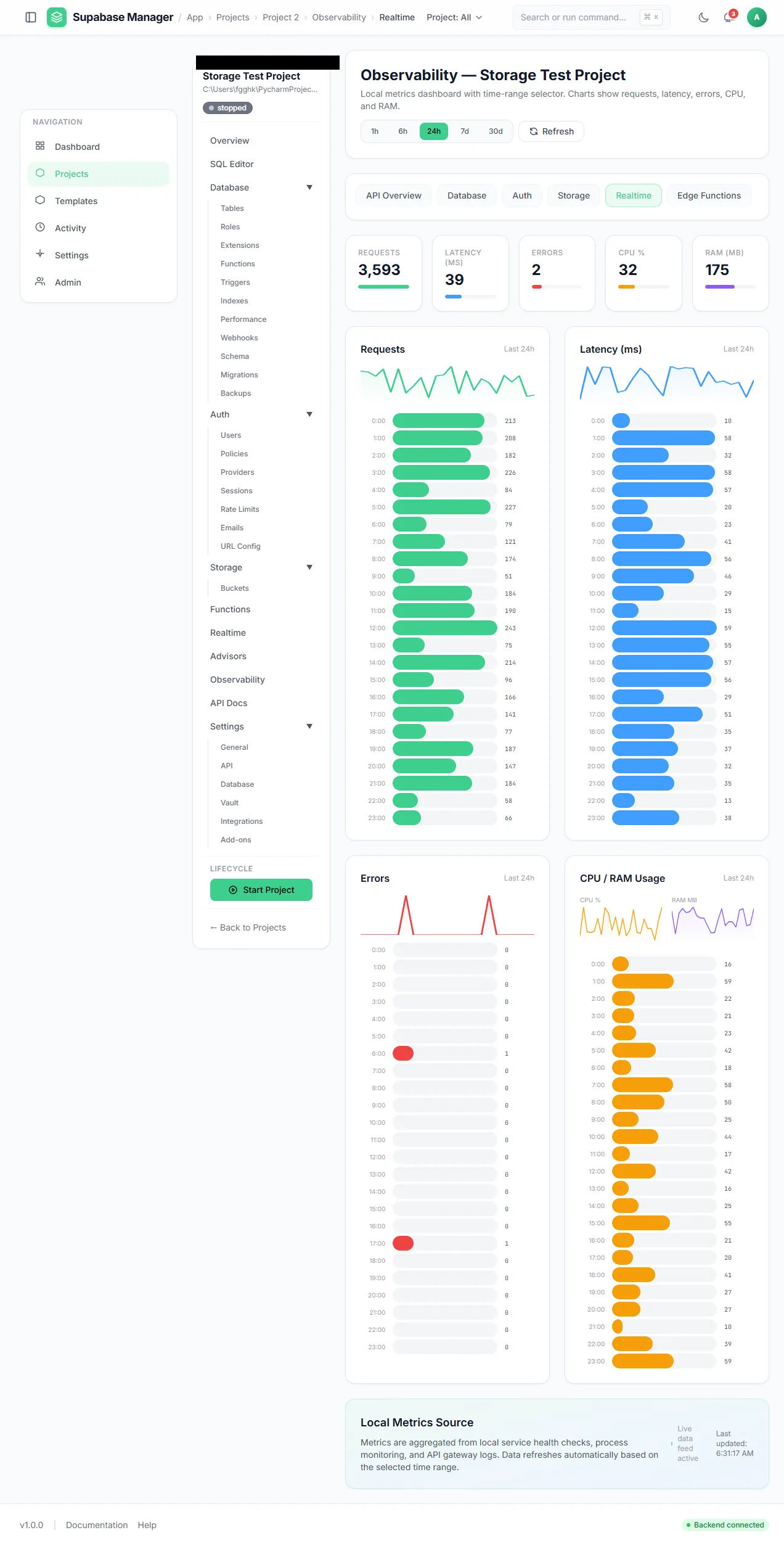
Real-time traffic is charted alongside the other service views.
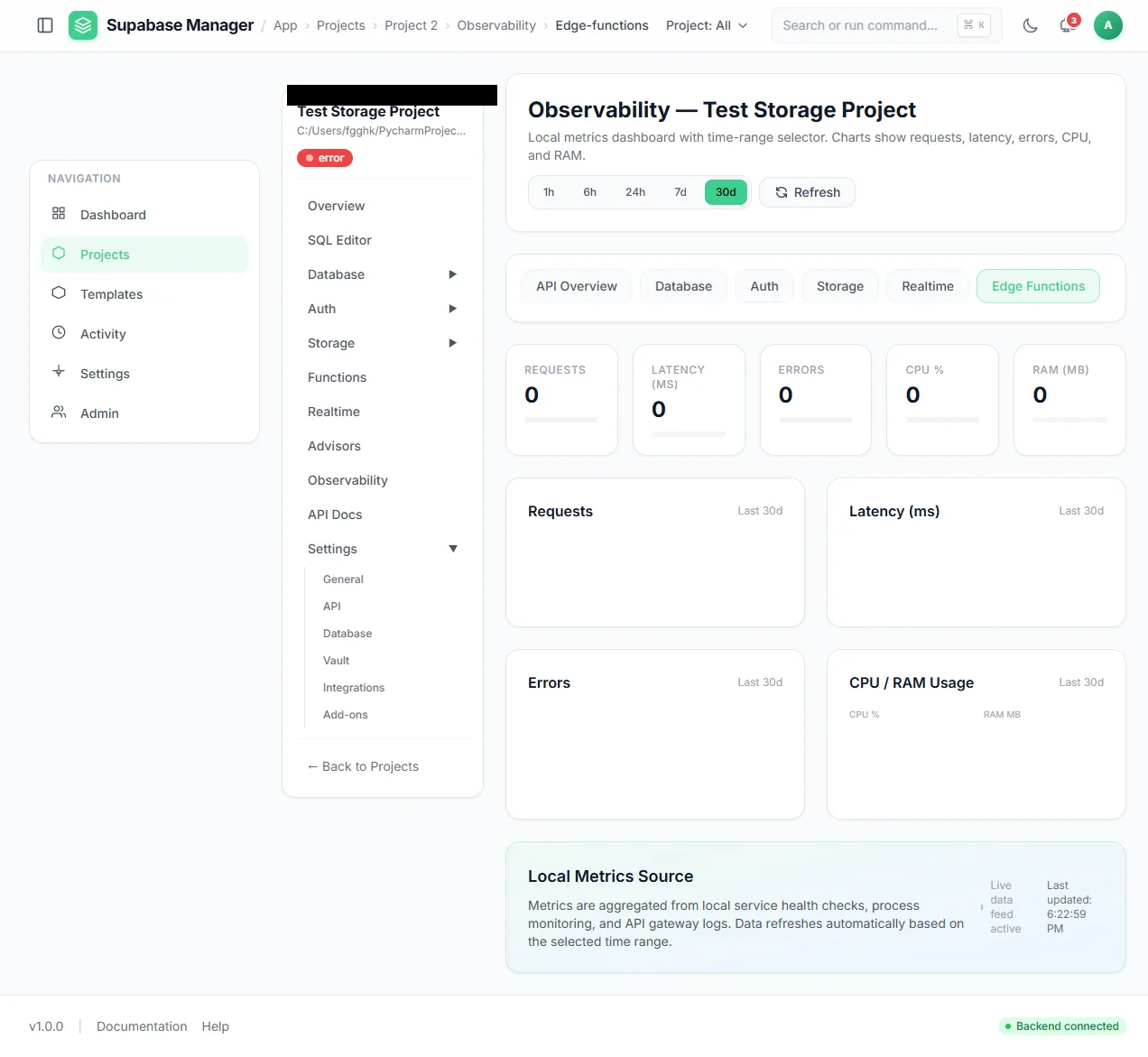
Refreshing recomputes the counters from the access logs.
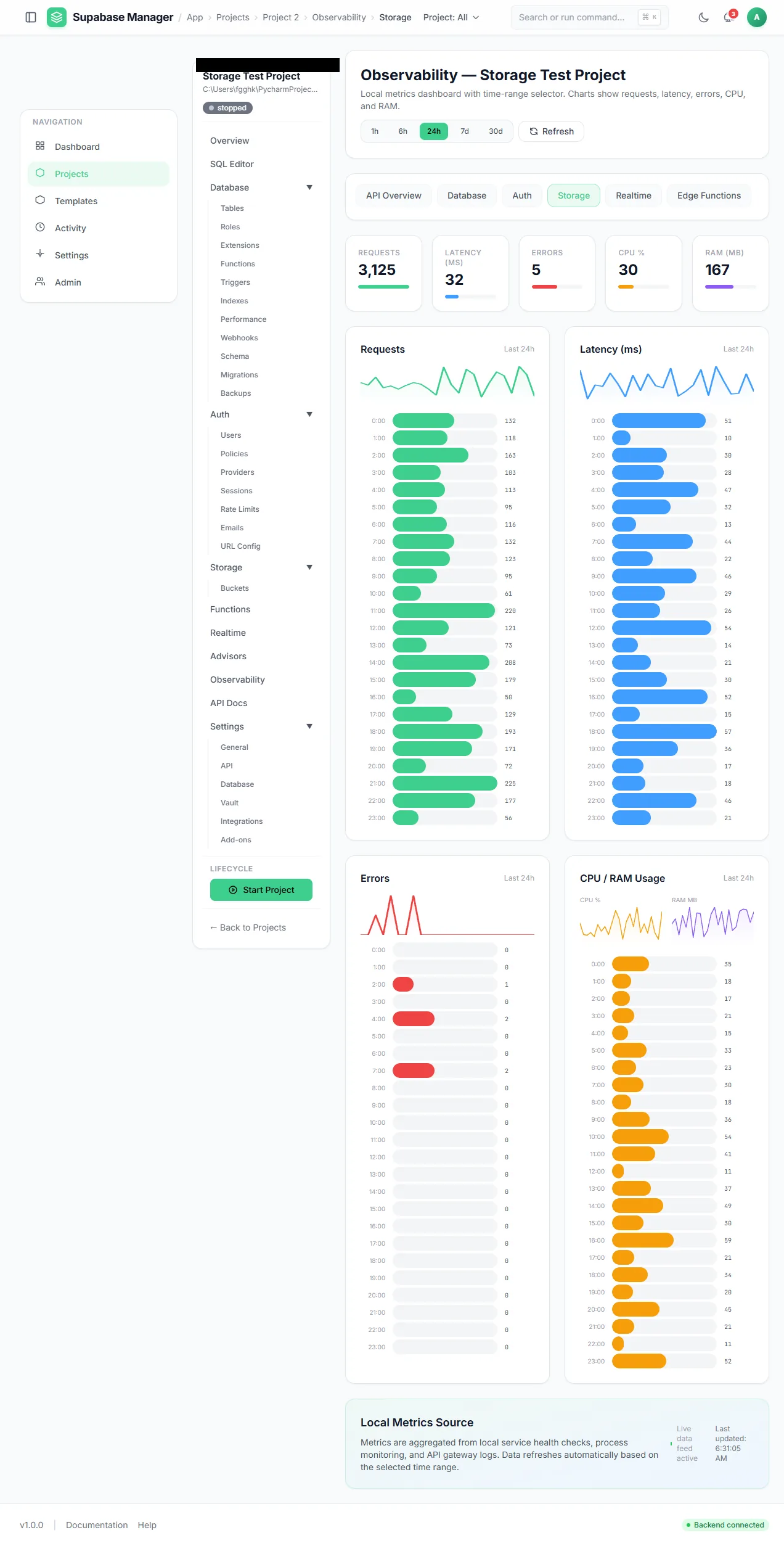
Storage traffic is charted alongside the other views.
Project overview
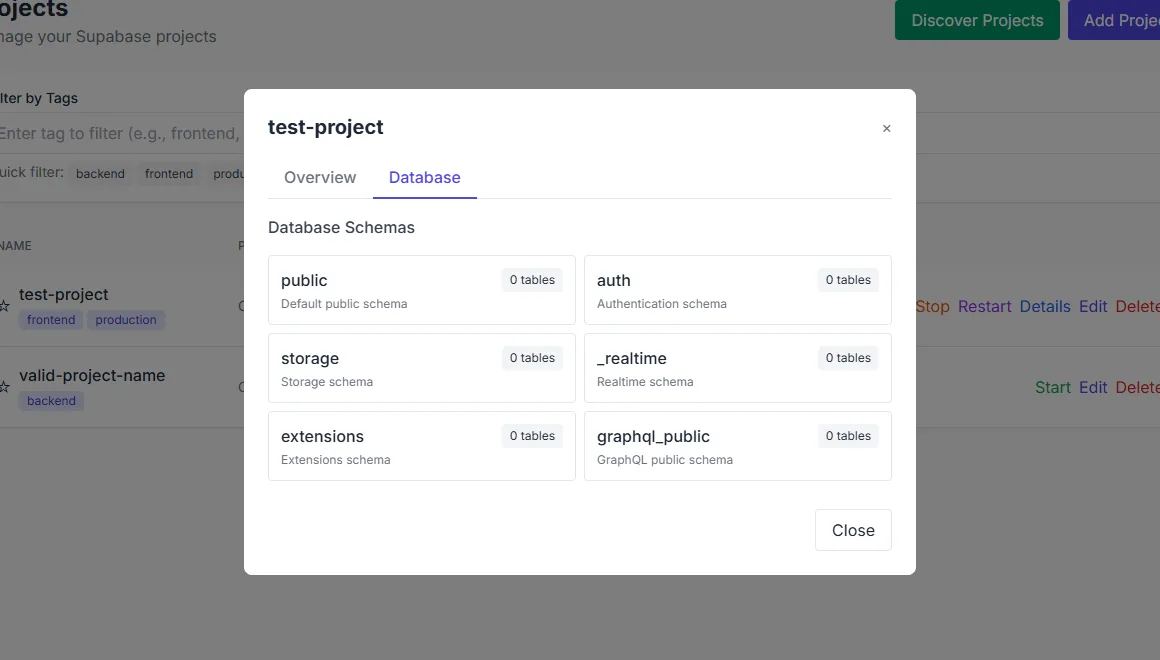
The Database tab opens the per-project explorer directly.
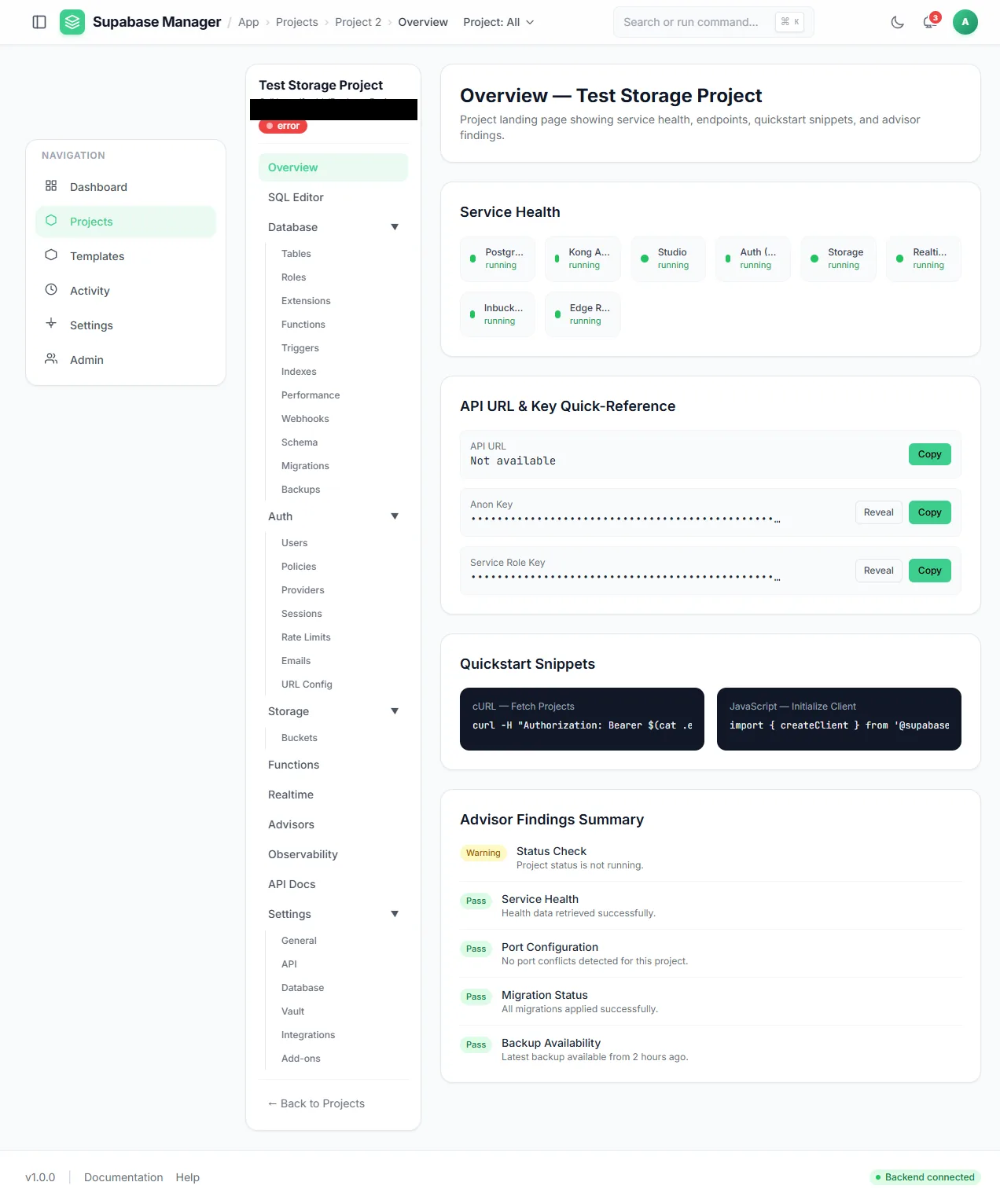
A single project overview: service health, masked keys, client snippets and advisor results.
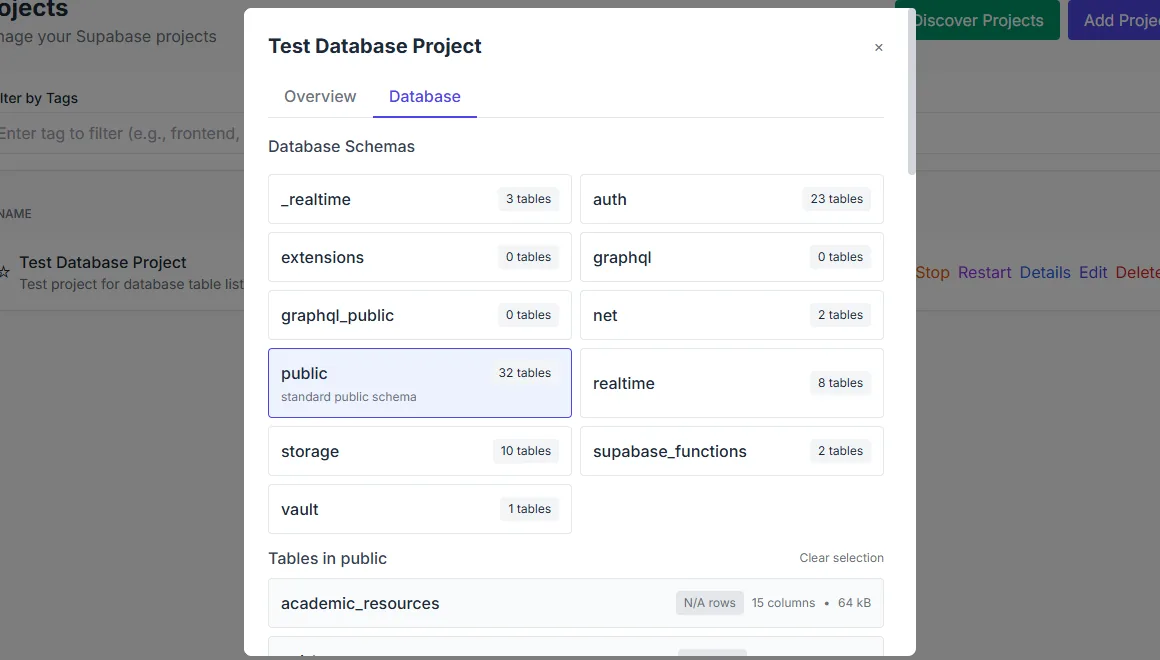
Table counts give a quick sense of what is in each schema.
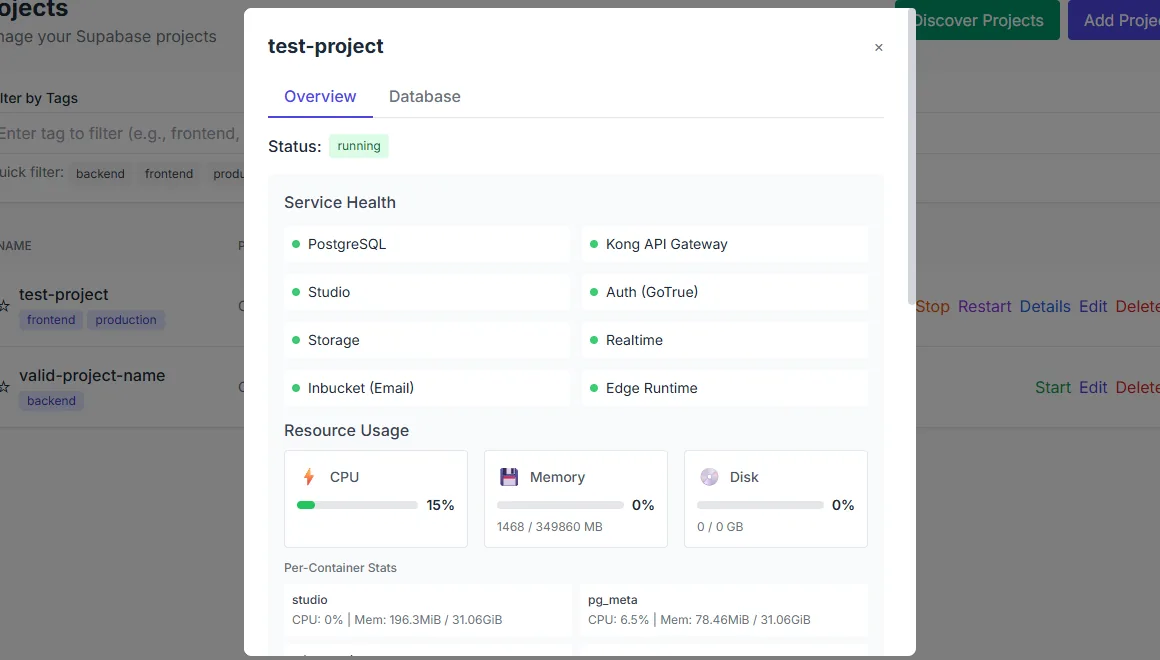
The per-project workbench switches between its main surfaces.
Project services
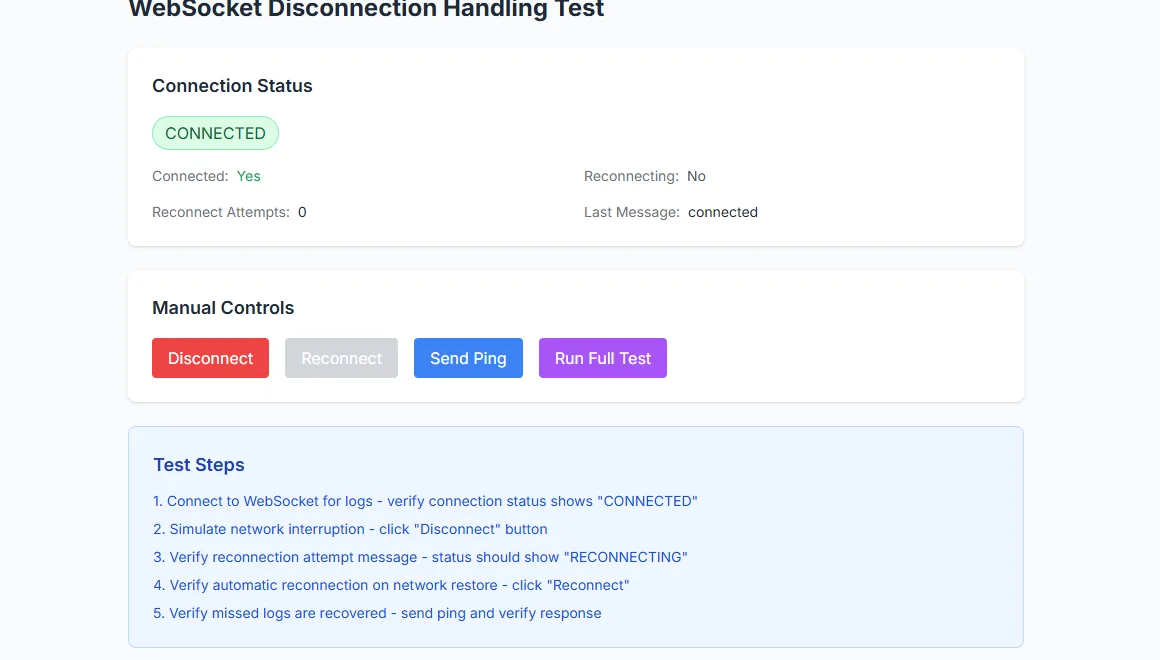
The WebSocket tester reports whether the real-time channel is live.
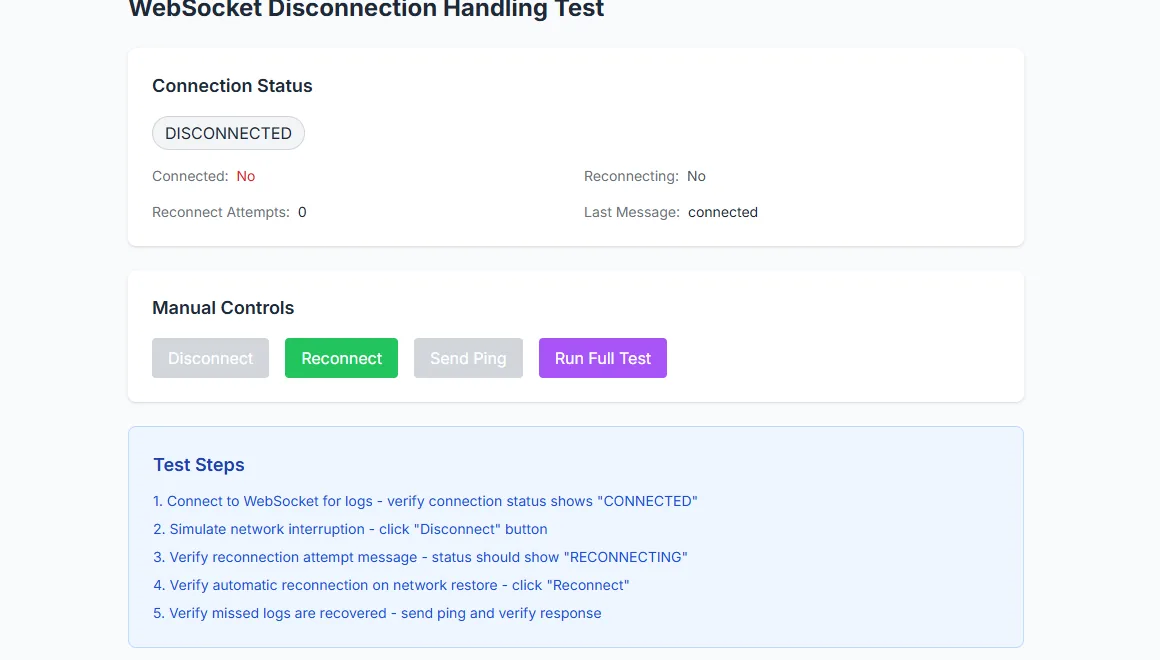
The same tester reports a dropped connection.
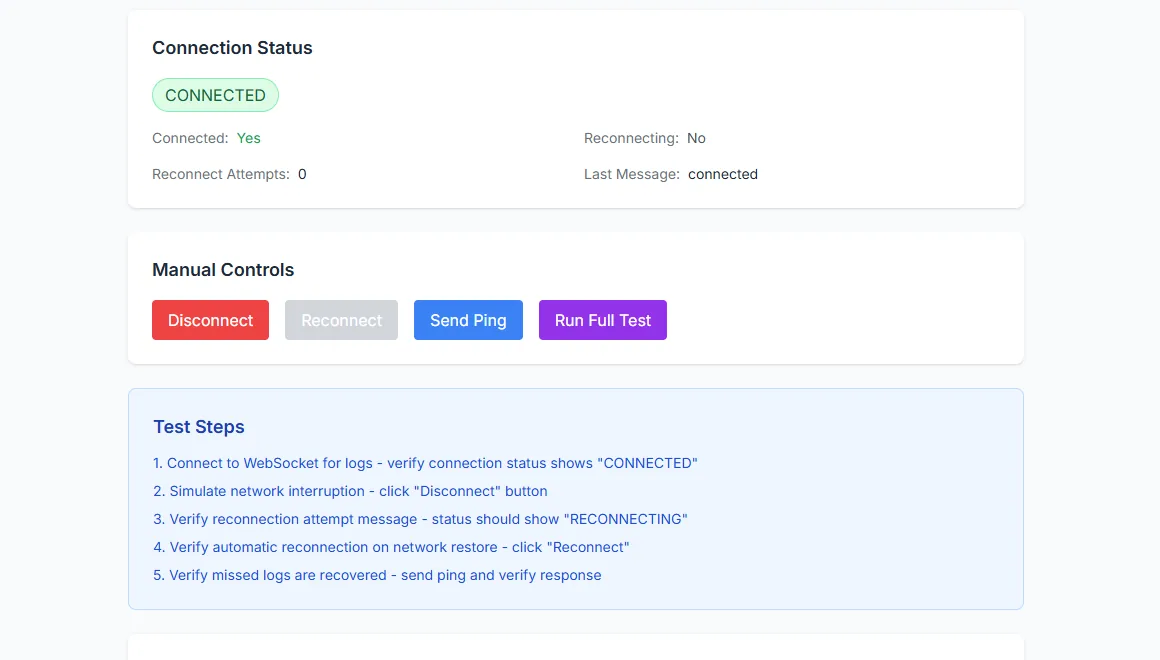
Reconnect behaviour is visible in the diagnostic panel.
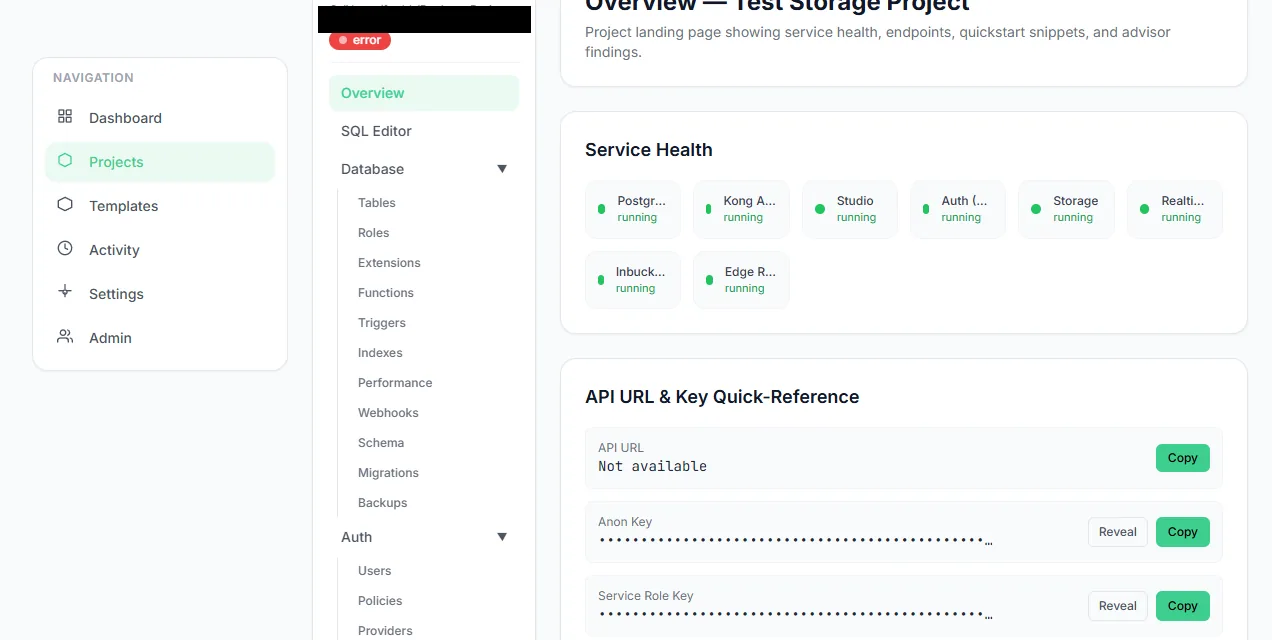
Each project exposes its running services and client endpoints.
Projects
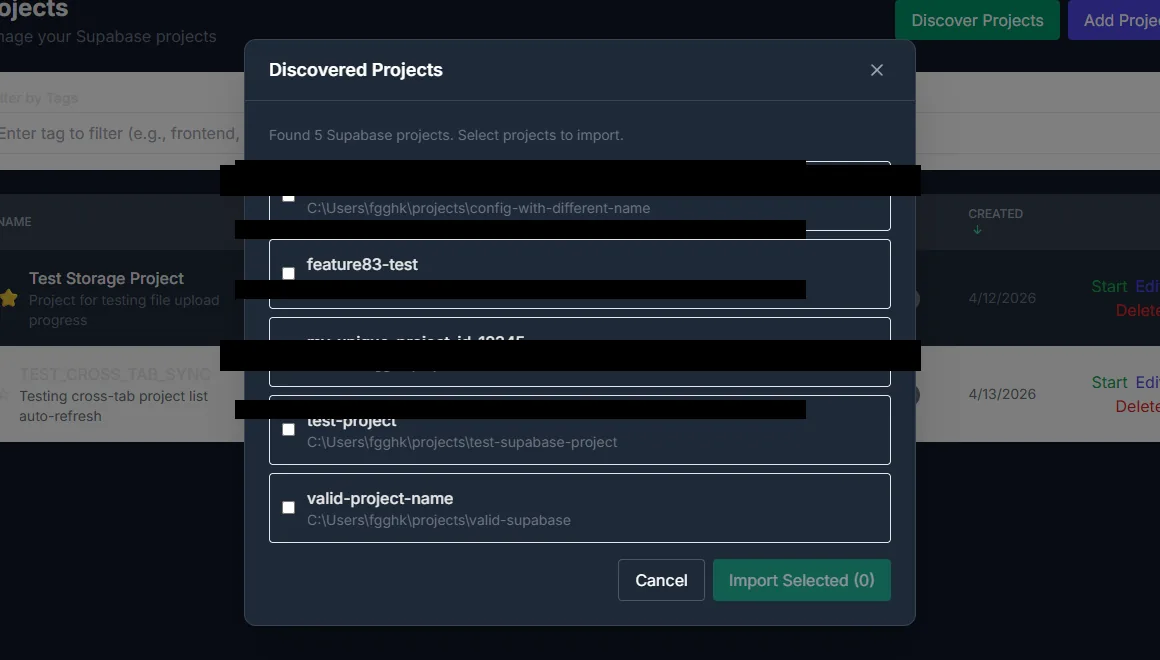
The discovery dialog listing Supabase installations found on the machine. Paths are redacted.
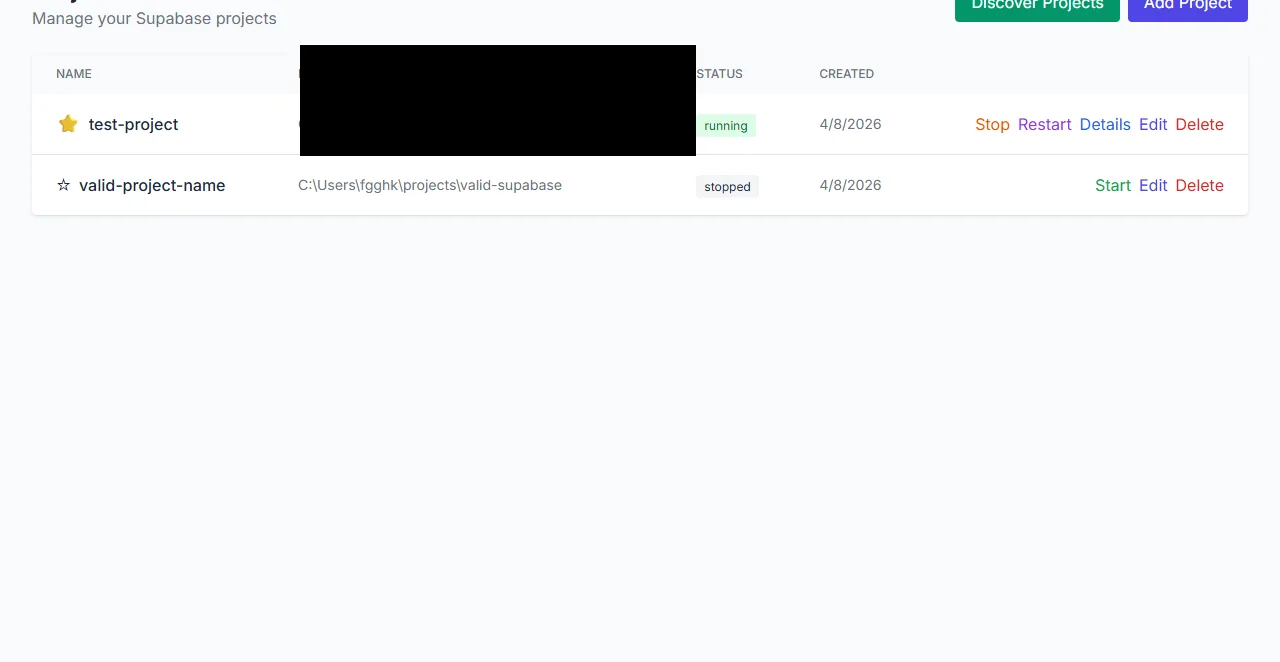
The project register after a reload, with the favourite marker retained on the first project.
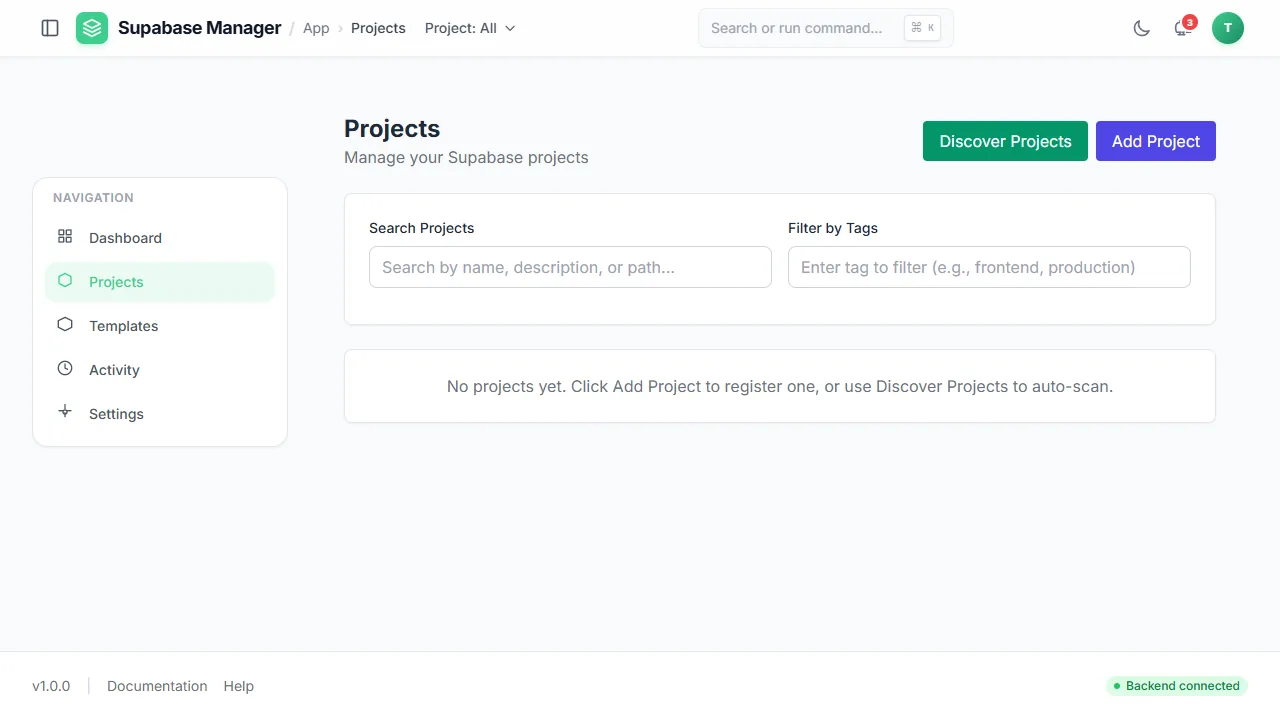
An empty project register on a fresh install, with both the add and the discover route offered.
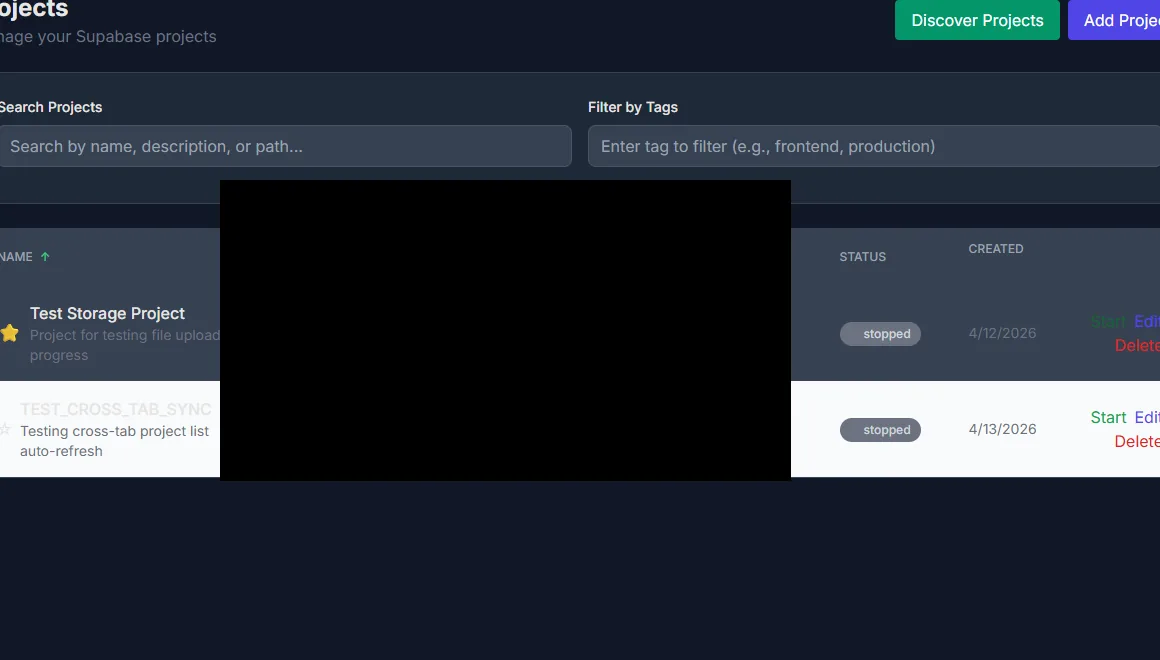
Project rows with status, path and the actions available in each state. Paths are redacted.
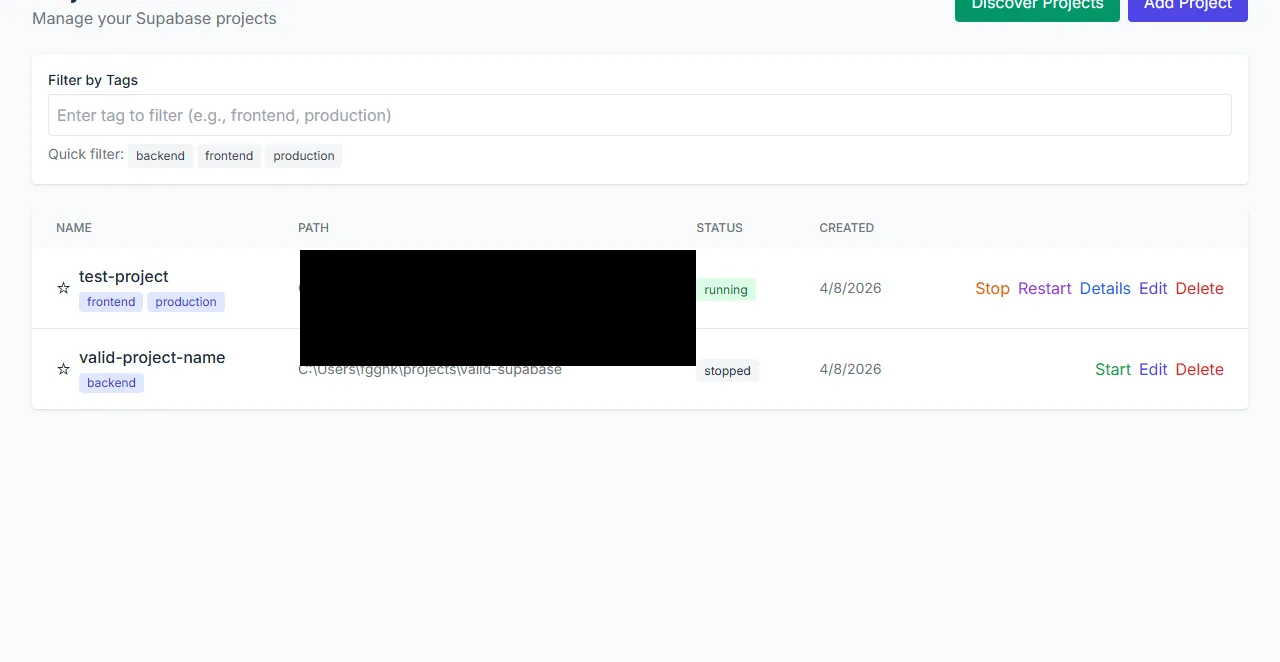
Projects grouped by tags, with a quick filter for each tag.
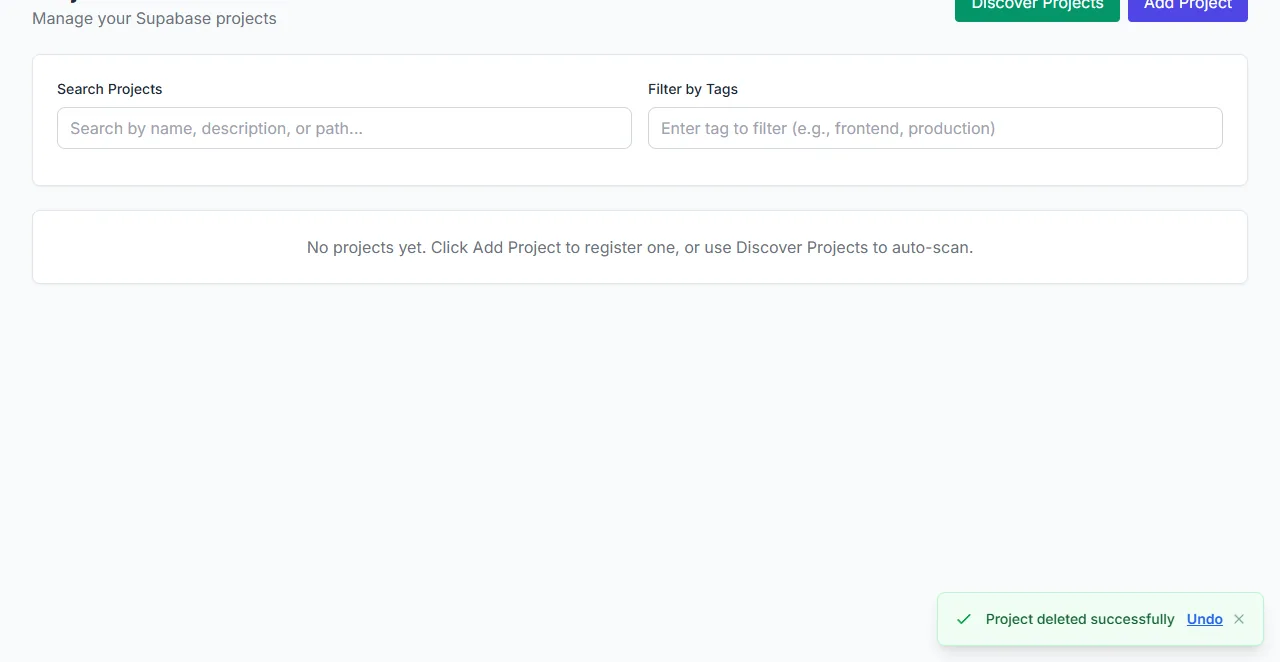
After a delete, an undo action stays available in the corner of the page.
Routing
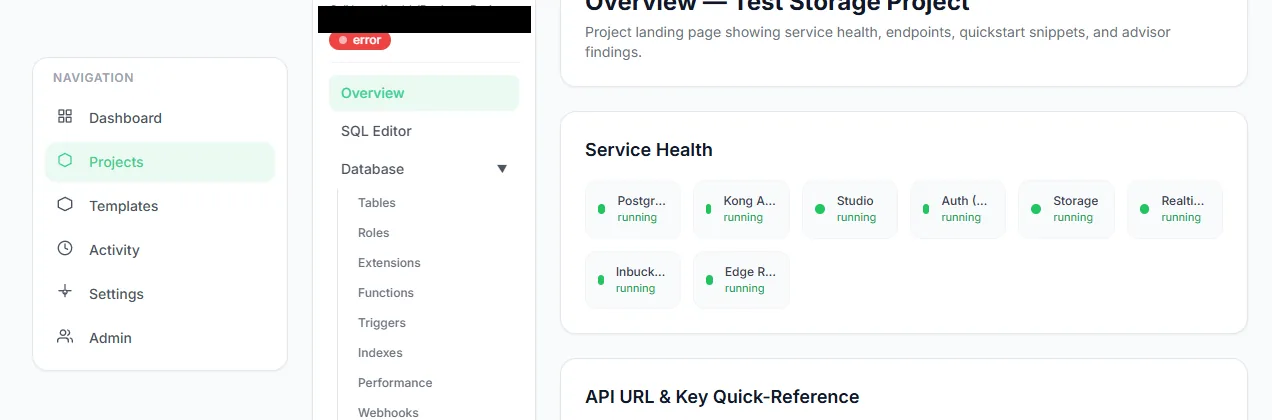
The service health and URL section of a project overview.
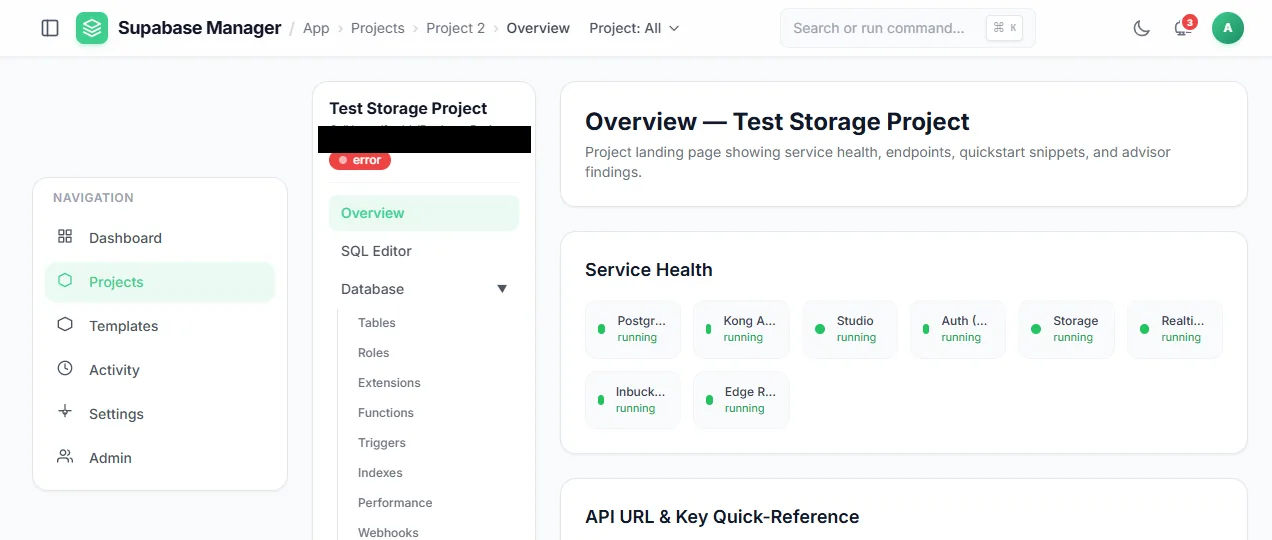
The project overview, where the front-door and subdomain URLs are shown.
Settings
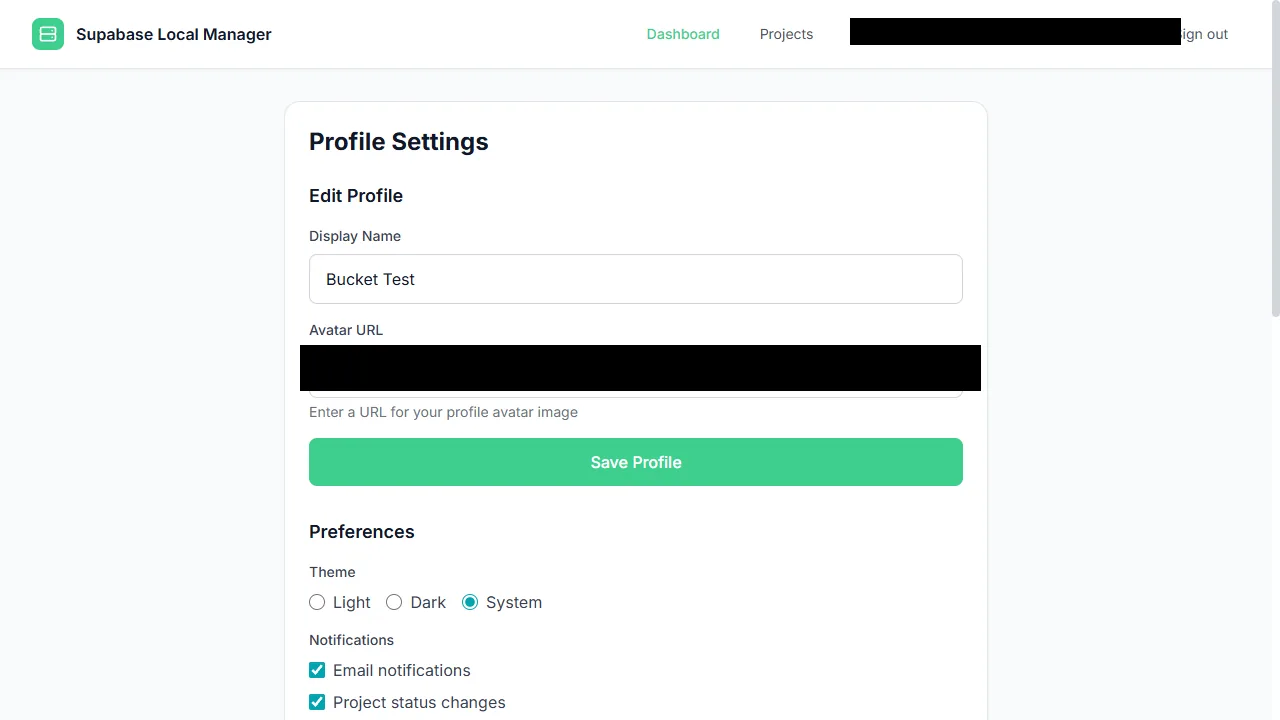
The profile settings surface follows the chosen theme.
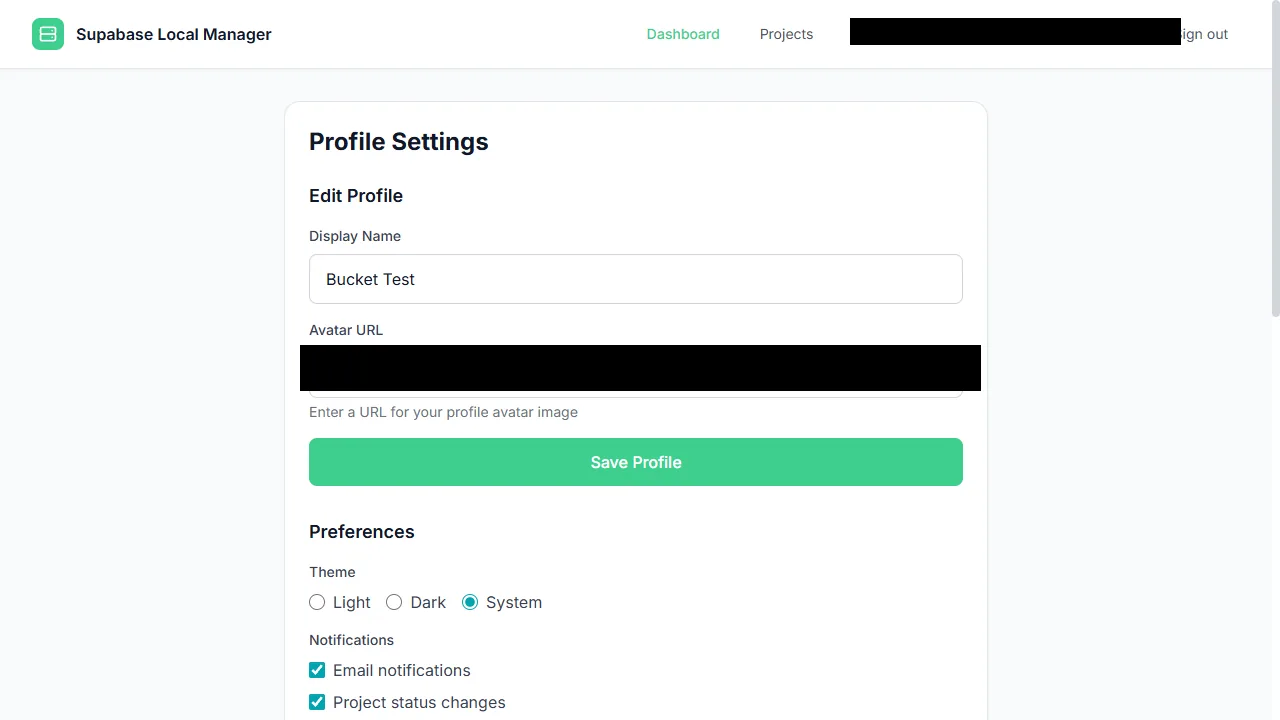
Profile settings hold account fields and preference controls.
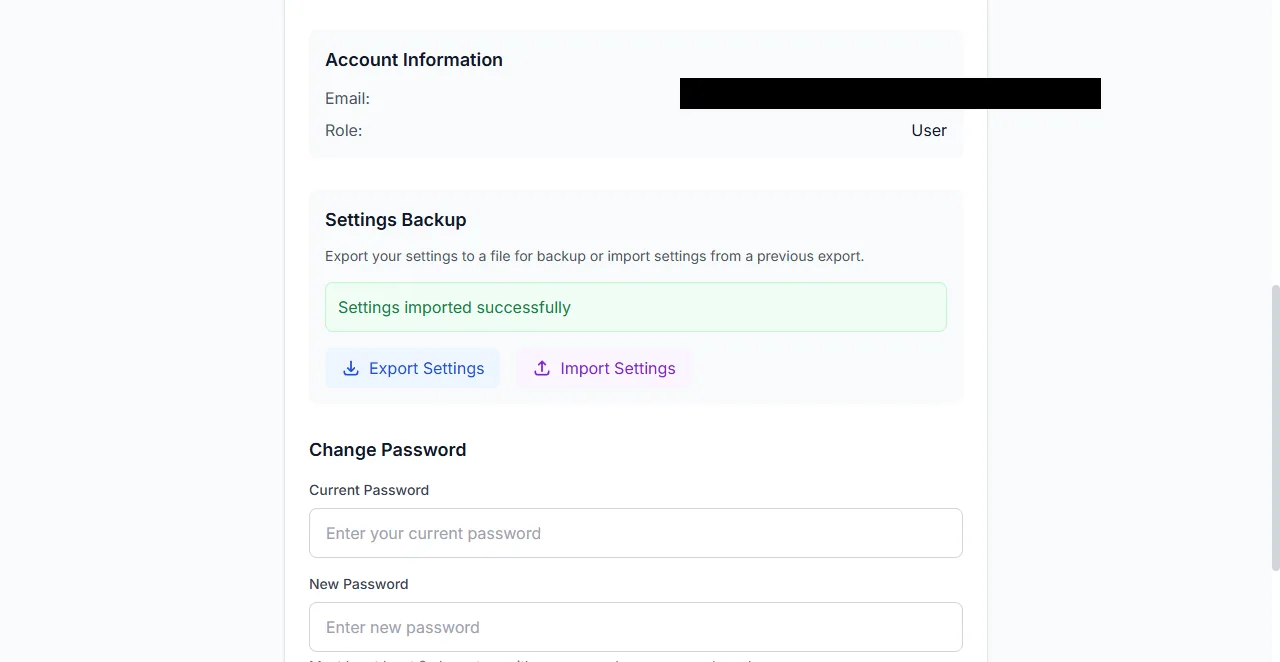
The settings backup panel, with export and import actions. The account email is redacted.
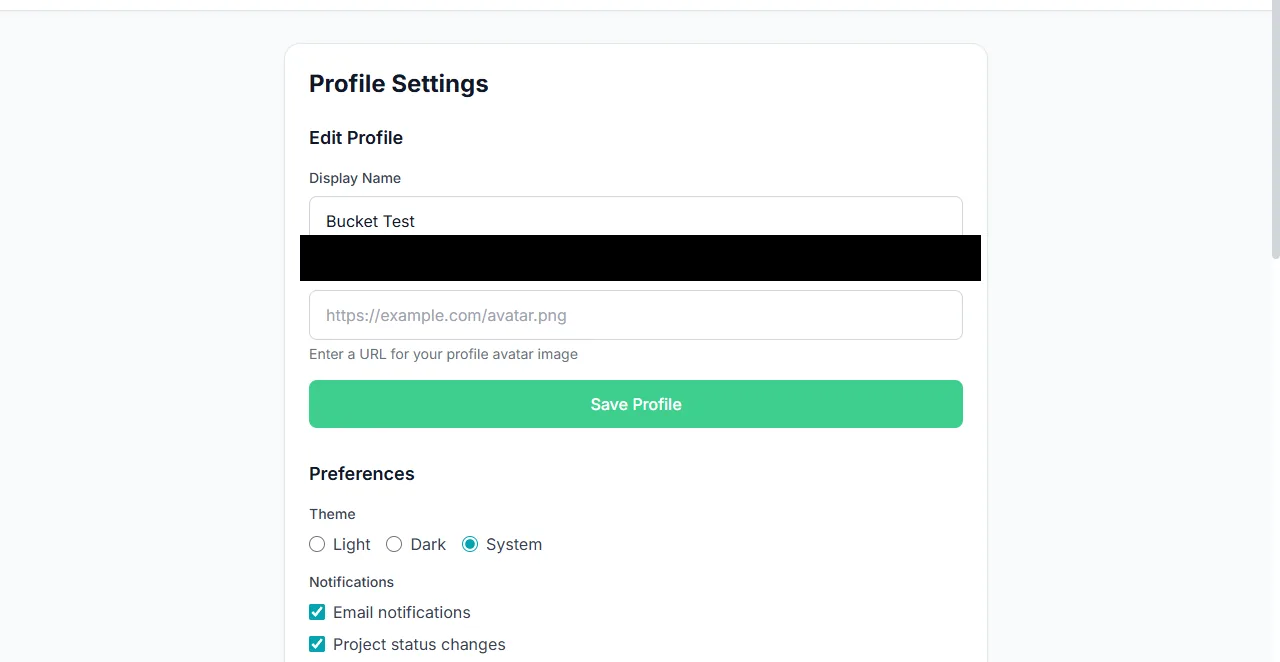
Settings group preferences and account fields.
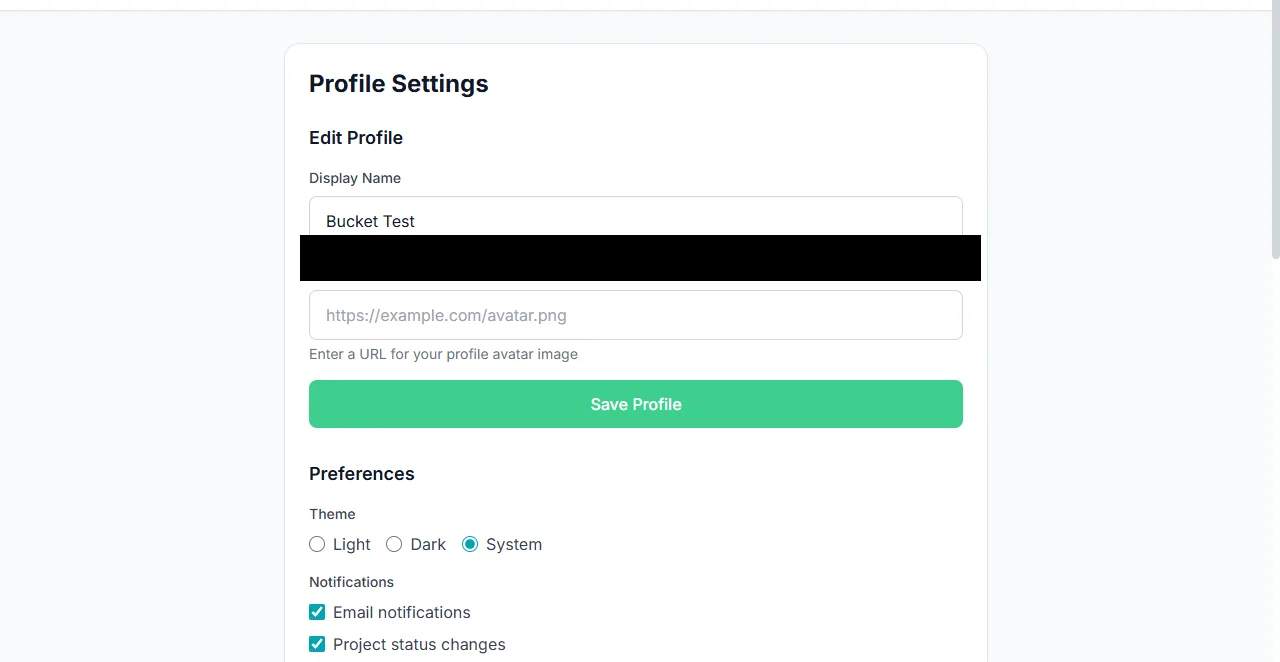
Saved preferences persist after returning to the page.
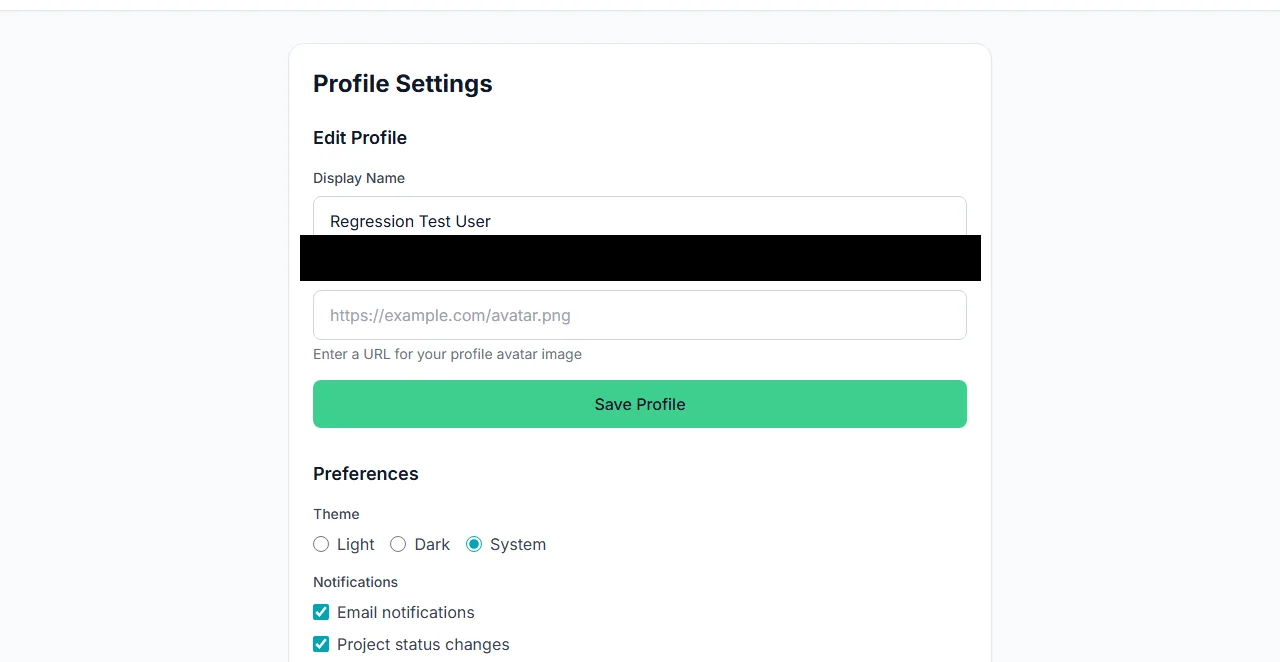
The settings layout keeps dense content readable.
SQL
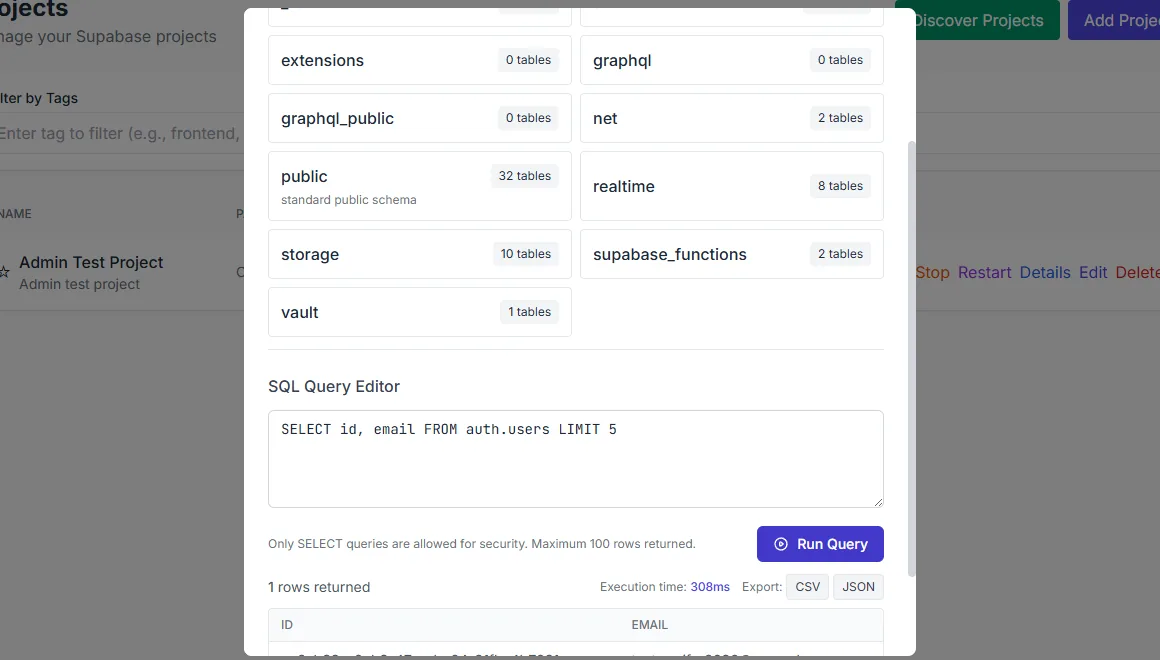
The export menu chooses the result format.
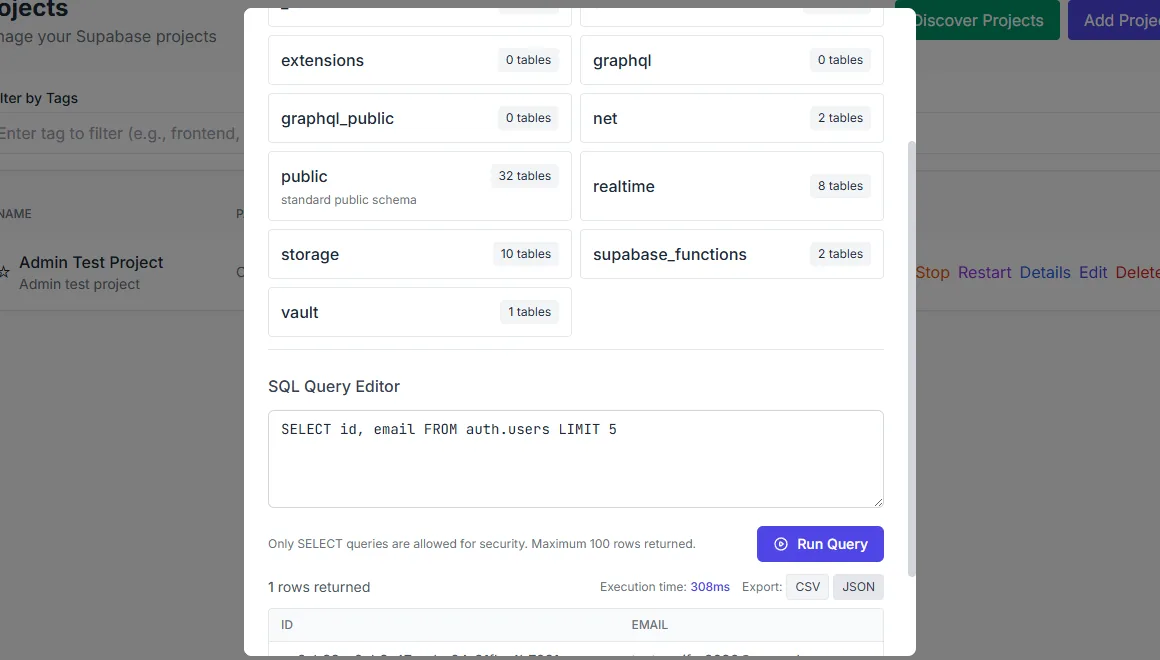
Query results can be exported and the completion state is visible.
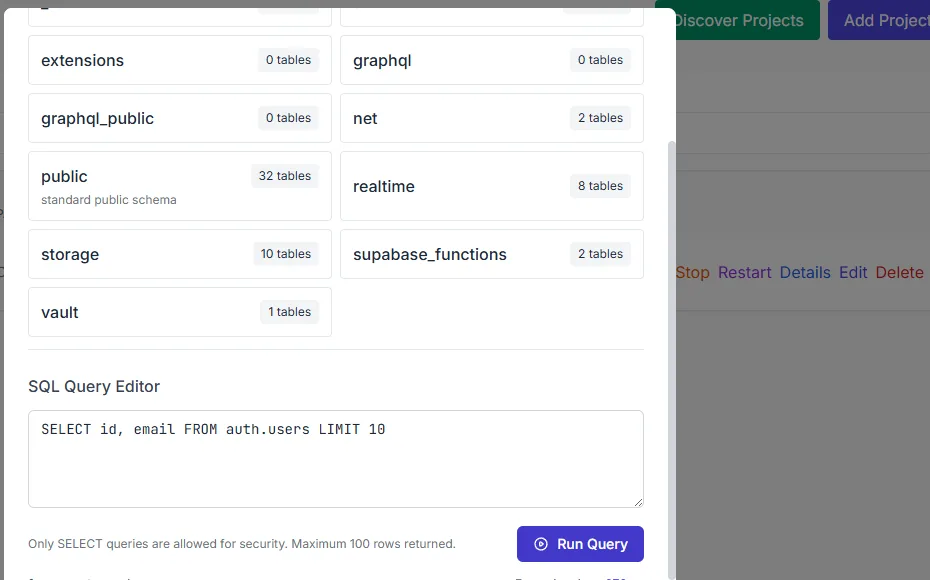
Running a query drops the results into the panel below the editor.
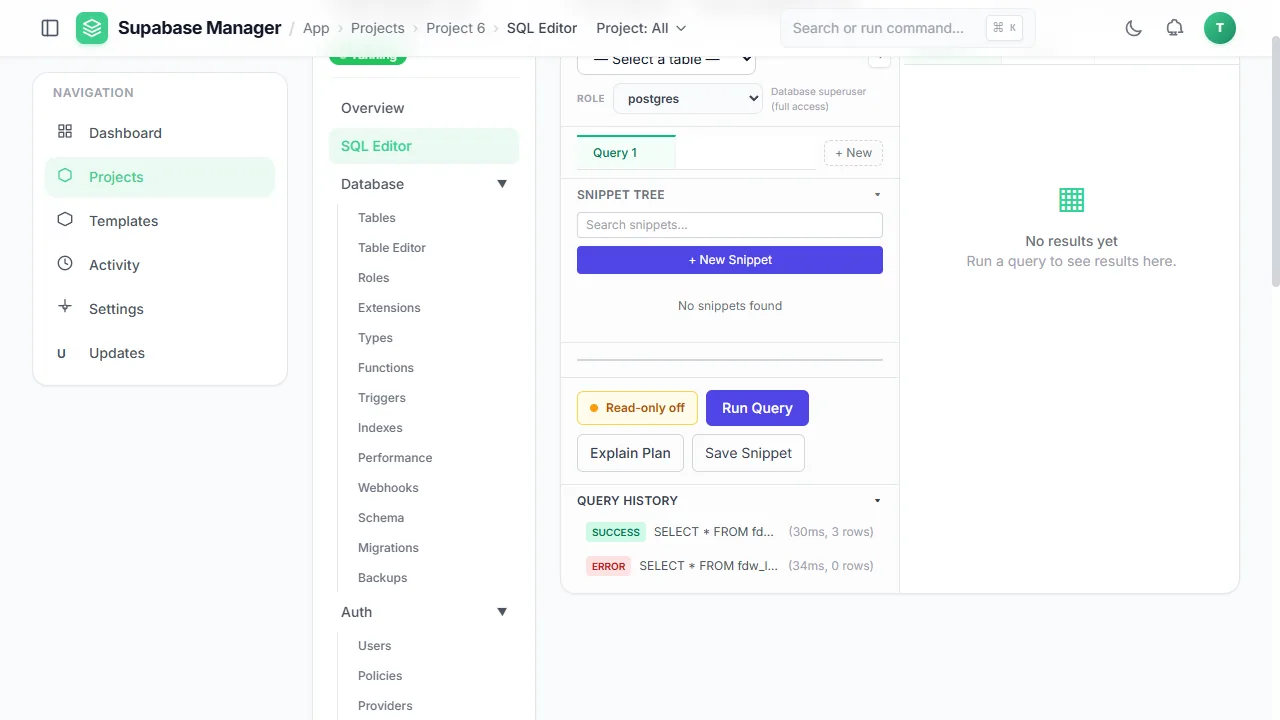
The SQL editor before a query is run, with the query history showing a success and an error.
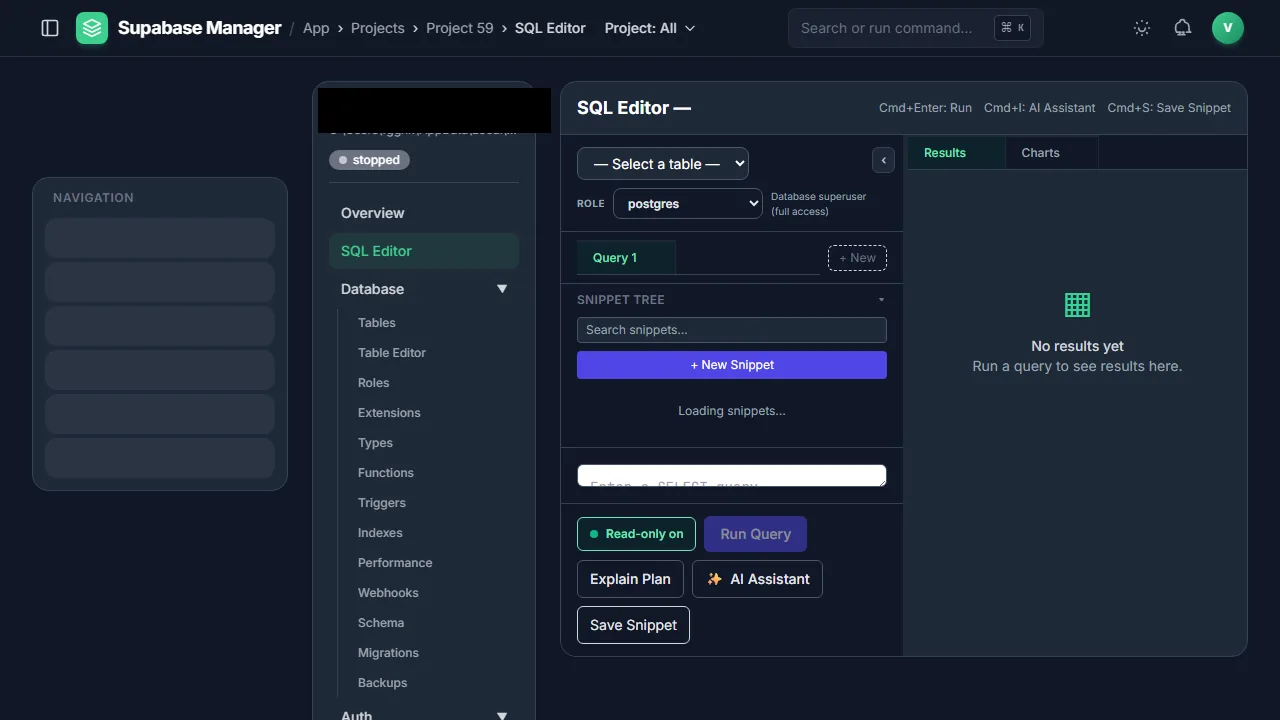
The SQL workbench combines snippets, role-aware execution, explain plans and an AI assistant.
Storage
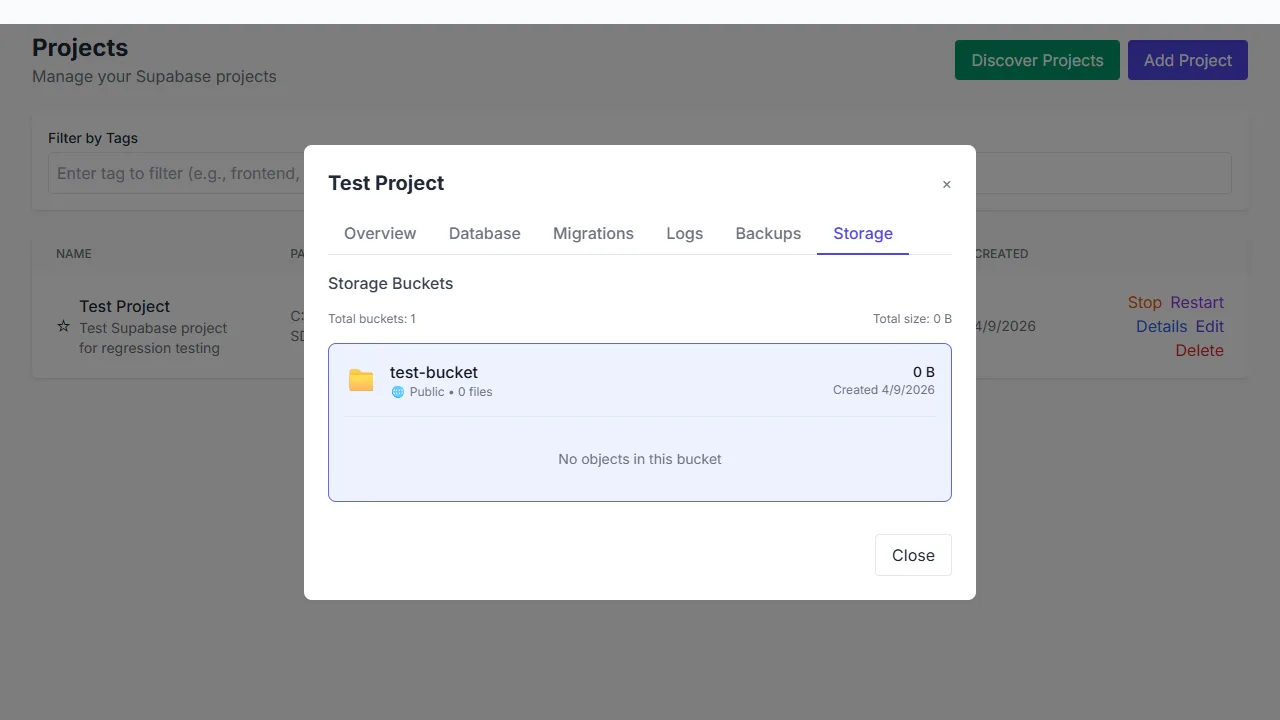
A storage bucket with its visibility and size; the object list is empty.
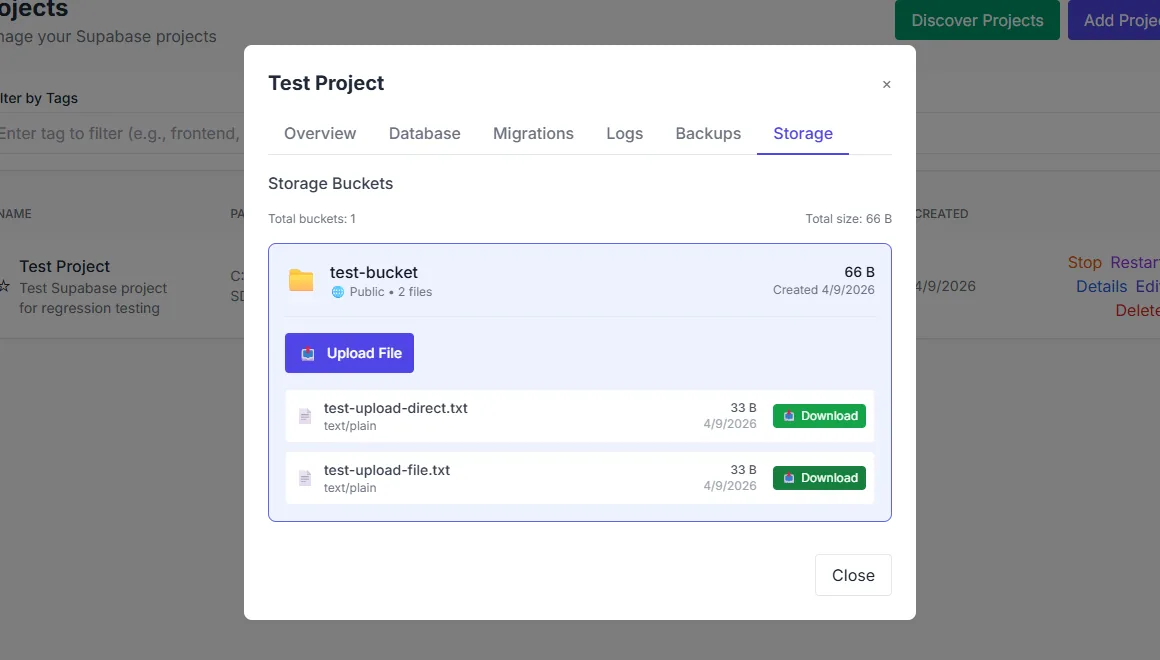
A storage object with its download action open.
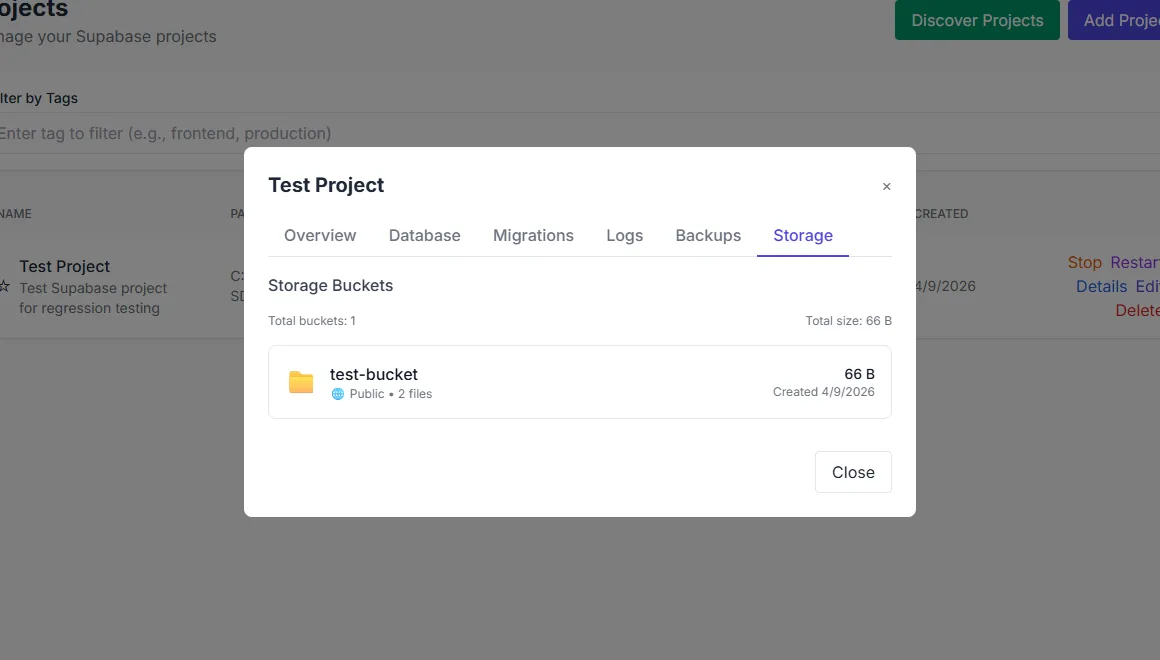
An uploaded file in the object list with its size.
Templates
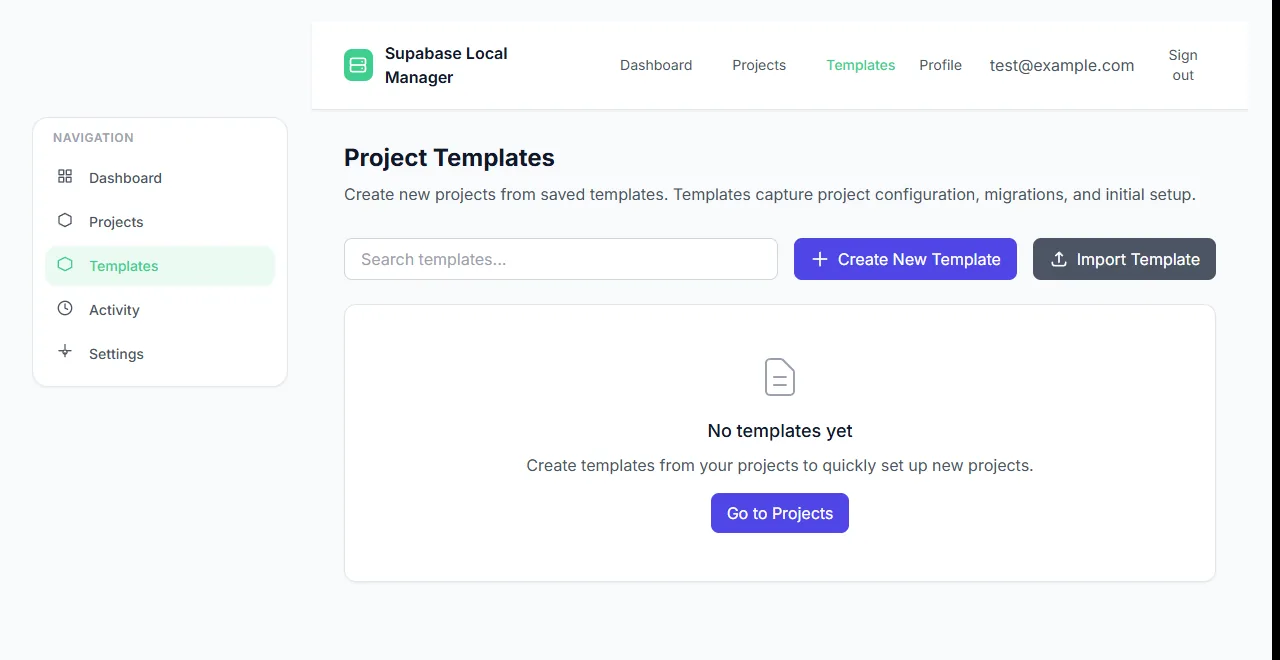
The templates page before any template exists, with the create and import actions.
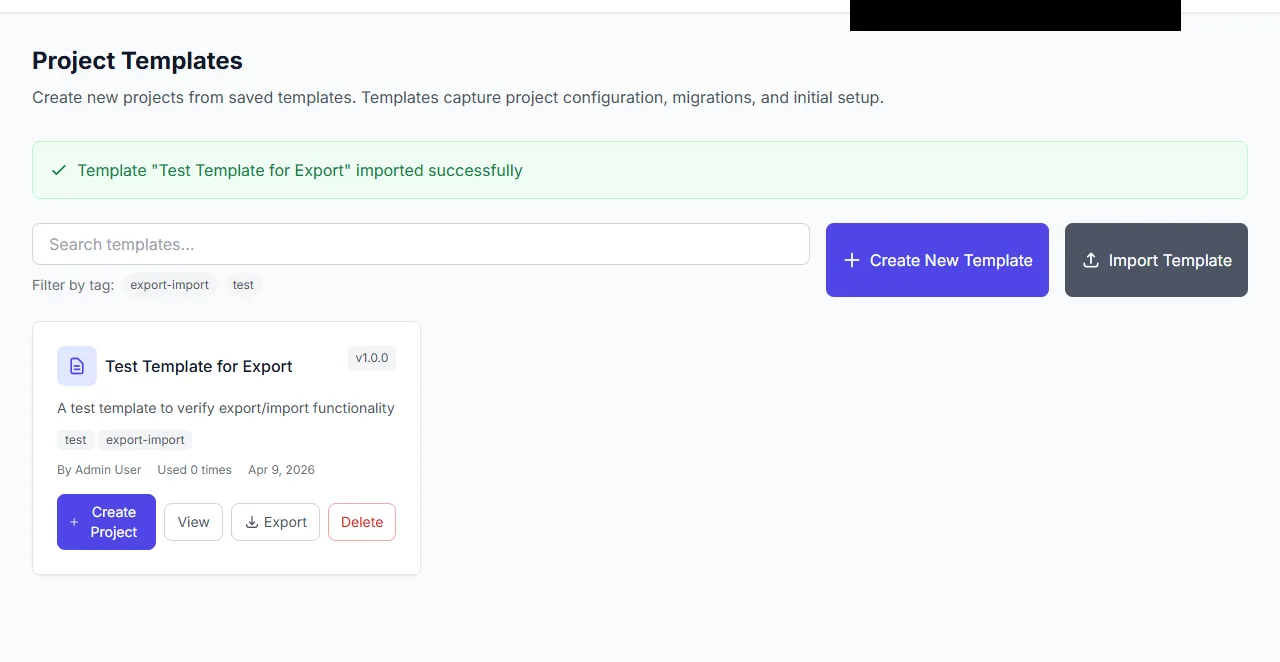
A template imported successfully, with its tags and actions.
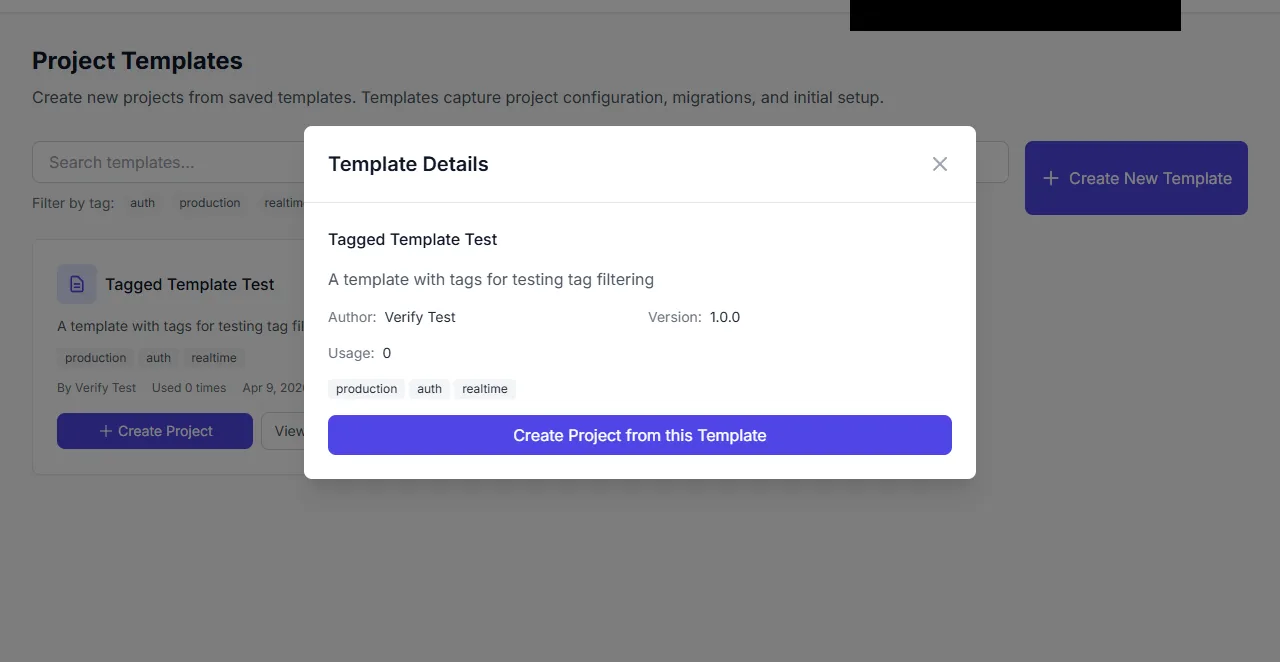
Template details with the action to create a project from the template.
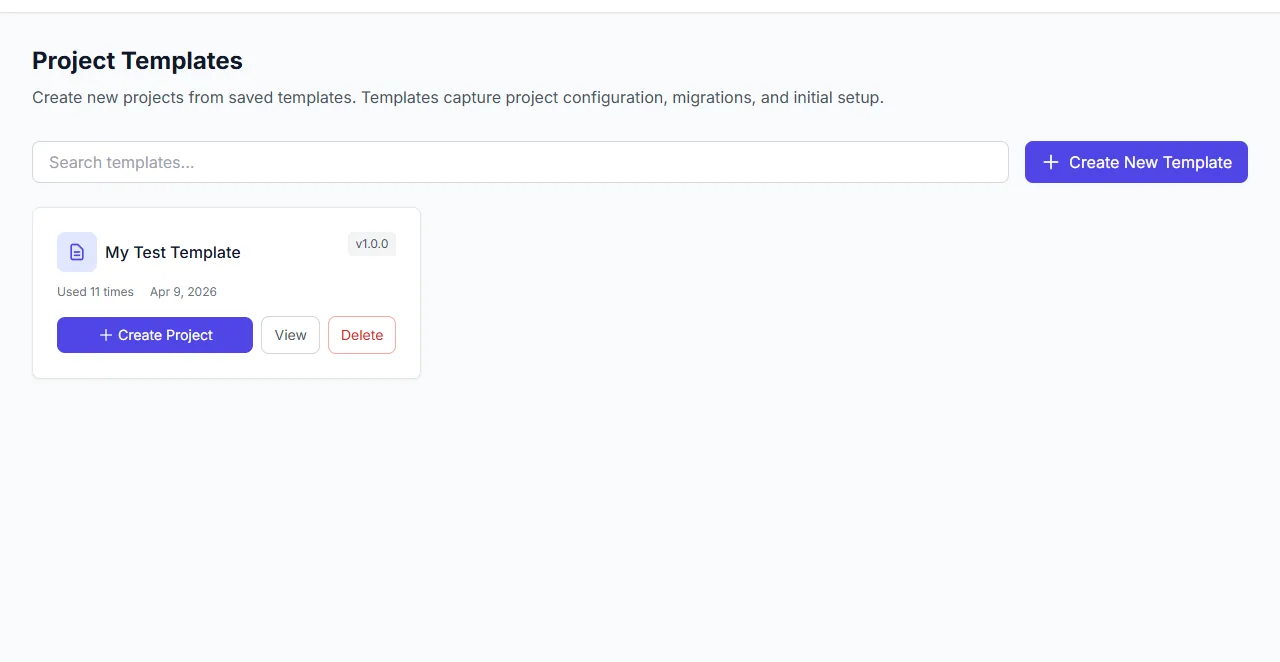
A template card offering Create Project.
Troubleshooting
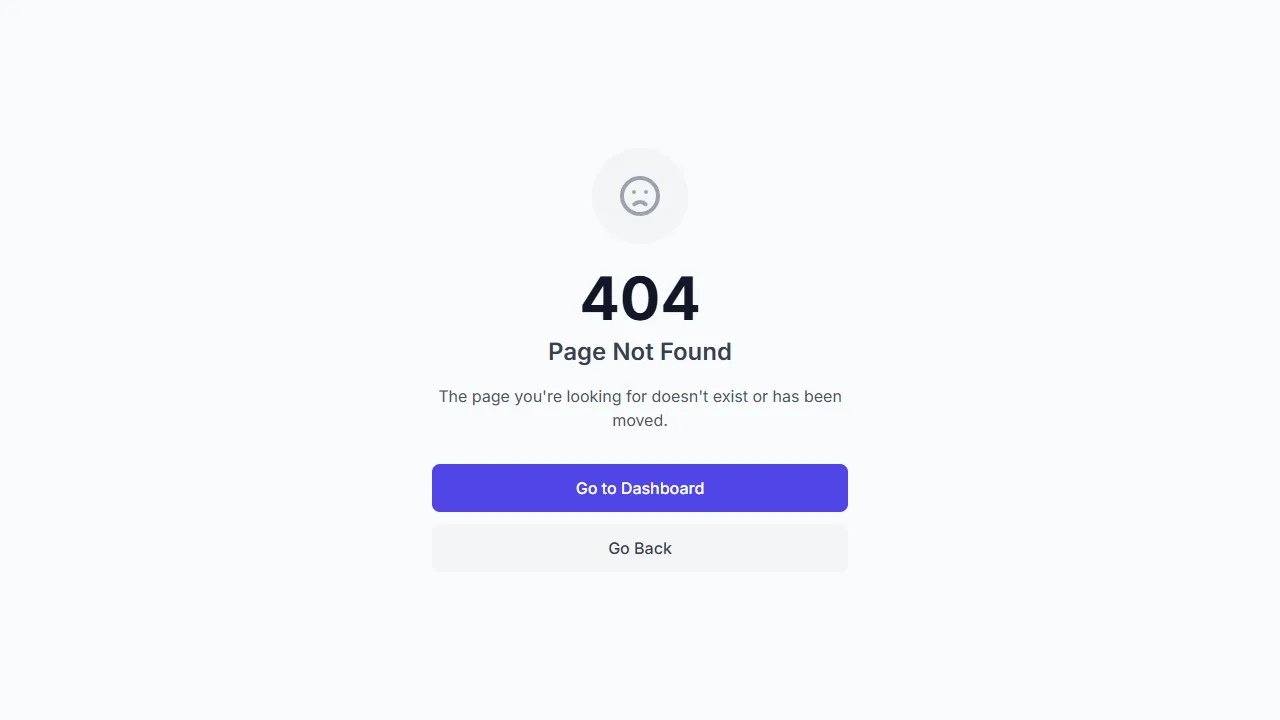
Unknown routes fall back to a friendly not-found page.