Quick start
The manager is a Node application. Install it, generate its environment file, start the dev stack, and sign in with the administrator account created during setup.
Before you begin
You need Node.js 18 or later and npm, a running Docker daemon for the projects themselves, and the Supabase CLI available through npx. The setup script refuses to continue without Node 18 or later; it warns about Docker and the CLI rather than failing, because the manager interface can start without them. A project cannot.
The product lives in my-supabase-app/. All commands below are run from that directory. The public site is documentation only; it does not host the product.
Prerequisites
| Requirement | Checked by | Why it is needed |
|---|---|---|
| Node.js 18 or later | Setup, launcher (hard failure) | The backend uses modern ESM and the global fetch API. |
| npm | Launcher | Installs the workspaces and runs the scripts. |
| Docker daemon | Setup and launcher (warning) | Runs each project's Supabase containers. |
| Supabase CLI via npx | Setup and launcher (warning) | The manager shells out to the CLI; it is downloaded on first use. |
Only Node is a hard prerequisite for the manager itself. Docker is required to start a project.
Install and start
Run these four commands from the repository root's my-supabase-app/ directory.
cd my-supabase-app
npm install
npm run setup
npm run dev
What setup does
The setup script checks the prerequisites, then creates my-supabase-app/.env. It generates a JWT_SECRET and a VAULT_MASTER_KEY, generates an administrator password, and writes the file with owner-only permissions. It prints the first administrator email and password once. Copy that password somewhere safe before you close the terminal; it is not printed again.
If .env already exists, setup validates that the required keys are present and does not overwrite your values. The --force flag regenerates the keys, which makes existing vault entries undecryptable. Use it only when you intend to start over.
The sign-in page
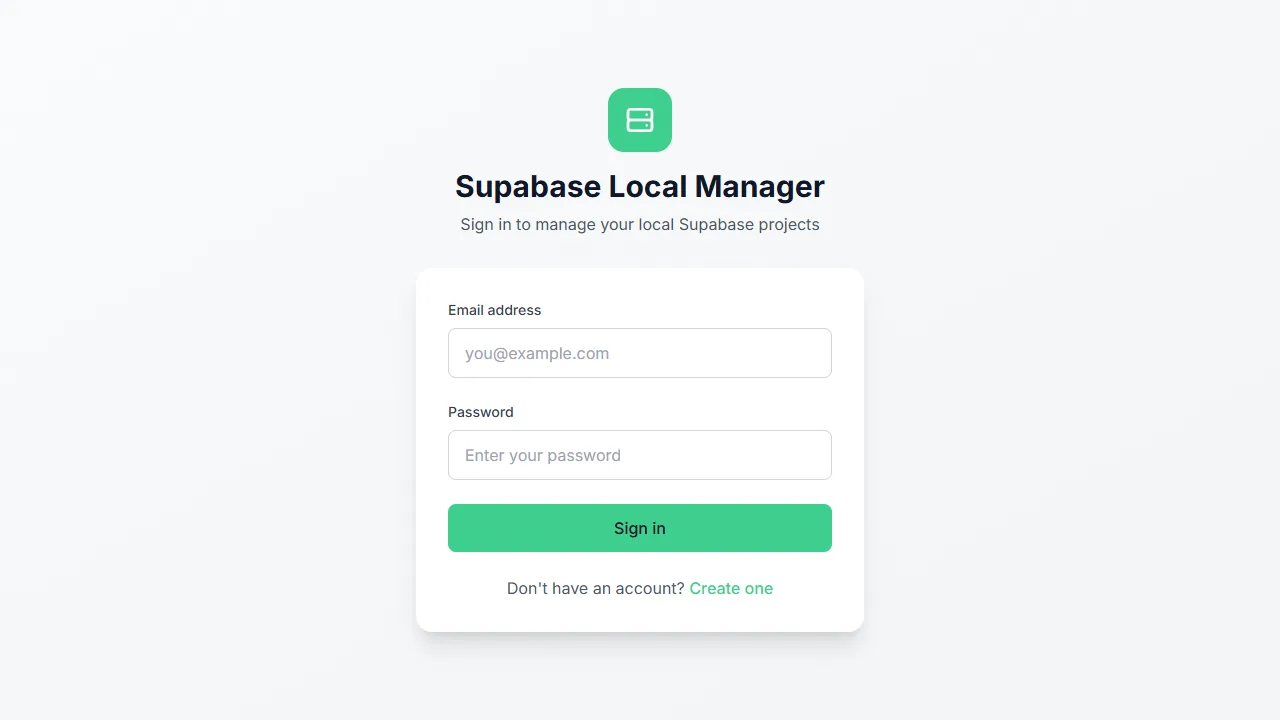
Sign in with the administrator account created during setup.
Open the dashboard
npm run dev starts the backend and the Vite frontend together. Open http://localhost:5173 and sign in with the administrator account. The dashboard starts empty: no projects, no templates, no activity.
In production, run npm start. The launcher checks prerequisites, frees the manager and proxy ports from orphaned processes, builds the web and backend bundles if they are missing, and serves the built interface on the manager port.
Platform guides
Windows
Docker Desktop, PowerShell helpers and the cross-platform launcher.
Windows
Open windowsmacOS
Homebrew or the official installer, Docker Desktop and the terminal steps.
macOS
Open macosLinux
Docker Engine, NodeSource or a version manager, and the terminal steps.
Linux
Open linuxYour first stack
Create a project, start it, and open every surface with real screens.
Guided walkthrough
Open your first stackPorts you will meet
| Thing | Default |
|---|---|
| Manager API and WebSocket | PORT from the environment file (example: 24084; code fallback: 24085), bound to 127.0.0.1 |
| Frontend in development | 5173 |
| Path-routed front door | 6000 |
| Subdomain proxy | 9000 |
| Shared PgBouncer pooler | 6432 |
| Per-project services | A reserved block of 11 ports from the 60000 band |
Every managed project receives its own block. Two projects never share a service port.
If it does not start
The troubleshooting guide covers the verified cases: a wedged Windows launcher, a port already in use, a Vite proxy pointing at the wrong port, a missing signing key, Docker not running, a subdomain that does not resolve, a locked manager database, a front-door port held by another process, and a CLI that is not found.