Dashboard and project overview
One control room for every stack, and one overview for each project's services, endpoints and advisor results.
What it is
The dashboard is the first screen after sign-in and the manager's control room. It answers three questions in one view: how many projects exist, whether the machine can run them, and what has happened recently. It reads project statistics, the ten most recent activity entries, system health and the front-door status in parallel, so one slow check does not hide the others.
Each project then has an overview of its own. That page brings service health, the stable entry URLs, masked API keys, client snippets, resource usage and the latest advisor results together. It is the page you keep open while working on a stack.
Why you need it
When several stacks are running, the useful question is rarely about one container. It is whether the machine is healthy, which projects are up, whether the front door is answering, and what changed since you last looked. The dashboard turns those questions into a single glance instead of a sequence of CLI commands. The per-project overview then replaces the notes people keep about which port belongs to which service.
The dashboard and a project overview
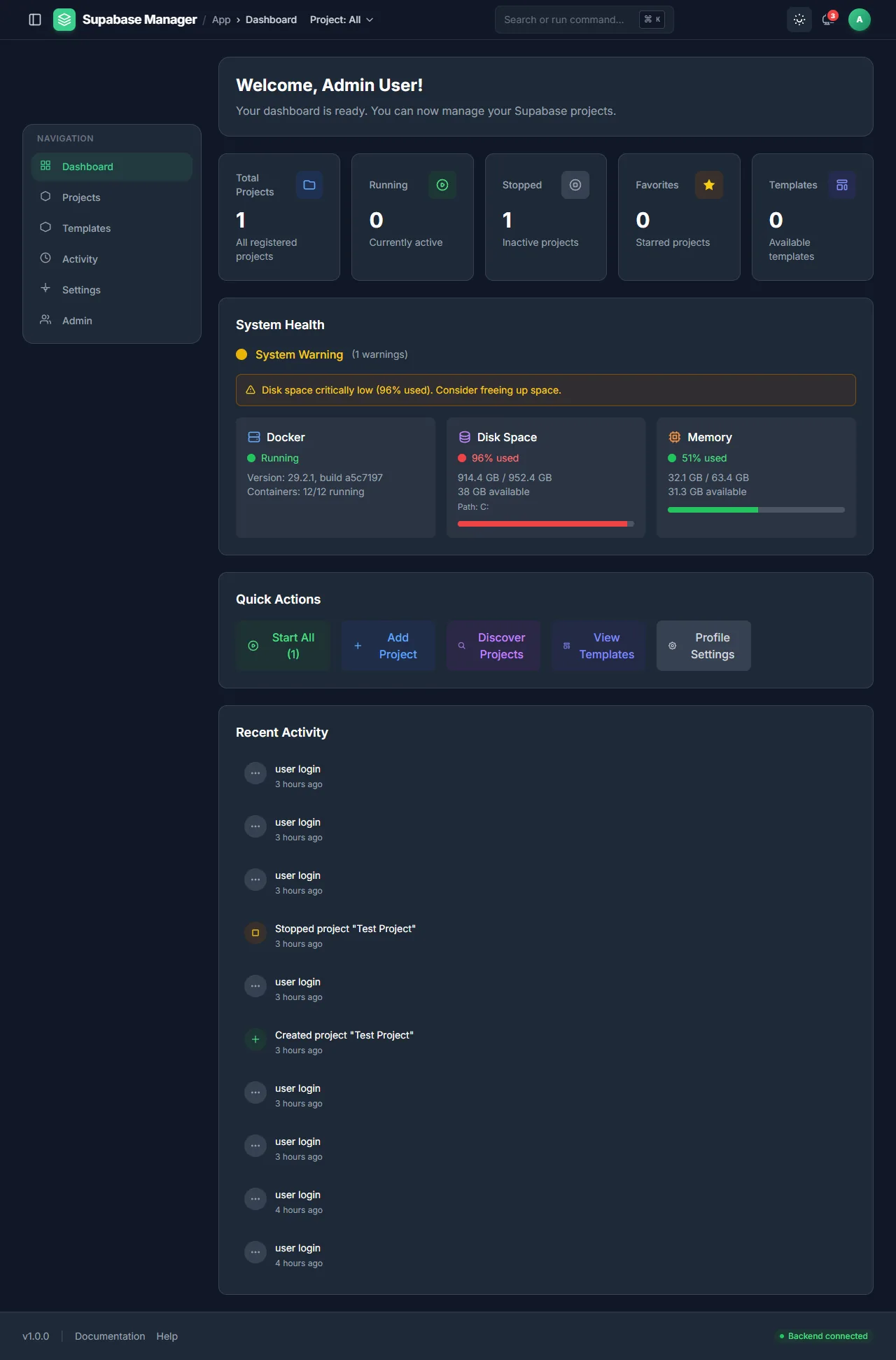
The control room: project counts, system health, quick actions and recent activity.
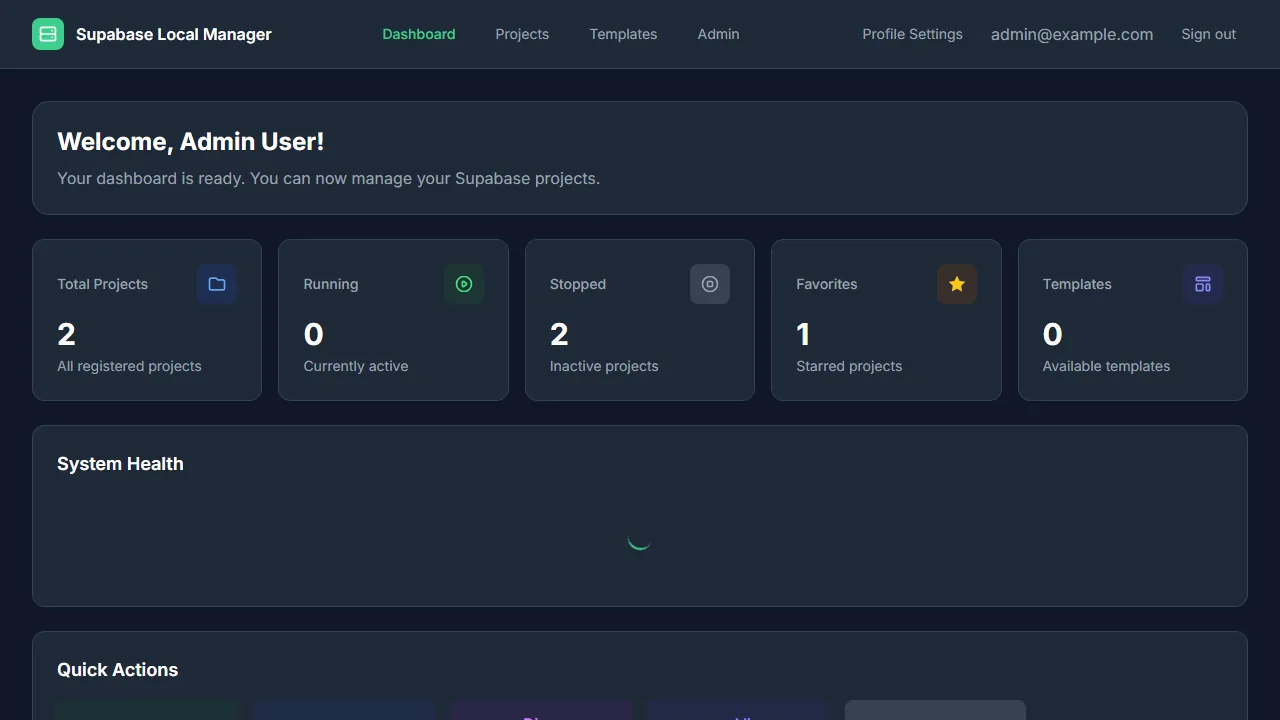
A compact view of every project and the most recent manager activity.
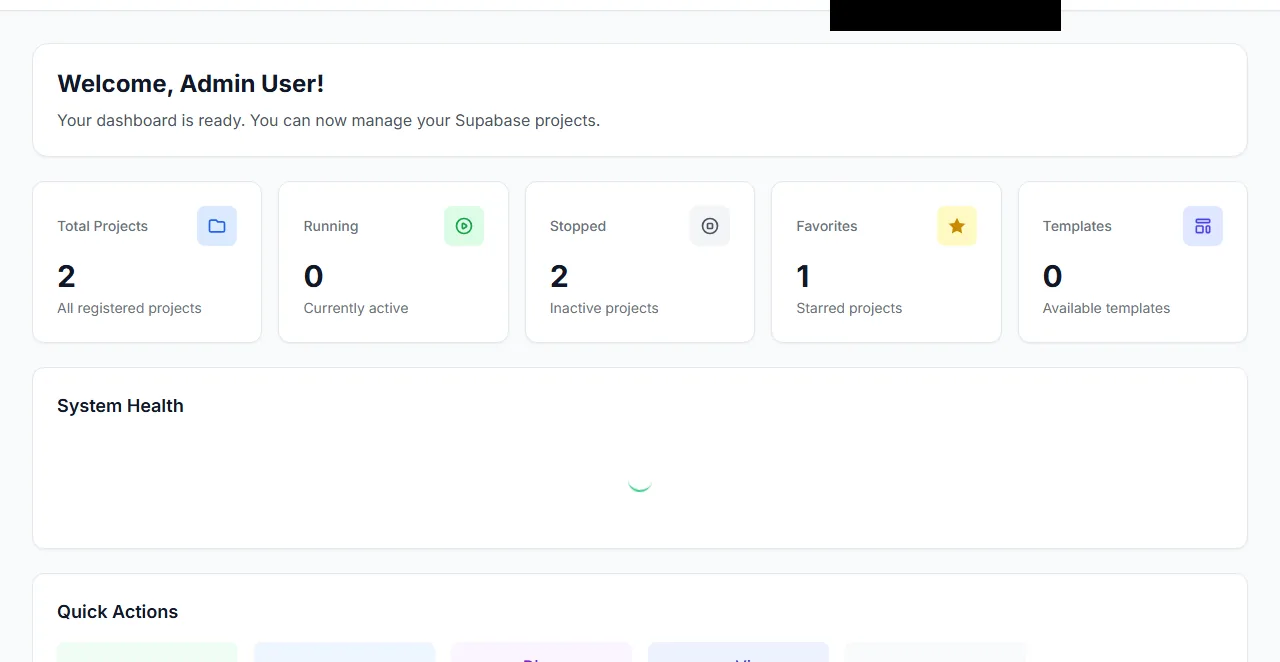
The same control room in light mode, persisted per user.
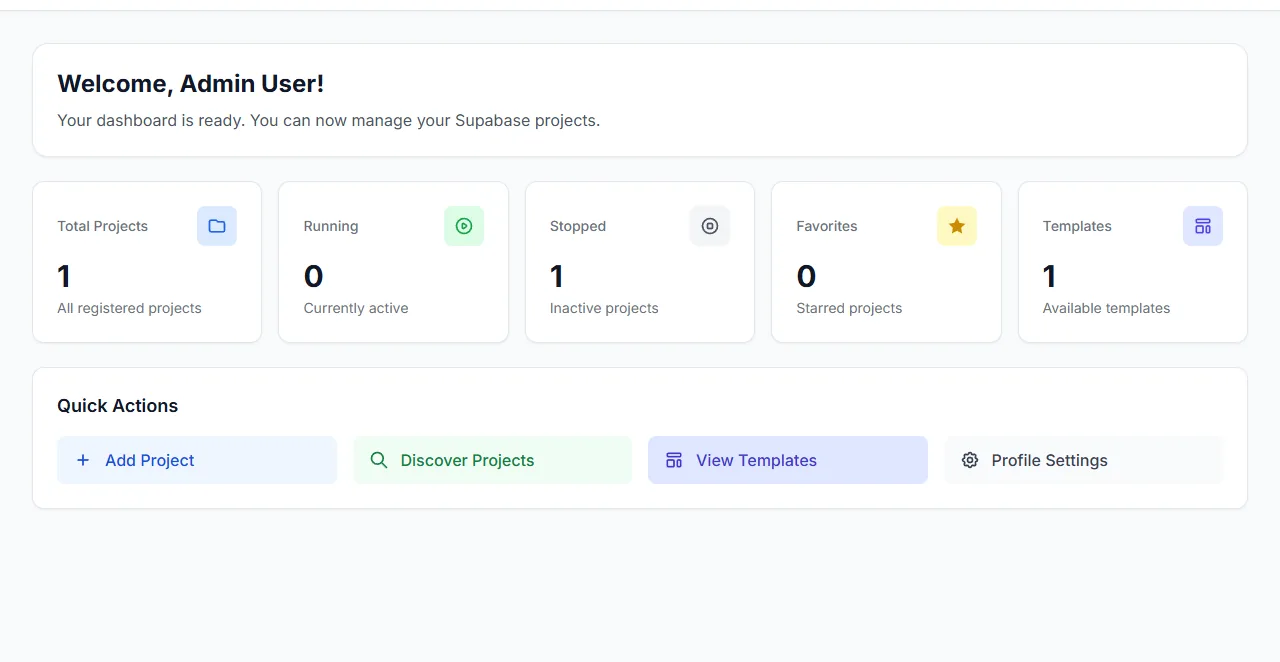
Project counts and system health, visible at a glance.
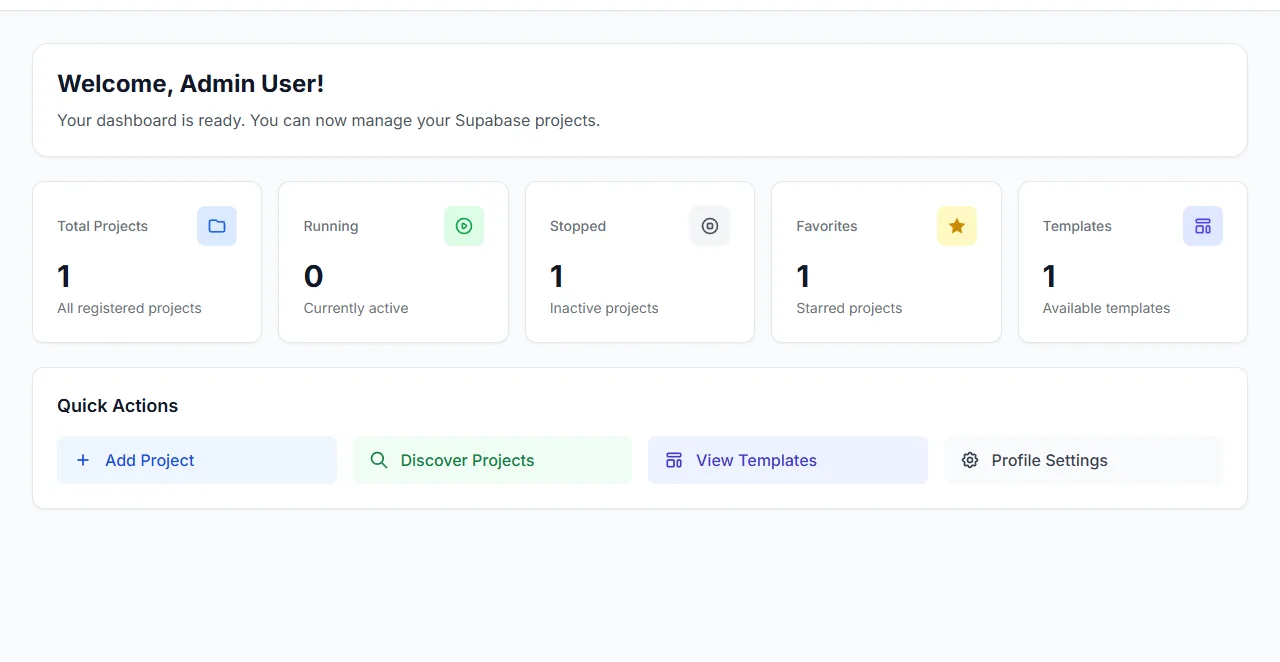
Favourites keep the projects you touch most within reach.
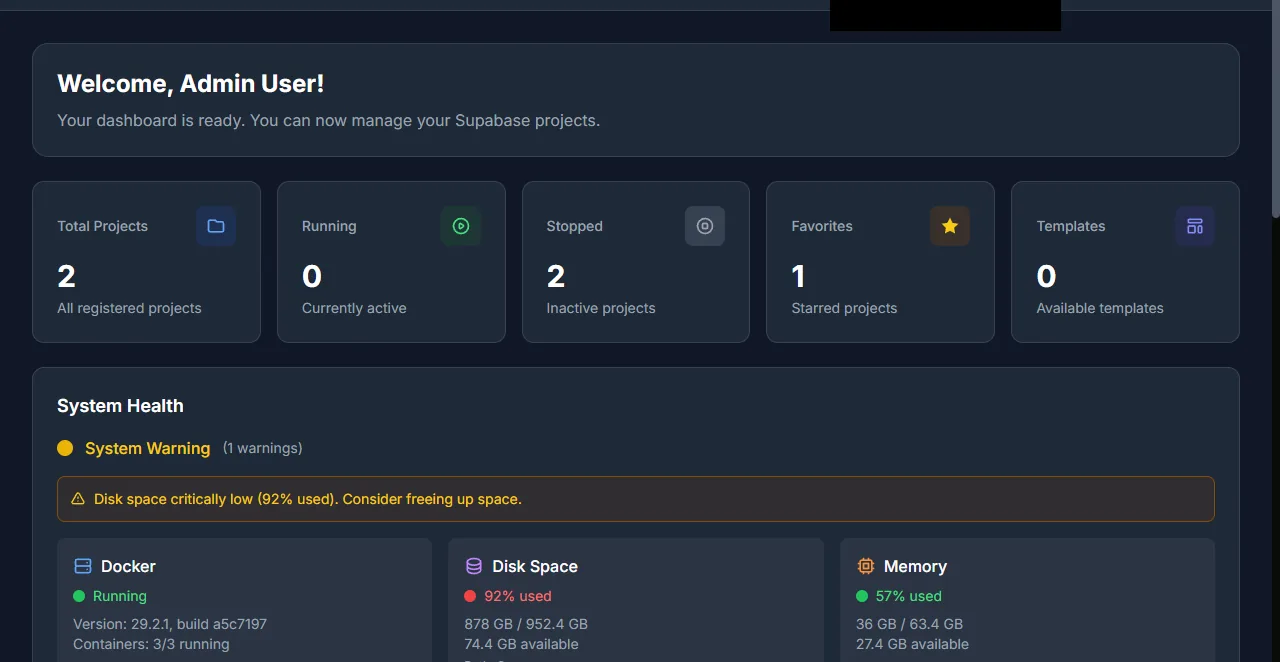
System health reports whether the manager can drive Docker and reach its own ports.
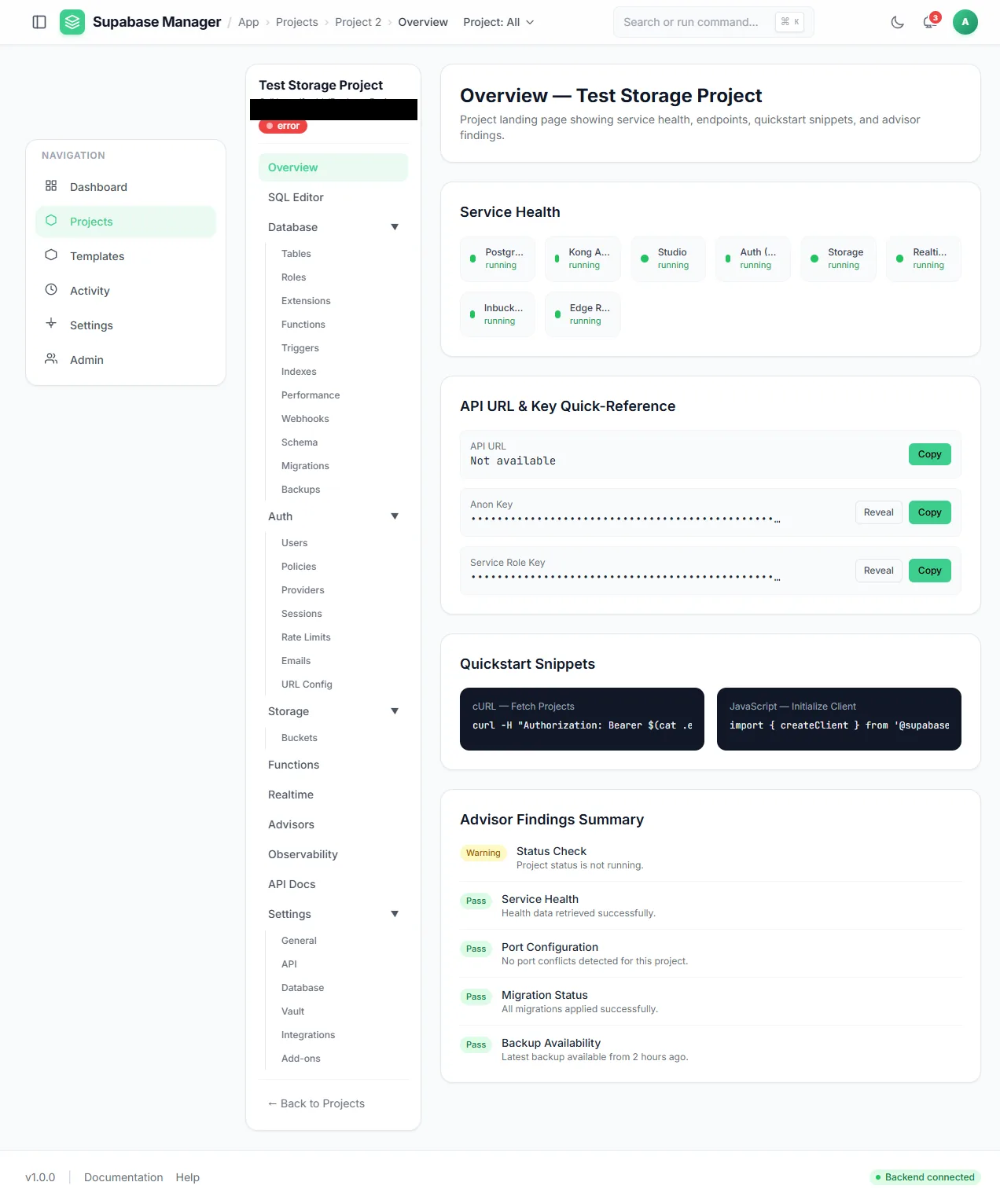
A single project overview: service health, masked keys, client snippets and advisor results.
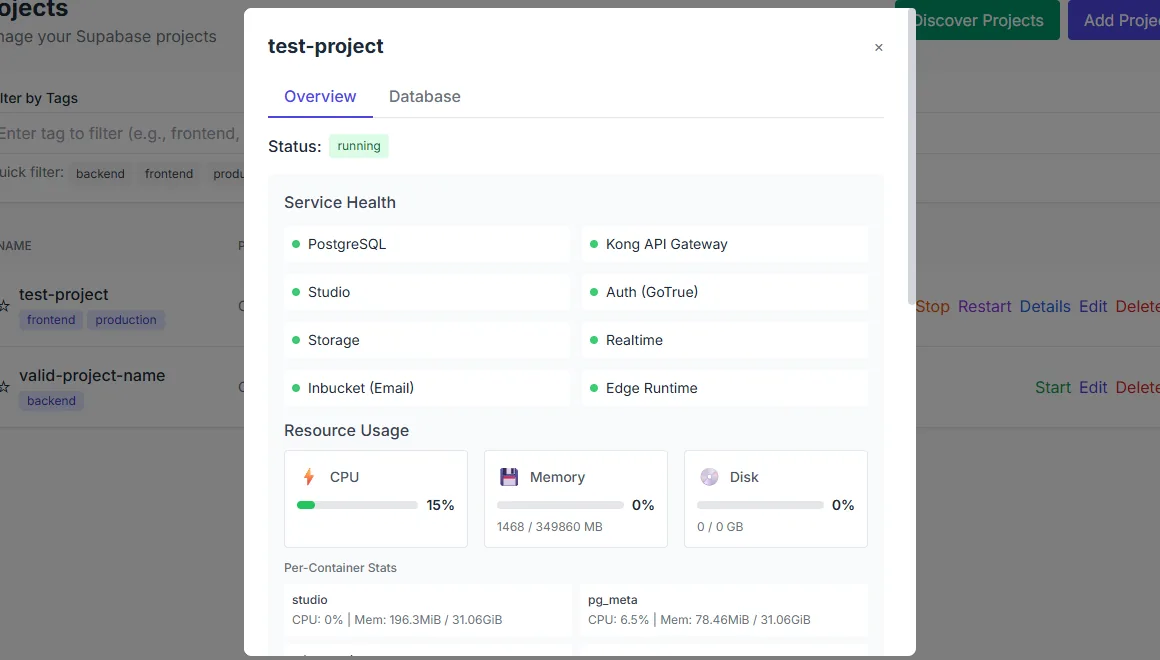
The per-project workbench switches between its main surfaces.
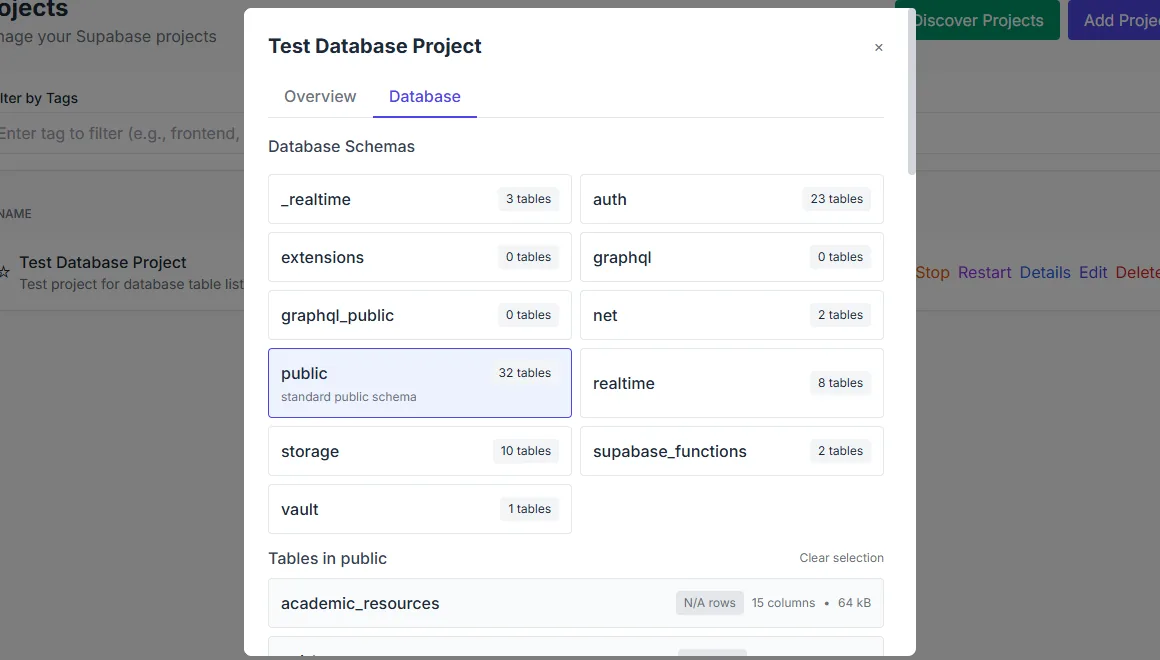
Table counts give a quick sense of what is in each schema.
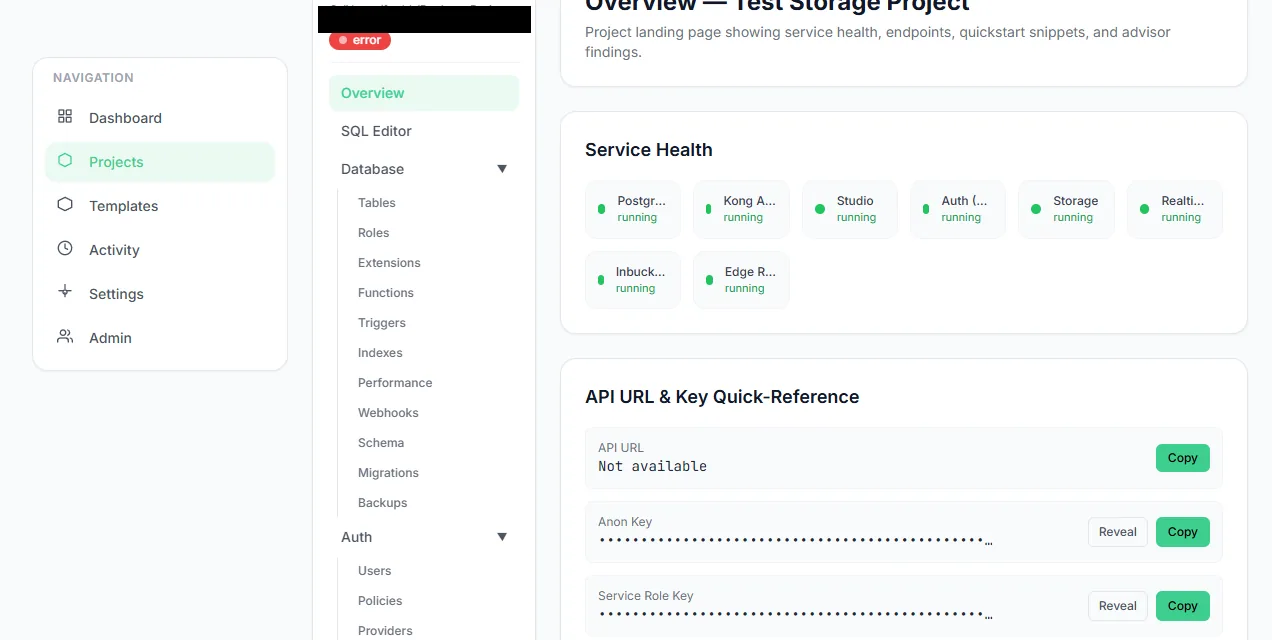
Each project exposes its running services and client endpoints.
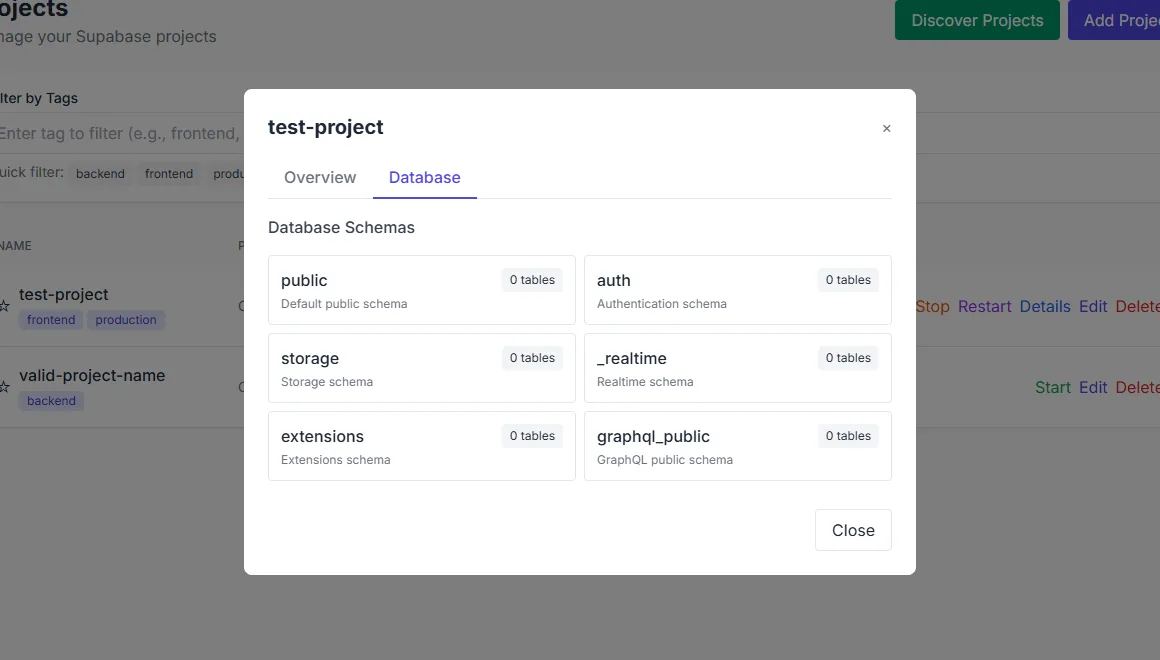
The Database tab opens the per-project explorer directly.
What you see
The top row summarises the estate: total projects, running, stopped, favourites and templates. Each number is a live count from the manager database, and each is a link into the matching view. System health reports Docker availability, disk space and memory, with a warning card when something needs attention. Quick actions start or stop every project, open the project list, reveal templates or open profile settings. The activity feed records project and account events with relative times.
A project overview carries per-service status for Postgres, Kong, Studio, Auth, Storage, Realtime, Inbucket and the edge runtime. When a health call fails, the page reports the service as unknown rather than inventing a healthy state. Below that sit the front-door and subdomain URLs, masked anon and service-role keys with copy and reveal controls, a client snippet, the reserved port block and a summary of advisor findings.
How to use it
Sign in
Use the administrator account created by the setup script. The dashboard is the default destination after sign-in.
Read system health first
A Docker warning or a low-disk warning explains most failed project starts before you open a project.
Open a project from the counts
Running, stopped and favourites are links. The project overview shows service health and the entry URLs.
Copy a client endpoint
Use the front-door URL and the anon key for a stable client configuration that survives restarts.
Check activity
The feed shows recent project actions and account events, which is often enough to explain a change.
Behaviour and limits
The dashboard loads its four data sources independently. If one fails, the others still render, and the failing panel shows an error state instead of stale numbers. The health panel distinguishes a running Docker daemon from a reachable one, and it reports disk and memory from the host. Resource usage on a project overview is polled; it is a point-in-time sample, not a historical chart. Historical traffic lives in Observability.
Activity is capped at the most recent entries. It is an operational feed, not an audit log. Manager authentication events have their own surfaces in Admin.
Configuration
Where you see it
The dashboard is the default route after sign-in. The per-project overview is the first item in a project's sidebar, and its health, URL and key panels are also summarised on the dashboard's own project cards. Quick actions at the bottom of the dashboard open the project list, the discovery flow, templates and profile settings.
Working with it
Use the dashboard as a check, not a workspace. A healthy dashboard means the manager can reach Docker and its own ports; it does not mean every project is healthy. Open the project whose count looks wrong and read the per-service rows. A red or unknown service is the one to investigate, and the logs page for that service is one click away.
When a project is running, copy its front-door URL and anon key into the client you are testing. That pair survives restarts, while the raw service ports do not. Keep the service-role key out of the client entirely; the overview masks it for the same reason.