Templates
Capture a project's configuration, migrations and initial setup, then start the next project from it.
What it is
Templates capture a project's configuration, migrations and initial setup so a new project can start from the same shape. The Templates page lists saved templates, shows a template's details, creates a project from one, exports and imports template bundles, and deletes a template with confirmation.
A template is a saved description, not a copy of your data. Creating a project from a template writes the configuration and migrations into a new project folder; the original project's runtime data is not cloned.
Why you need it
Teams repeat the same local setup: the same extensions, the same auth providers, the same baseline migration. Rebuilding it by hand invites drift. A template makes the baseline explicit and repeatable, and an exported bundle lets another machine start from the same definition.
Templates, import and project creation
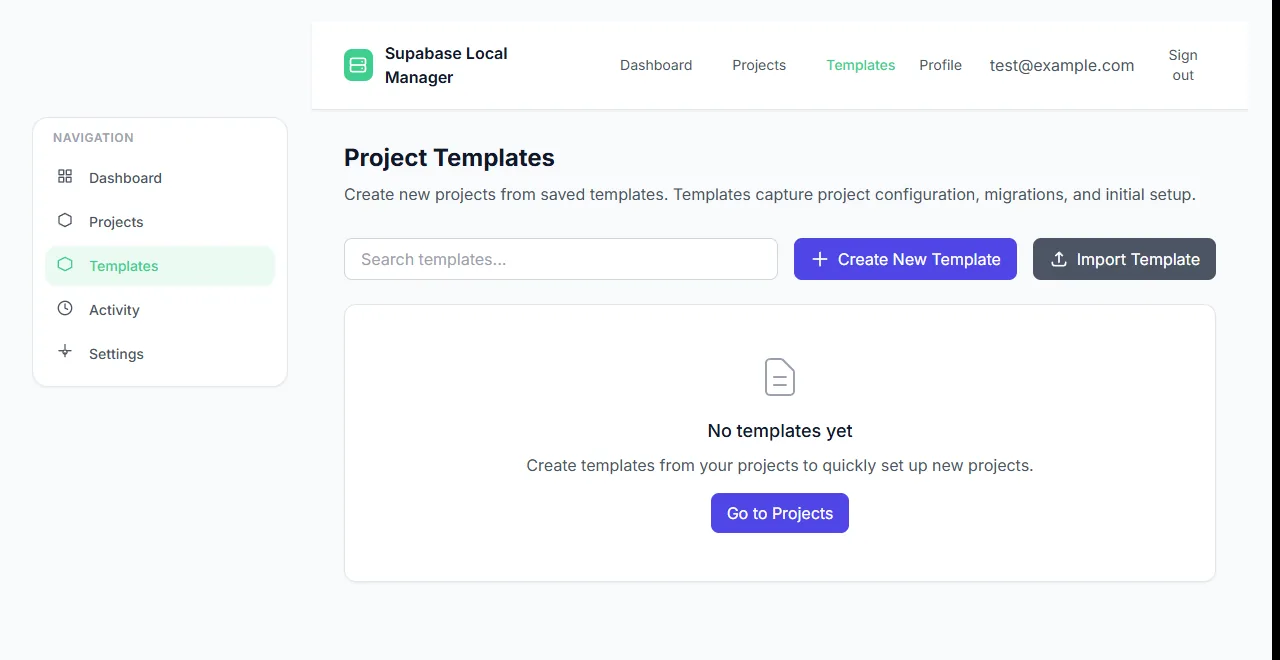
The templates page before any template exists, with the create and import actions.
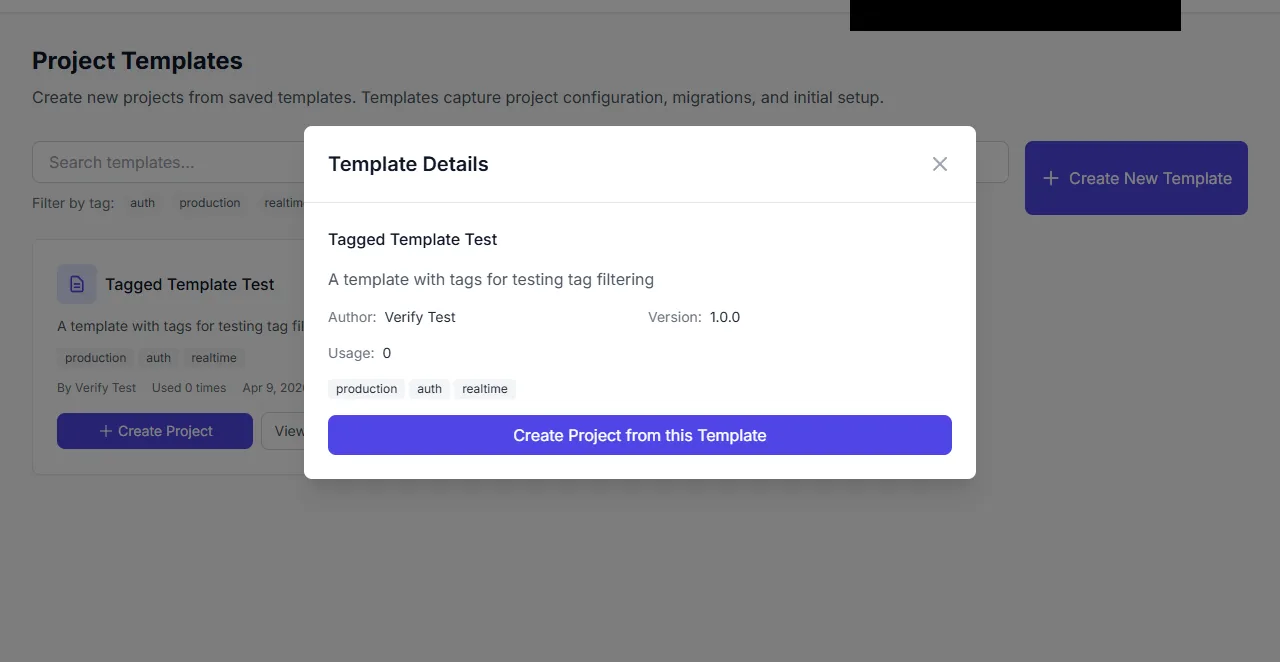
Template details with the action to create a project from the template.
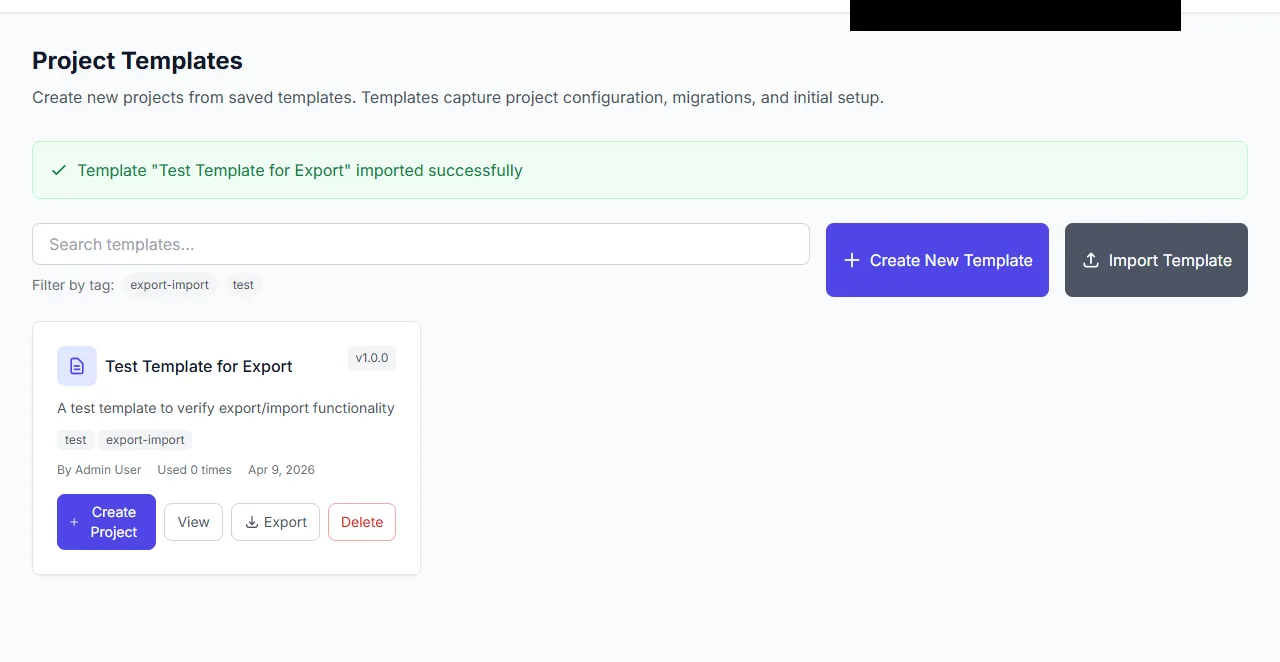
A template imported successfully, with its tags and actions.
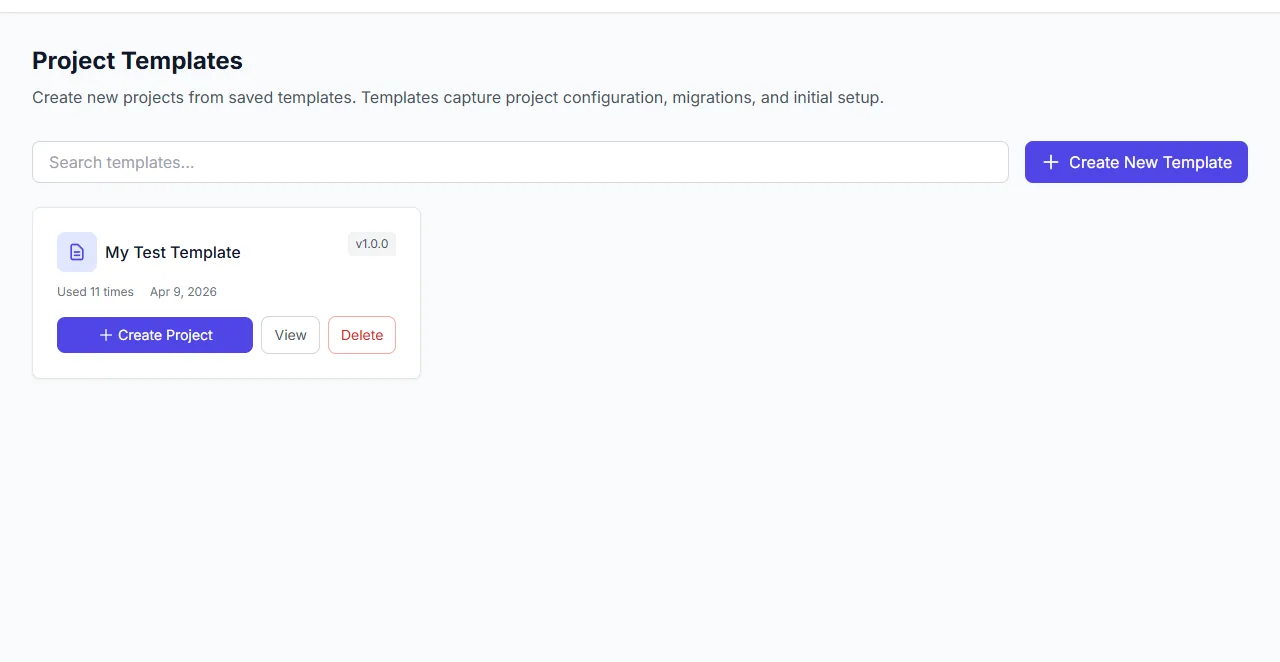
A template card offering Create Project.
What you see
The gallery lists templates as cards with a name, a description, tags, a version and usage count. The detail view shows the template's configuration and offers Create Project. Export writes a portable bundle; import reads one back and reports success. Deleting a template asks for confirmation. The empty state explains that templates are created from a saved project.
How to use it
Create the template
Save an existing project as a template after its configuration and migrations are in the state you want to repeat.
Review its details
Check the configuration and tags before sharing it; a template is only as good as what it captured.
Create a project
Choose Create Project from the template and give the new project a name and folder.
Export when you need portability
Export the template as a bundle and import it on the other machine.
Delete with confirmation
Removing a template does not remove projects that were created from it.
Behaviour and limits
Templates carry configuration and migrations, not the source project's database rows or storage objects. A template imported from another machine may reference paths or settings that do not exist there, so review it after import. Version labels are descriptive; they do not imply an upgrade path.
Deleting a template is separate from deleting a project. The projects created from a template keep their own files and records.
Configuration
Where you see it
Templates is a top-level navigation item. The gallery lists saved templates, the detail view shows one template, and the template is applied through the project creation flow. Export and import live on the same page.
Working with it
Build the baseline once, verify it in a real project, then save it as a template. A template saved too early captures an experiment rather than a baseline. Give it a name and description that say what it is for, and tag it so the gallery stays navigable when there are several.
Before you apply a template, read its details. After the new project starts, check its allocated ports and paths; a template carries configuration, not a guarantee that the target machine has the same directories. Export the template when you need the same baseline on another machine.
Typical tasks
- Save a verified project as a template.
- Create a new project from that template.
- Export the template as a portable bundle.
- Import a template on another machine and review it.
- Delete a template with confirmation.
Versioning a template
Treat a template like a small release. Give it a version label and a description that says what changed, and keep the previous bundle if projects already depend on it. A template that silently changes underneath a team is a source of drift rather than a cure for it. When a template is superseded, export the old one before you delete it if any existing project was created from it.
Imported templates deserve a review step. The configuration may name paths or domains that exist on the machine that exported it and not on yours. Create a project, start it, and check the allocated ports before you hand it to anyone else.
In one sentence
A template is a saved starting point for configuration and migrations, applied to a new project and exported when another machine needs the same baseline. Review an imported template on the target machine, because its configuration may name paths that do not exist there.